Create and manage your EAs
Purpose
The My EAs tab on the Strategies page holds your private Expert
Advisors — EAs you uploaded as compiled .ex5 binaries or registered from
MQL5 Studio. Only you can see and
deploy them. From here you create an EA, manage its presets (saved
parameter sets targeting a symbol and timeframe), edit its details, run
backtests, and delete it.
Prerequisites
- A signed-in Senti account.
- A compiled
.ex5file (max 20 MB) if you are uploading your own EA. Source files (.mq5) cannot be uploaded here — compile them first, or use MQL5 Studio to author and compile in the browser. - Free EA quota. Your plan limits how many private EAs you can keep; at the limit the page shows “You have reached the limit of {max} EAs — delete one before creating another.”
Step-by-step
Create an EA (upload a .ex5)
-
Open My EAs. Go to Strategies and select the My EAs tab. If you have none yet you’ll see “You haven’t created any EAs yet — upload your own .ex5 to deploy it privately on your accounts.”
-
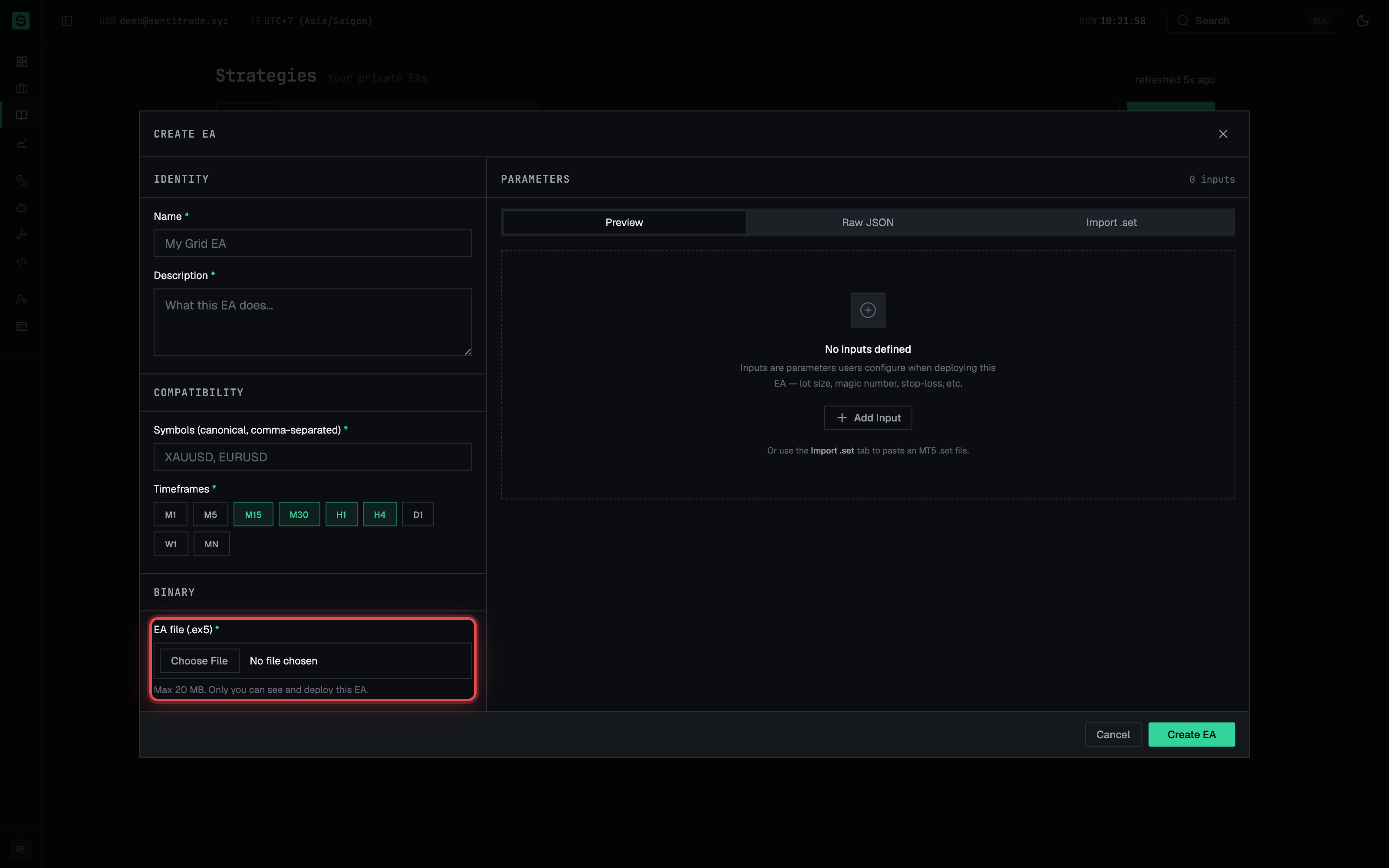
Press Create EA. The Create EA dialog opens with sections Identity, Compatibility, Binary, Parameters, and Presets.
-
Fill in Identity. Enter a Name (e.g. My Grid EA) and a Description of what the EA does. Both are required.
-
Set Compatibility. Enter Symbols (canonical, comma-separated) — e.g.
XAUUSD, EURUSD— and select the supported Timeframes. At least one of each is required; deployments and presets are restricted to these. -
Upload the binary. In EA file (.ex5), choose your compiled file. The hint reads “Max 20 MB. Only you can see and deploy this EA.” The file must be a
.ex5— anything else is rejected with “File must be a .ex5 binary.” -
Define Parameters (optional). List the EA’s tunable inputs so presets and the deploy dialog can override them. An EA with no parameters deploys with no adjustable settings.
-
Press Create EA. Watch the staged progress: Hashing… → Requesting upload URL… → Uploading… → Creating EA…. When it finishes, the EA appears in the My EAs table with columns Name, Symbols, Timeframes, Presets, Created, and Actions.
Manage presets
-
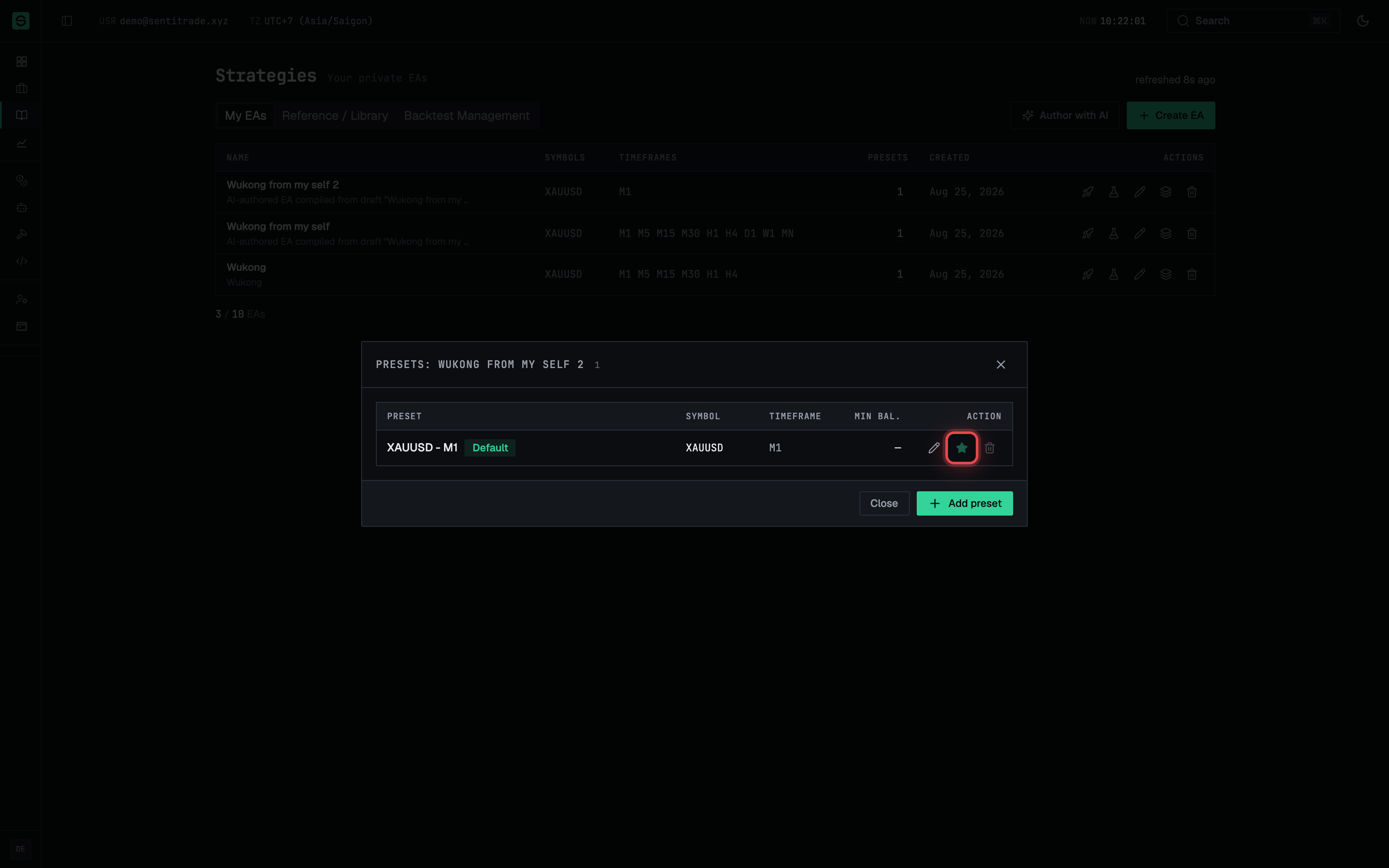
Open the preset manager. In the EA’s row, use Manage presets (also reachable from the Edit EA dialog’s Presets section). The manager lists each Preset with its Symbol, Timeframe, and Min bal., and marks the Default one.
-
Add a preset. Press Add preset, name it (e.g. XAUUSD Conservative), pick its Symbol and Timeframe under Targeting, and optionally set Min Balance (USD) — “Optional — blocks deploy when account balance is below.” Fill in the input values, then press Add preset.
-
Set the default. Press Set as default on the preset the EA should deploy with when no other is chosen — “The EA deploys this preset unless another is chosen.”
-
Delete a preset. Press Delete preset and confirm — “This permanently removes the preset. This cannot be undone.” Two guards apply: “The only preset cannot be deleted.” and, for the default preset, “Set another preset as default before deleting this one.”
Note. “Preset changes are saved immediately and are not affected by Save changes.” — closing the Edit EA dialog without saving does not roll back preset edits.
Edit, backtest, or delete an EA
-
Edit. Press Edit in the row to reopen the dialog as Edit EA. Identity and Compatibility work as at creation; press Save changes when done. If you changed compatibility, save before touching presets — “Save compatibility changes before adding or editing presets.”
-
Deploy or backtest. Deploy opens the deploy wizard (Deploy an EA). Run backtest starts a backtest — it is disabled for an inactive EA with the tooltip “Activate this EA to run a backtest”.
-
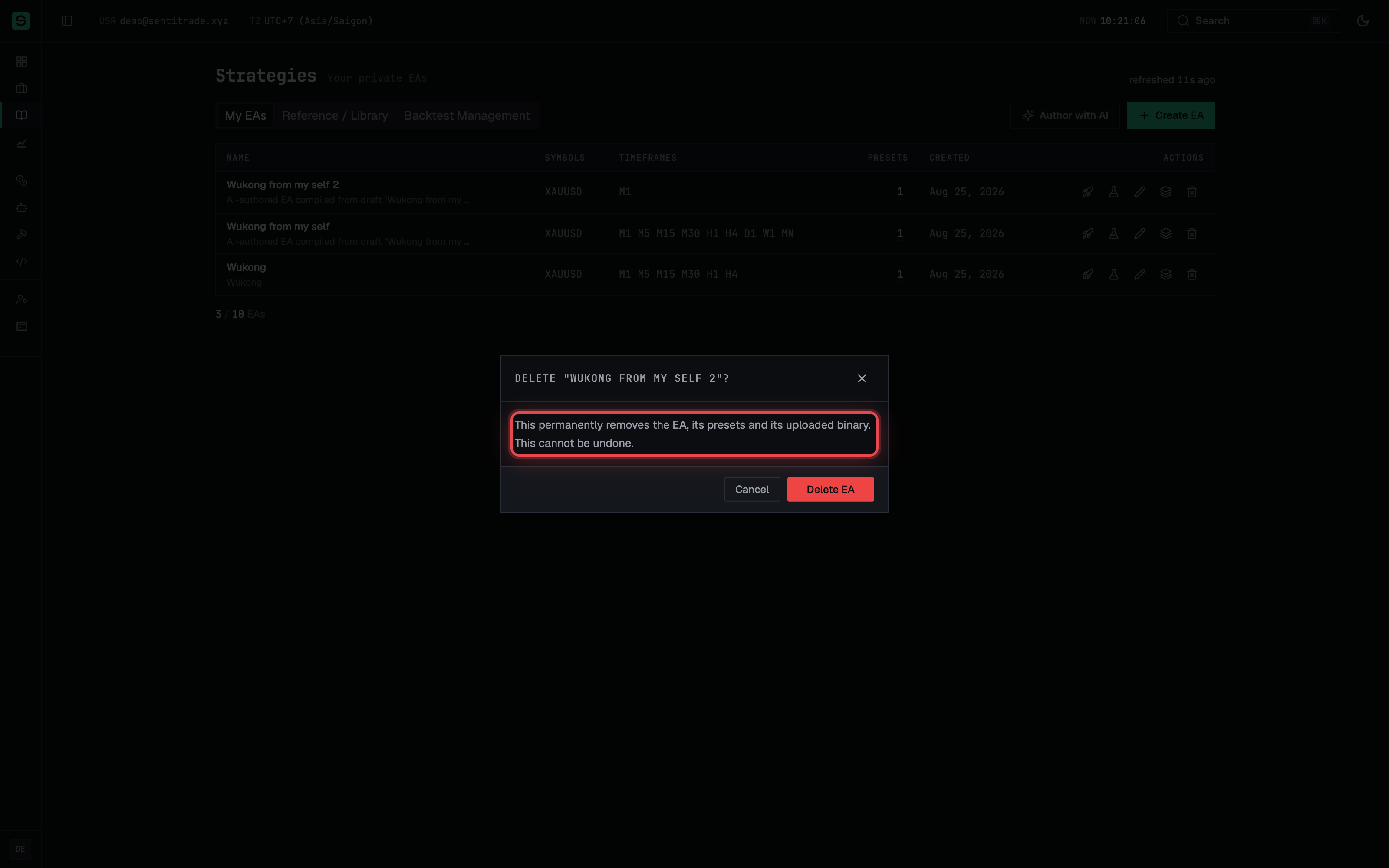
Delete. Press Delete. The confirmation dialog — Delete “{name}”? — warns: “This permanently removes the EA, its presets and its uploaded binary. This cannot be undone.” Press Delete EA to confirm.
Warnings & constraints
⚠️ Deleting an EA is permanent. It removes the EA, all its presets and the uploaded binary. There is no undo and no recycle bin — keep your own copy of the
.ex5.
⚠️ An EA with running deployments cannot be deleted. You’ll get “Stop this EA’s {count} running deployments before deleting it.” — stop them from the account page first (Manage running EAs).
Note. Private EAs are visible and deployable only by you — they never appear in the public catalog or to other users.
.ex5uploads are capped at 20 MB; only compiled binaries are accepted.- Your plan caps the number of private EAs. At the limit, delete one before creating another.
- Preset Min Balance is enforced at deploy time — a preset whose minimum exceeds the account balance blocks the deployment (overridable at your own risk; see Deploy an EA).
- On mobile, deleting an EA is not available: “Deleting an EA is currently supported on the web application only.”
Common errors
| Symptom | Cause | Fix |
|---|---|---|
| File must be a .ex5 binary. / Your EA must be a compiled .ex5 file. | You selected a .mq5 source or another file type |
Compile to .ex5 in MetaEditor (or use MQL5 Studio), then upload the binary |
| That file is too large. The limit is {maxMb} MB. | The .ex5 exceeds 20 MB |
Reduce embedded resources and recompile |
| “You have reached the limit of {max} EAs” | Your plan’s private-EA quota is full | Delete an EA you no longer use, or upgrade your plan |
| You already have an EA with these details. | Duplicate of an existing EA | Edit the existing EA instead of re-creating it |
| Stop this EA’s {count} running deployments before deleting it. | The EA is live on at least one account | Stop each deployment from its account page, then delete |
| “The only preset cannot be deleted.” | Every EA keeps at least one preset | Add a replacement preset first, or delete the whole EA |
| Set another preset as default before deleting this one. | You tried to delete the default preset | Promote another preset with Set as default, then delete |
| This EA already has a preset with that name. | Preset names are unique per EA | Choose a different preset name |
| We could not start the upload. Please try again. | The upload URL request failed | Retry; if it persists, check your connection and file, then contact support |