MQL5 Studio (AI authoring)
Purpose
MQL5 Studio (the Author Studio, opened from Strategies → Author with AI) lets you write a complete Expert Advisor without leaving the browser. You describe a strategy in natural language, an AI assistant writes MQL5 into a code editor, you Compile it against a real MetaEditor build, and — once it compiles cleanly — Save as EA registers it as a private EA in your Strategies, ready to deploy or backtest.
Prerequisites
- A signed-in Senti account.
- Your own AI provider key (BYOK) for generation. The Studio “generates MQL5 with your own provider key (BYOK). Keys are stored encrypted, never displayed again, and used only for your requests.” Compiling and manual editing work without a key — only AI generation needs one.
- Free private-EA quota if you intend to register the result (see Create and manage your EAs).
Step-by-step
Connect an AI provider (once)
-
Open Manage Keys. In the Studio toolbar, press Manage Keys — the AI Provider Keys dialog opens. The dialog offers two tabs: Supported provider and Custom endpoint.
-
Add a key. For a supported provider, pick the Provider, paste your API key, and press Save key. For a self-hosted or compatible endpoint, use Custom endpoint with a Name, Base URL (“Up to the version segment — https, public host only.”), key, and model list.
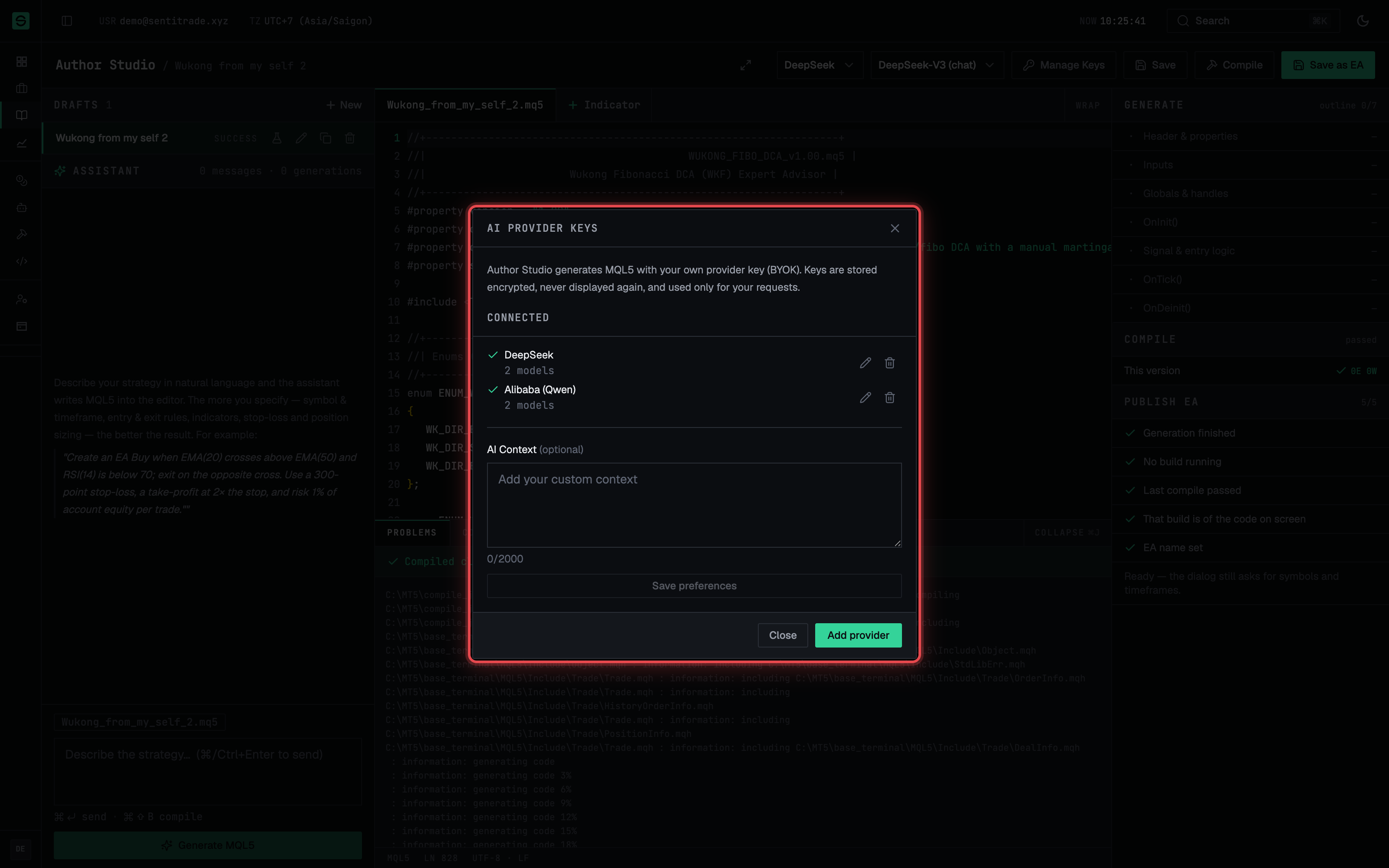
- Pick provider and model. Back in the chat panel, use the provider and model selectors to choose what generates your code. An optional AI Context field lets you add standing custom instructions.
Create a draft and generate code
-
Create a draft. Press New draft, name it (e.g. Gold breakout M15), and press Create. Draft names are unique; you can rename later from the header. Drafts autosave — the header shows autosaved {time} — and each draft in the Drafts list offers Rename draft, Duplicate draft, Delete draft, and Run backtest.
-
Describe the strategy. In the Assistant panel, describe entries, exits, indicators, stop-loss, and sizing, then press Generate MQL5 (⌘/Ctrl+Enter). The more specific the prompt — symbol & timeframe, entry & exit rules, risk per trade — the better the result.
-
Watch the stream. While generating, the editor is “Streaming · read-only until done” — editing resumes when the stream ends, and the previous version is kept if it fails. Press Stop to end early: “Stop keeps the code written so far. The draft is saved automatically when the generation ends, either way.” Use Focus mode to hand the whole screen to the editor.
Compile and fix problems
-
Press Compile. The toolbar hint is explicit: “Compile the draft to check for errors (does not create an EA).” The console shows the Compile log and a Problems list with error/warning counts, ending in Compiled cleanly or Build failed.
-
Send problems to the AI. From the console you can send the compiler output or individual problems straight to the assistant as a fix request (Send compiler output to chat / Attach to chat), regenerate, and compile again. Editing the code after a passing build marks it Stale — recompile.
-
Attach an indicator if needed. Use Indicator to attach a custom
.mq5indicator the EA embeds — “Its source is compiled into the EA binary.” If the indicator itself fails to build, the EA reports the embed failure and fixing the indicator resolves it.
Register the draft as a private EA
-
Compile cleanly first. Save as EA stays disabled until the current code has a clean build — the tooltip says “Compile cleanly first to enable Save as EA”. The stage rail (Generate → Compile → Publish EA) shows exactly which condition is unmet.
-
Press Save as EA. The Save as private EA dialog “recompiles the draft and registers it as a private AI-authored EA. It will appear in your Strategies, ready to deploy.”
-
Fill in the registration. Set the Name, Symbols (comma or space separated), and Timeframes (e.g.
M15, H1, H4). The Inputs table is auto-extracted from yourinputdeclarations — review the parsed names, types, and defaults (“No inputs detected — the EA registers with no tunable parameters.” if there are none).
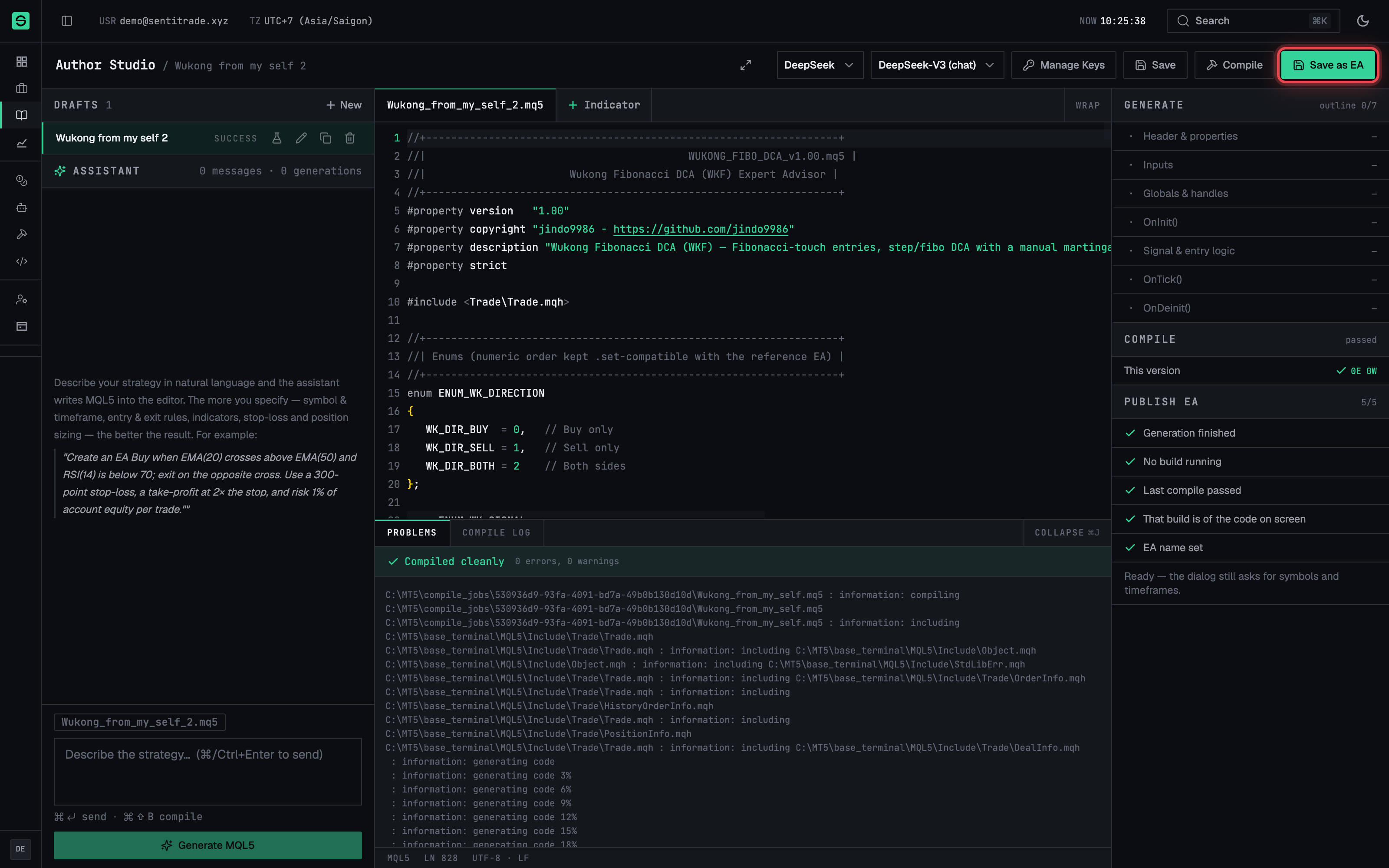
- Press Register EA. The EA now appears under Strategies → My EAs, where you manage its presets, deploy it, or run backtests like any other private EA.
Warnings & constraints
⚠️ AI-generated code is not vetted strategy advice. A clean compile means the code builds — not that the strategy is profitable or safe. Always backtest an AI-authored EA before deploying it on live capital.
⚠️ Removing your last AI key stops generation. The dialog warns: “This is your last key — AI generation stops until a provider is reconnected.” Stored keys are never shown again; you can only replace them.
Note. Generation runs on your provider key, so your provider bills you directly for tokens. Senti stores the key encrypted and uses it only for your requests.
- Draft, indicator-attachment, and custom-endpoint counts are limited per account (“You can keep at most {max} drafts”, “A draft can hold at most {max} indicators”, “You have reached the limit of {max} endpoints”).
- Compile never creates or updates an EA — only Save as EA does.
- Registration counts against the same private-EA quota as uploaded EAs.
- Saving is paused while the assistant is generating; the draft saves automatically when the stream ends.
Common errors
| Symptom | Cause | Fix |
|---|---|---|
| Save as EA disabled | No clean build of the current code | Press Compile; fix errors until Compiled cleanly. If the code changed since the last build, recompile (“code changed — recompile to enable Save as EA”) |
| Build failed with errors in Problems | The MQL5 doesn’t compile | Use Send compiler output to chat to have the assistant fix it, or edit manually and recompile |
| The compiler is busy right now. / offline / unavailable | The compile service is saturated or down | Wait a moment and press Compile again |
| The compile took too long and timed out. | Very large draft or a slow build | Try again; simplify the draft if it persists |
| That does not look like a valid {provider} API key. | Malformed key pasted in Manage Keys | Re-copy the key from your provider’s console |
| You already have a draft named “{name}”. | Draft names are unique | Pick a different name or rename the old draft |
| You can keep at most {max} drafts. | Draft quota is full | Delete a draft you no longer need |
| This draft already has an indicator named “{filename}”. | Duplicate indicator filename | Rename the new indicator before attaching |
| You have reached your EA limit. Delete one to register another. | Private-EA quota full at registration | Delete an EA under My EAs, then register again |
| Registration rejected with an empty-name hint | The draft/EA name field is blank | Name it — “registration rejects an empty name” |