Manage your accounts
Purpose
Once an MT5 account is linked, the Accounts area is where you monitor and operate it: browse and filter your accounts, open an account’s detail page with live KPIs and chart, review positions, orders, deals and history, place manual orders, rename accounts with labels, and unlink accounts you no longer need.
Prerequisites
- At least one linked MT5 account — Link an MT5 account.
- For manual trading and stopping EAs: the account must be linked with the master password (not View only) and its terminal must be Active.
Step-by-step
The accounts list
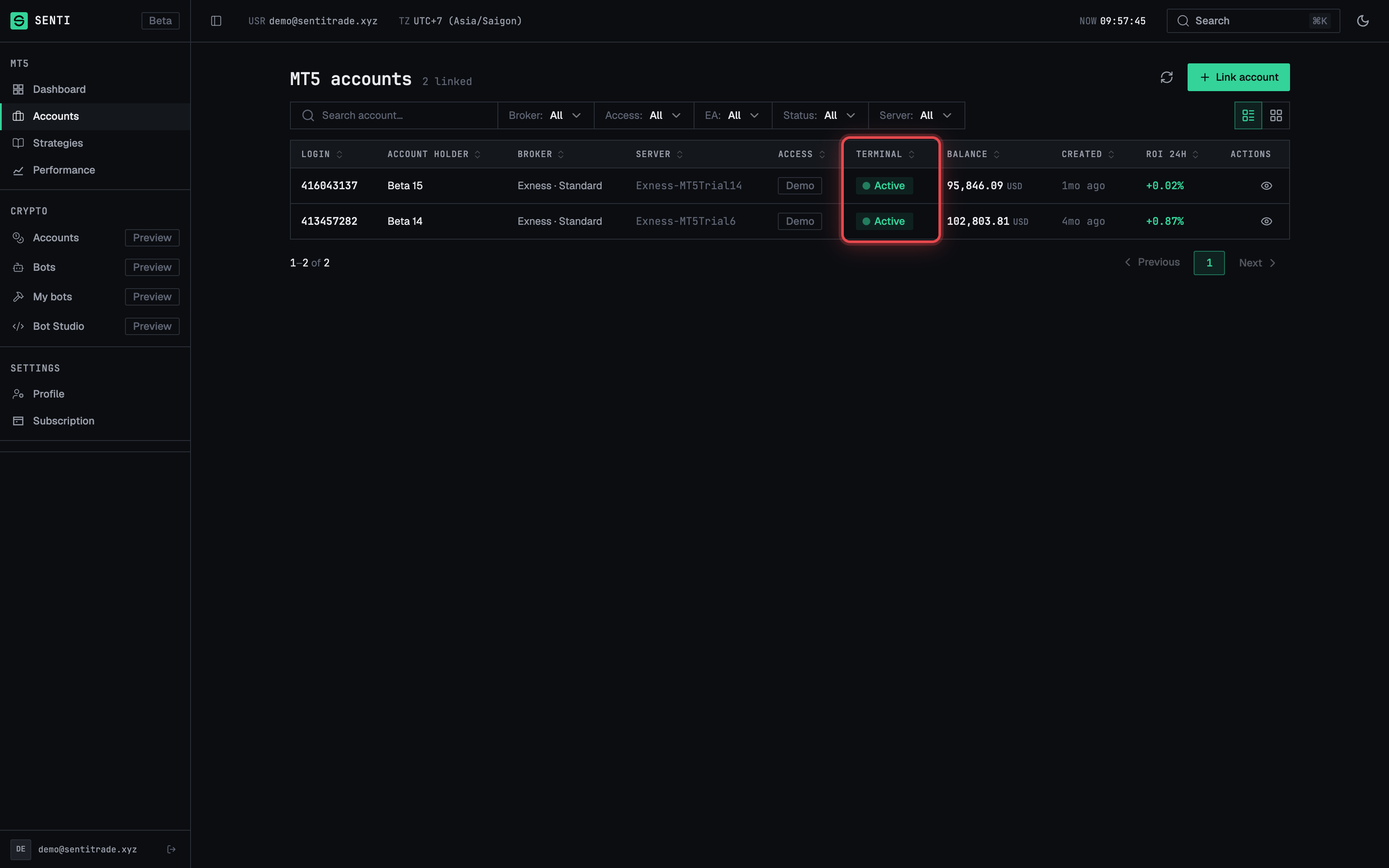
- Go to “Accounts” in the sidebar. The MT5 accounts page shows how many accounts are linked (e.g. “3 linked”).
- Switch views with the List view / Card view toggle. The list shows columns Login, Broker, Server, Access, Terminal, Balance, ROI 24h; cards show Balance, Equity, Floating P&L, Leverage, Free Margin, Total P&L, ROI 24h.
- Search with “Search account…” and filter with the Filters control — by Broker, Access, EA, Status, Terminal status, and Server.
- Read the status badges:
- Access: Real / Demo / Contest, plus View only (linked with investor password) or Detecting….
- Terminal: Active, Deploying, Error, Login failed, Stopped, No terminal.
- Press “Open” (or click a row/card) to open the account detail page.
The account detail page
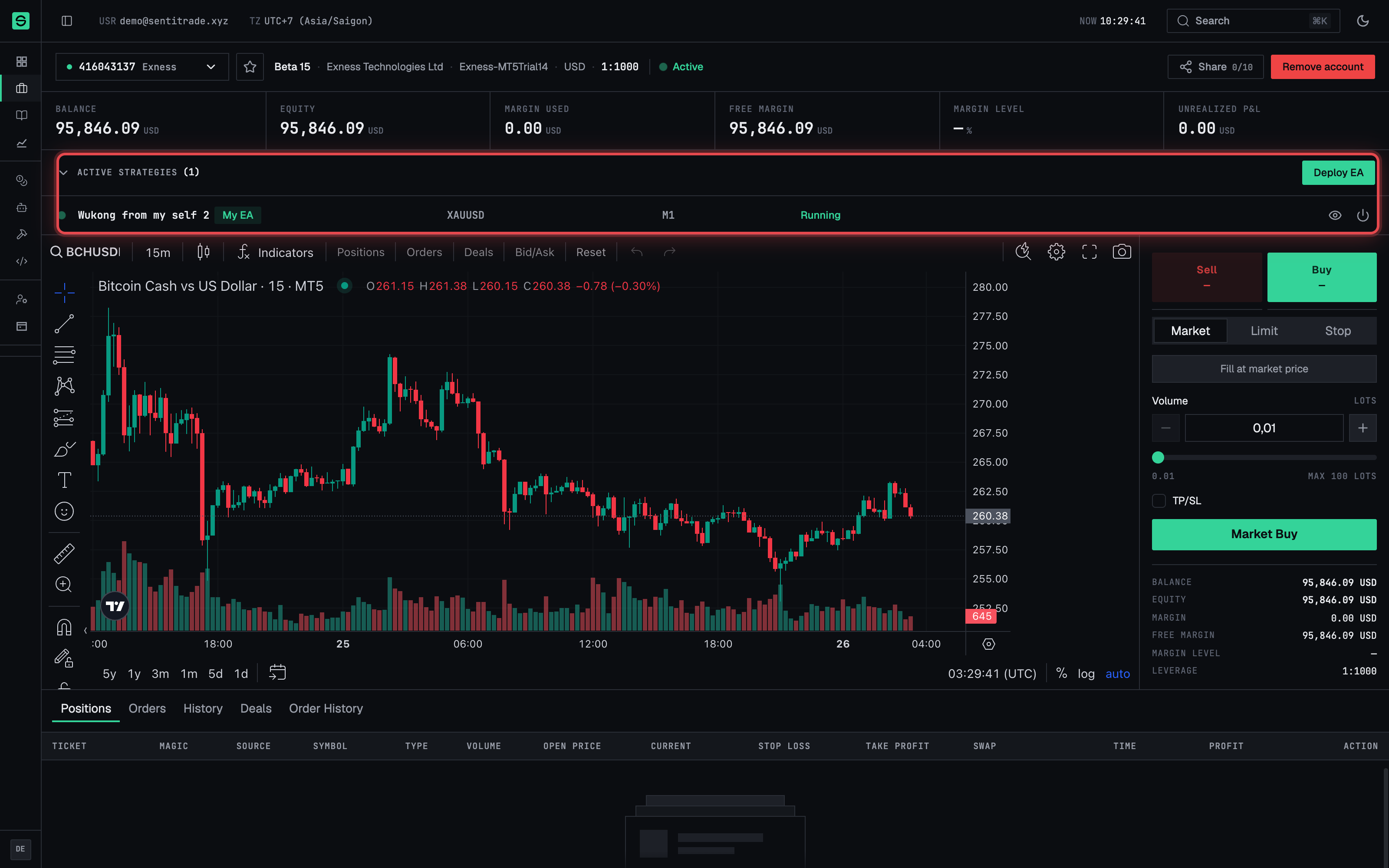
- Read the KPI strip: Balance, Equity, Margin used, Free margin, Margin level, Unrealized P&L.
- Use the live chart — a TradingView chart of the selected symbol; drag the Resize chart height handle to size it.
- Check “Active strategies” — EAs running on this account, each with View config and Stop actions and a status of Deploying… or Running. If none: “No EAs running. Deploy a strategy to start trading.” Press Deploy EA to launch one — see Deploy an EA.
- Switch accounts quickly with the account switcher (Select account), which also lets you Pin / Unpin accounts you use often.
Note. If the account was linked with the investor password you’ll see “ⓘ View-only access” — MT5 allows reading balance, positions, and history, but blocks any trade commands. To enable trading, link the account again with the master password.
The trading tabs
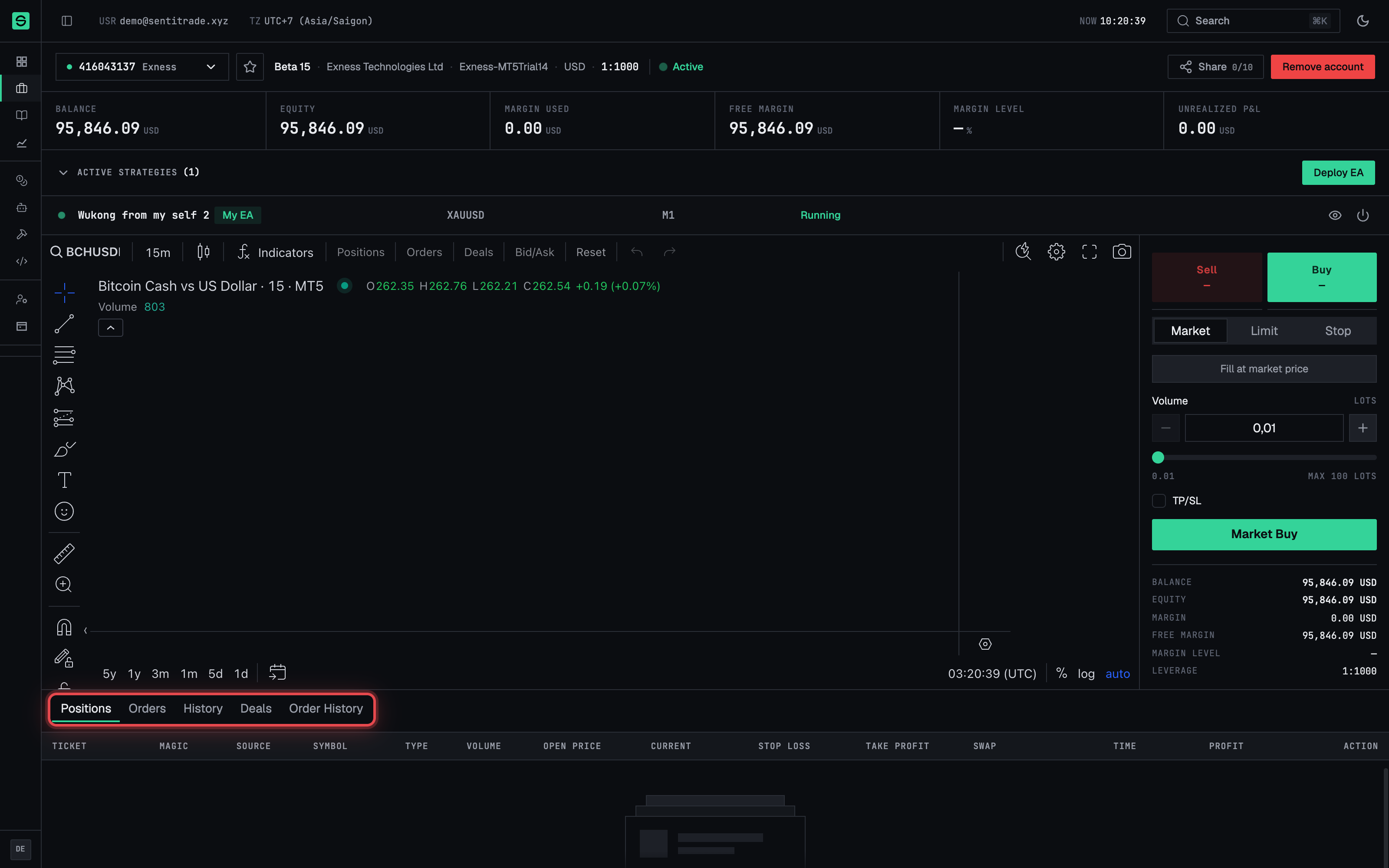
- Open a tab: Positions, Orders, History, Deals, or Order History.
- Positions — open positions with entry, volume, prices, and P&L.
- Orders — pending orders. Each row can be Modify-ed inline (Price, SL, TP, then Save) or Cancel-led. Cancelling asks for confirmation: “Cancel #{ticket} — {symbol} {type} {volume} lots @ {price}. This cannot be undone.” with Cancel order / Keep order.
- History / Deals / Order History — closed trades, deals, and past orders for a selectable date Range (including Custom From/To dates). Tables load more as you scroll: “Scroll inside the table to load more.”
Place a manual order
- Open the order ticket on the account detail page and pick a side — Buy or Sell — and an order type: Market (“Fill at market price”), Limit, or Stop.
- For Limit/Stop orders, set the “Price”.
- Set the “Volume” in lots. The ticket caps you at “Max {max} Lots”.
- Optionally set “TP/SL” — take-profit and stop-loss prices.
- Check the account figures shown on the ticket — Balance, Equity, Margin, Free margin, Margin level, Leverage — before committing.
- Press the submit button — it is labelled for exactly what it does: Market Buy, Market Sell, Buy Limit, Sell Limit, Buy Stop, or Sell Stop. While placing it shows “Placing…”; on success: “Order filled @ {price}” (market) or the order appears under Orders (pending types).
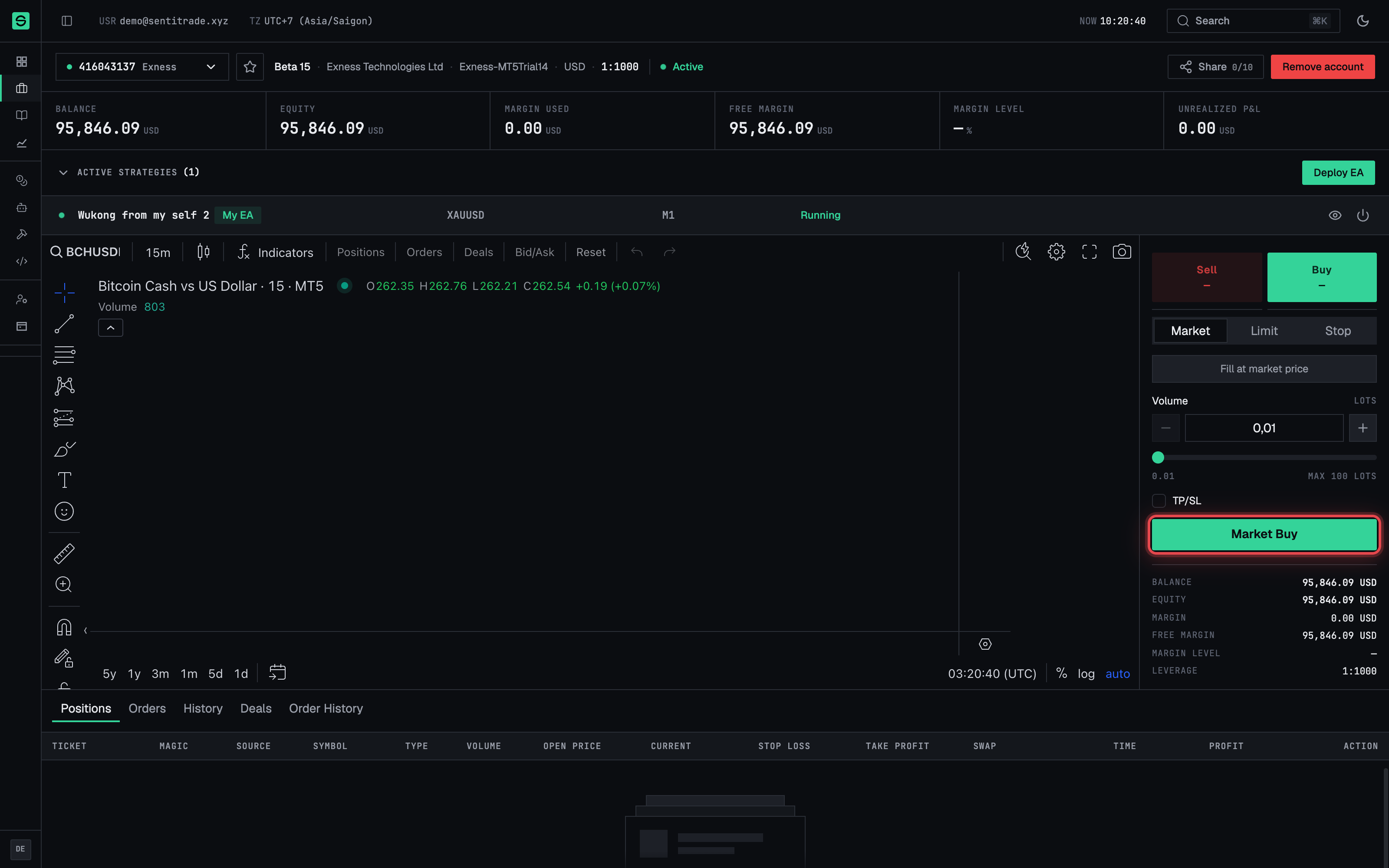
⚠️ Manual orders are real orders. On a Real account linked with the master password, the ticket trades live capital immediately.
Edit the account label
- Press “Edit account label” on the detail page.
- Type a label (e.g.
Exness Main) and save. A label helps you tell accounts apart; leave it empty to show the login number instead.
Unlink an account
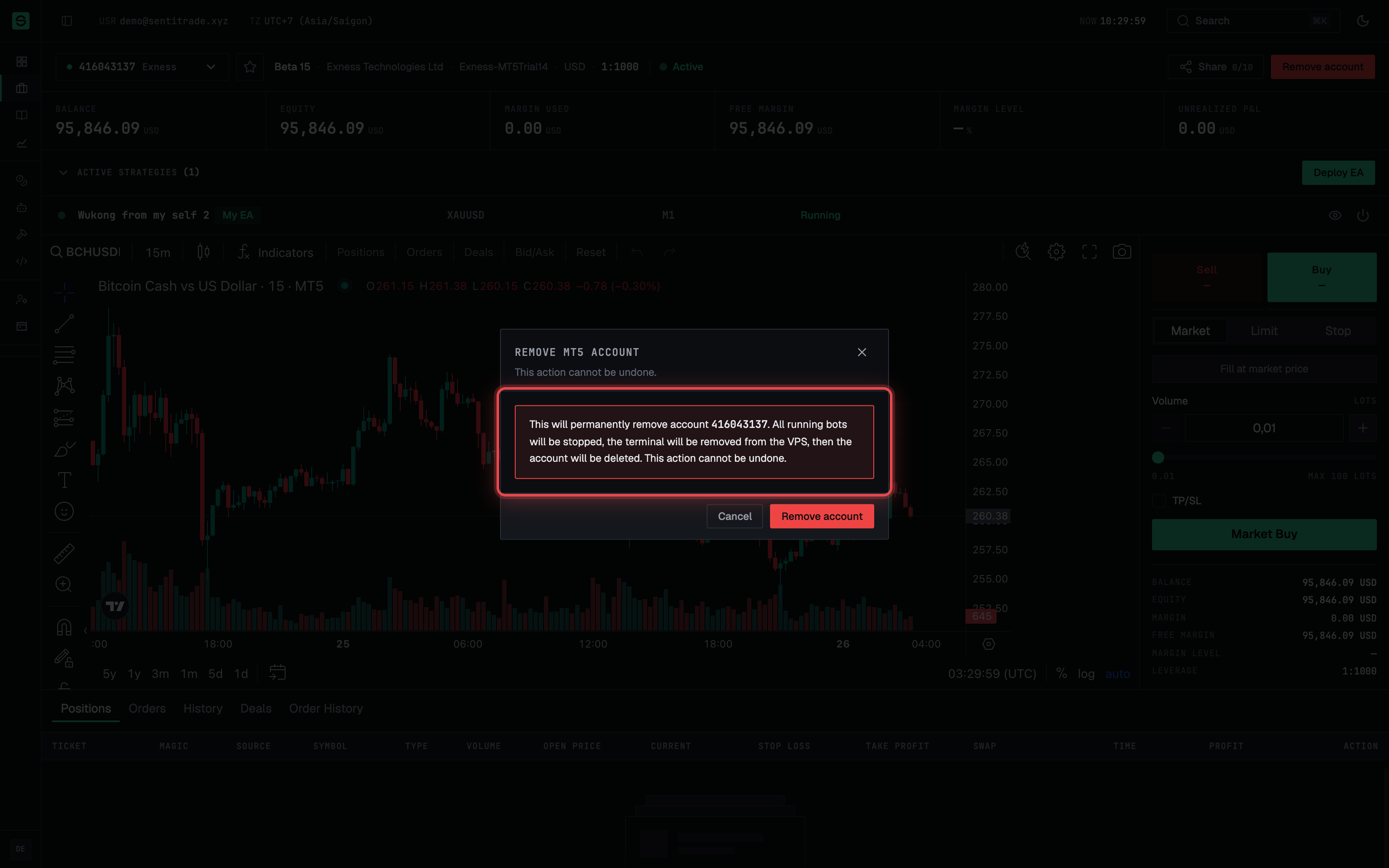
- Press “Remove account” on the account detail page.
- Read the confirmation — Remove MT5 account: “This will permanently remove account {login}. All running bots will be stopped, the terminal will be removed from the VPS, then the account will be deleted. This action cannot be undone.”
- Confirm. The account disappears from your list and frees an account slot. Your broker account itself is untouched — only Senti’s link, terminal, and bots are removed.
Warnings & constraints
⚠️ Unlinking is destructive and irreversible. Removing an account stops all running bots, removes the terminal from the VPS, and deletes the link. “This action cannot be undone.”
⚠️ Cancelling a pending order cannot be undone — confirm the ticket number and symbol in the dialog before pressing Cancel order.
- View-only accounts cannot trade. The order ticket and EA controls require a master-password link and an Active terminal (“Deploy terminal to access trading features.”).
- Stopping an EA from Active strategies stops that strategy’s automation on this account; any open positions it holds remain open in MT5.
- Order volume is capped by the ticket’s Max … Lots limit; margin rules are your broker’s.
Common errors
| Symptom | Cause | Fix |
|---|---|---|
| Order ticket missing or disabled | Account is View only, or terminal not Active. | Re-link with the master password; wait for or fix the terminal (see below). |
| Terminal badge Login failed | Broker rejected the stored credentials (e.g. password changed). | Unlink and re-link the account with current credentials. |
| Terminal badge Error or Stopped | The terminal instance is unhealthy or stopped. | Press Refresh; if it persists, unlink and re-link, or contact support. |
| “Order failed” / “Error {code}” after submitting | The broker rejected the order (price, volume, margin, or market closed). | Check price/volume/TP/SL against your broker’s rules and market hours, then retry. |
| “No trades in this period” in History | No closed trades in the selected date range. | Widen the Range (e.g. 90D or Custom dates). |
| “Account not found — This account may have been removed.” | You opened a link to an unlinked account. | Go back to Accounts and pick a current account. |
| Balances look stale | History sync is lagging or paused. | Use the sync chip’s Refresh — see The Senti interface. |
Next: Share your account