Share your account
Purpose
Share links let people outside Senti view a read-only version of one of your MT5 accounts — no Senti account needed. You control exactly which sections they see, whether personal details are masked, how long the link lives, and whether it needs an access code. This page covers creating, copying, editing, and revoking links, and what viewers see at the public URL.
Prerequisites
- A linked MT5 account — Link an MT5 account.
- A free share-link slot. Active links are capped per account; the Share button shows “{count} / {cap} active links — revoke one inside to create another” when you’re at the cap.
Step-by-step
Create a share link
- Open the account and press Share. The Share links panel opens: “Read-only token URLs you can hand out to non-Senti audiences.” If you have none yet: “No share links yet — Create one to share a read-only view with audiences outside Senti.”
- Press “+ New share link”. The Add share link form opens.
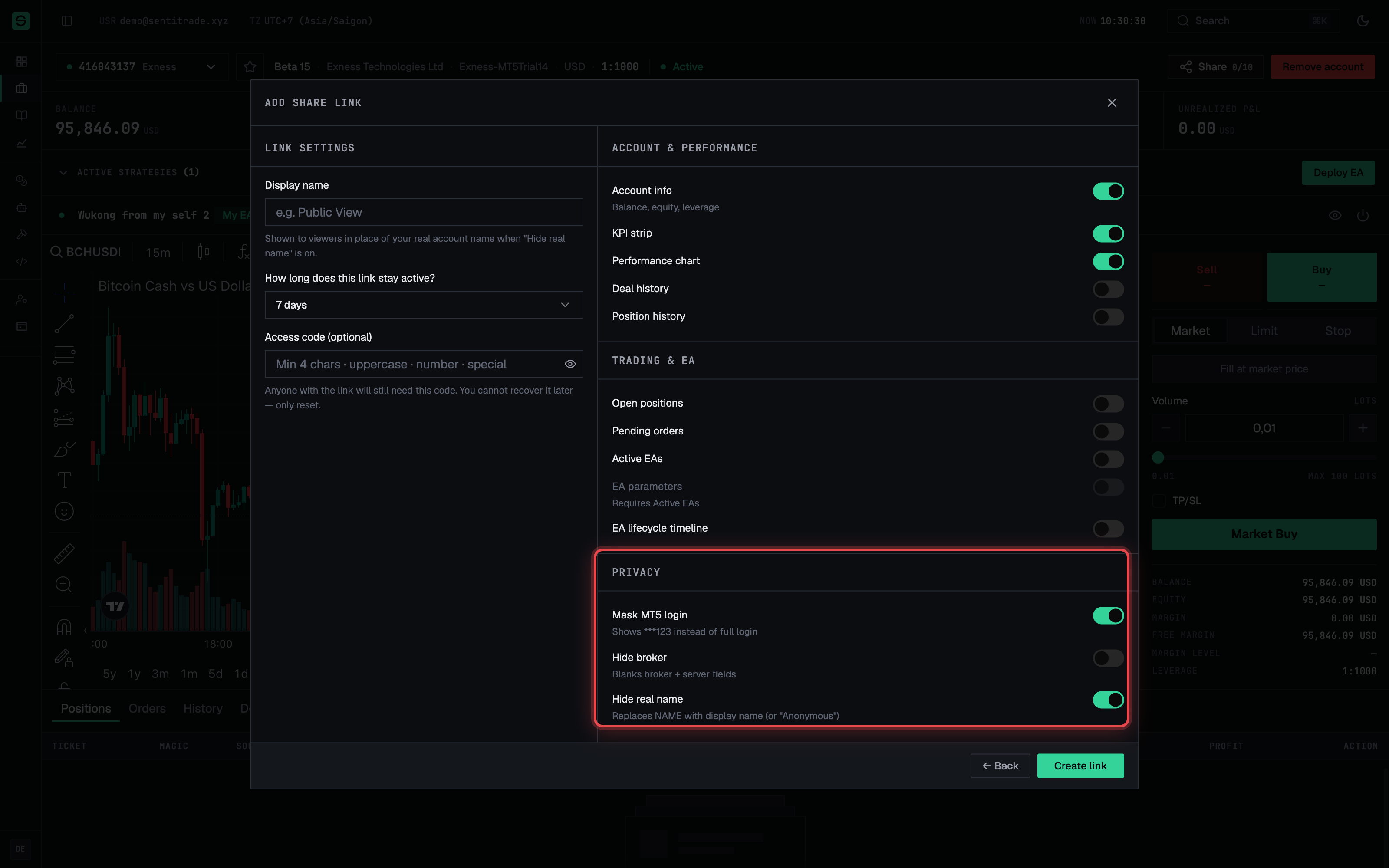
- Choose the sections viewers may see, in two groups:
- Account & Performance — Account info (“Balance, equity, leverage”), KPI strip, Performance chart, Deal history, Position history.
- Trading & EA — Open positions, Pending orders, Active EAs, EA parameters (“Requires Active EAs”), EA lifecycle timeline.
- Set the “Privacy” options:
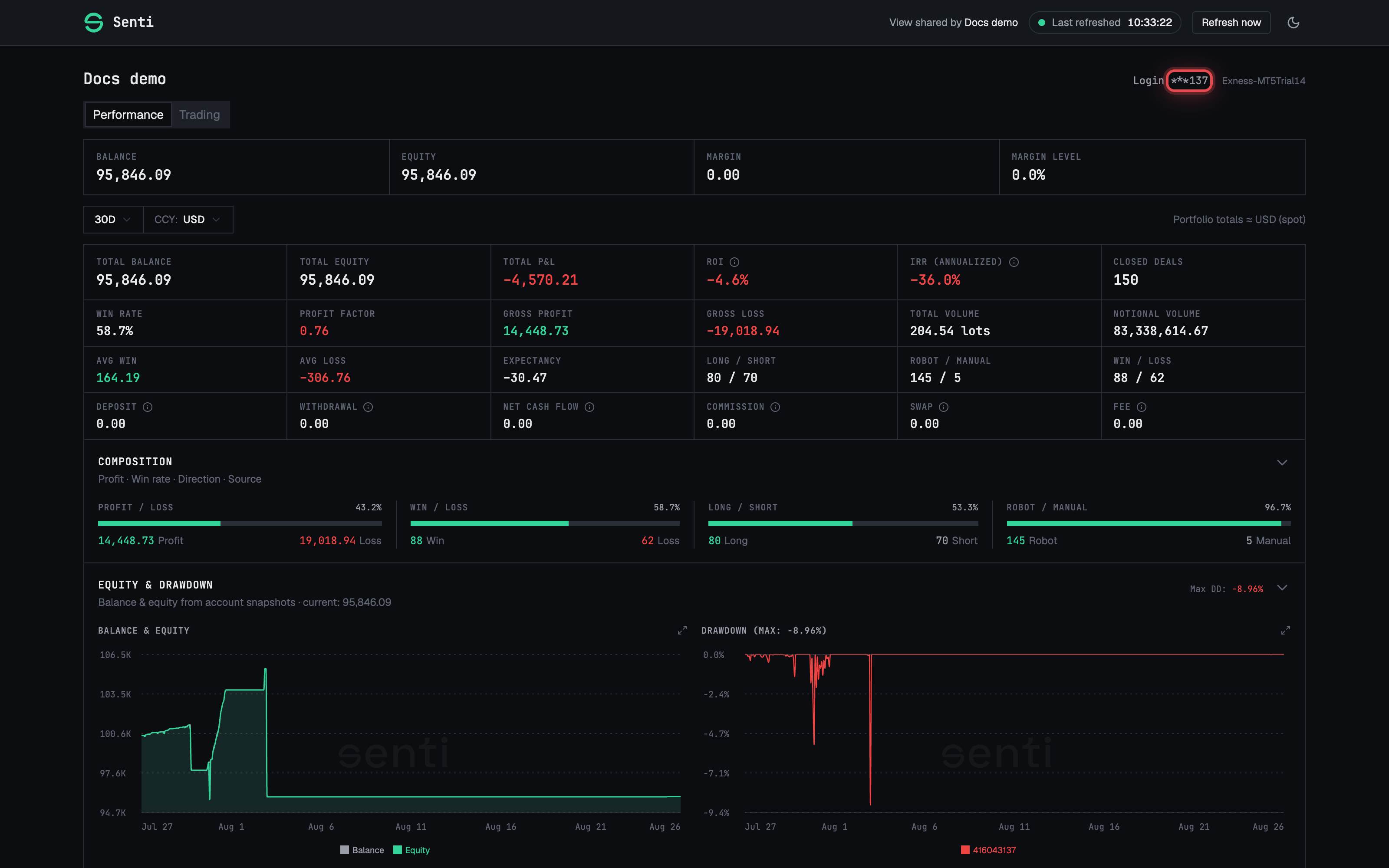
- Mask MT5 login — *"Shows **123 instead of full login".
- Hide broker — “Blanks broker + server fields”.
- Hide real name — “Replaces NAME with display name (or ‘Anonymous’)”.
- Set a “Display name” (e.g.
Public View) — shown to viewers in place of your real account name when Hide real name is on. - Choose the lifetime under “How long does this link stay active?” — 1 day, 7 days, 30 days, or Permanent (until revoked).
- Optionally set an “Access code” (min 4 chars, with an uppercase letter, a number, and a special character). “Anyone with the link will still need this code. You cannot recover it later — only reset.”
- Press “Create link”. You’ll see “Share link created — Link copied to clipboard.” — the URL is already on your clipboard, ready to send.
⚠️ Anyone with the link can view. Without an access code, the URL alone grants read access to every section you enabled. Treat it like a password, and prefer a passcode plus a short expiry for sensitive accounts.
Manage your links
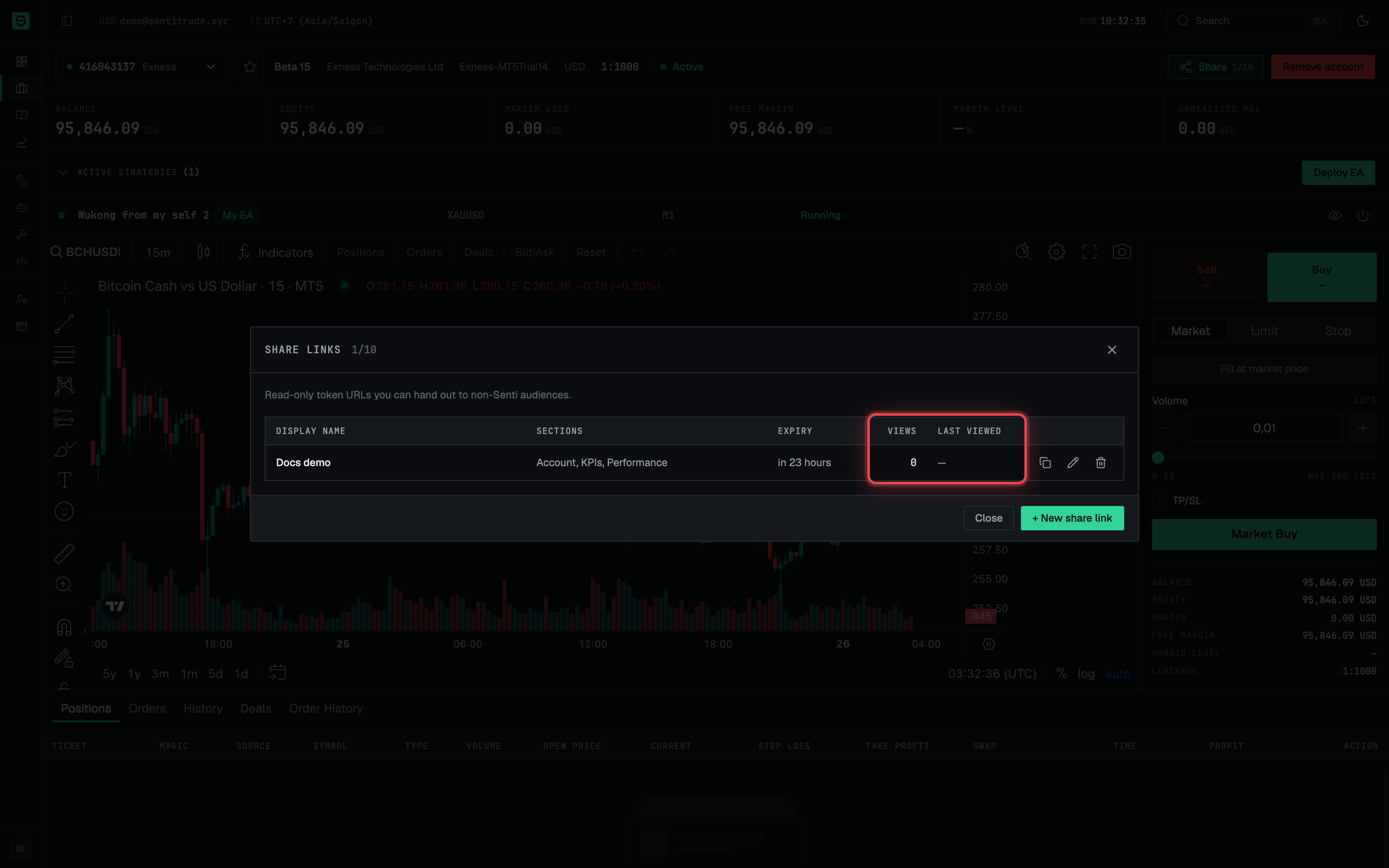
- Review the list in the Share links panel — columns: Display name (with a Passcode-protected marker where set), Sections, Expiry (permanent, in N days, or expired), Views, Last viewed, and Actions.
- Press “Copy link” to copy a link’s URL again (“Link copied”).
- Press “Edit share link” to change sections, privacy, name, expiry, or the passcode. For the passcode you choose Keep current (“The hash is one-way — we cannot show you the existing code.”), Set new (“Anyone who only knew the old one will be locked out.”), or Remove (“Removes the gate — anyone with the link will be able to view immediately.”). Press Save changes.
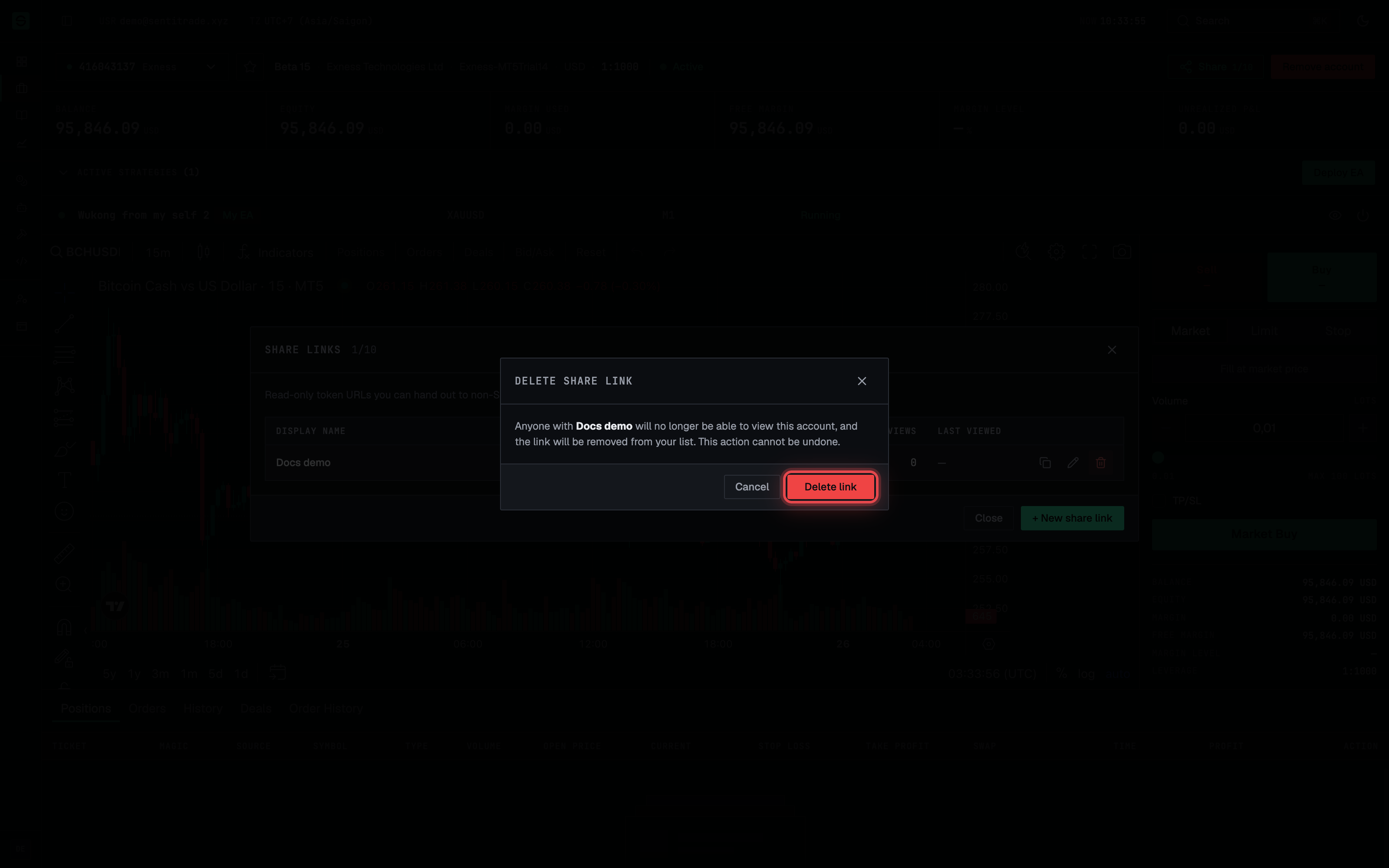
- Press “Revoke share link” to kill a link. The Delete share link dialog warns: “Anyone with {name} will no longer be able to view this account, and the link will be removed from your list. This action cannot be undone.” Confirm with Delete link.
What viewers see
Viewers open the URL (/share/{token}) in any browser — no login needed.
- Passcode gate (if set). “Enter access code — Provided by the owner via a separate channel.” They enter the code and press View account. Too many wrong attempts: “Too many attempts. Please wait an hour and try again.”
- The shared view. A header notes “View shared by {name}”, with two tabs — Performance (KPIs and charts such as equity & drawdown, PnL time series, composition, symbol analysis — only the sections you enabled) and Trading (Positions, Orders, History, Deals, EA Lifecycle — again, only what you enabled). Disabled tabs read “The account owner hasn’t shared performance data” / “…trading data”.
- Refresh. A “Last refreshed” chip with Refresh now; refreshes are cooldown-limited (“Refresh cooling down”). Refreshing too fast shows “Refreshing too quickly — This shared view hit its refresh limit. It will retry automatically in {seconds}.”
- After revocation or expiry viewers see “This share link is no longer available — The owner may have revoked it, it may have expired, or the account is no longer linked.”
Warnings & constraints
⚠️ Revocation is immediate and permanent. Deleting a link cuts off every viewer at once and cannot be undone. The same URL can never be reactivated — create a new link instead.
⚠️ Passcodes cannot be recovered. The passcode is stored as a one-way hash; if you (or a viewer) forget it, your only options are Set new or Remove in the edit form.
- Active links per account are capped (“{count} / {cap} active links”) — revoke one to create another.
- Share links are strictly read-only: viewers can never trade, change anything, or see sections you didn’t enable.
- EA parameters requires Active EAs to also be enabled.
- Viewer refreshes are rate-limited; the public view is not a live terminal feed.
- View counts and Last viewed show you whether — and when — a link is being used.
Common errors
| Symptom | Cause | Fix |
|---|---|---|
| “{count} / {cap} active links — revoke one inside to create another” | You’re at the active-link cap for this account. | Revoke a link you no longer need, then create the new one. |
| Viewer: “Incorrect access code. Try again.” | Wrong passcode. | Re-send the current code via a separate channel; if lost, use Edit → Set new. |
| Viewer: “Too many attempts. Please wait an hour and try again.” | Passcode attempts rate-limited. | Wait an hour, then retry with the correct code. |
| Viewer: “This share link is no longer available” | The link was revoked, expired, or the account was unlinked. | Create a fresh link and send the new URL. |
| Viewer: “Refreshing too quickly” | The shared view hit its refresh limit. | Wait for the countdown — it retries automatically — or press Try now after it elapses. |
| Viewer sees a locked Performance or Trading tab | Those sections weren’t enabled on the link. | Edit share link and enable the missing sections. |
| Passcode field rejects your code when creating | It doesn’t meet the policy. | Use at least 4 characters including an uppercase letter, a number, and a special character. |
Related: Manage your accounts