Create your account
Purpose
Everything in Senti — linking MT5 accounts, deploying EAs, viewing performance — sits behind a Senti account. This page walks you through the full onboarding chain: signing up with an email and password, verifying your email, signing in, the mandatory Investment Disclaimer, and the admin-approval gate that new accounts pass through. It also covers password recovery.
Senti uses email + password only — there is no social login (Google, Apple, etc.).
Prerequisites
- An email address you can receive mail at (the verification link is sent there).
- A password of at least 8 characters that contains a number.
- Optional: a referral code from an Introducing Broker (IB) partner — see the note in Step-by-step. Signups with a valid IB referral code skip the admin-approval wait.
Step-by-step
Sign up
- Open the signup page at
/signup. The form is titled Create account with the subtitle “Start trading with Senti Quant.” - Enter your email in the E-mail field (placeholder
you@example.com). - Create a password in the Password field. It must be at least 8 characters and contain a number — otherwise you’ll see “Your password must be at least 8 characters.” or “Your password must contain a number.”
- Enter a referral code (optional) in the field labelled Referral code
(optional) (placeholder
e.g. KONI88). If an IB partner gave you a code, enter it here — it links your account to that partner and skips the admin-approval step. - Press “Sign up”. On success you’ll see “You’ve signed up successfully. Check your email for the confirmation link.” The form also reminds you up front: “After signing up, check your inbox (and spam) for the verification link.”
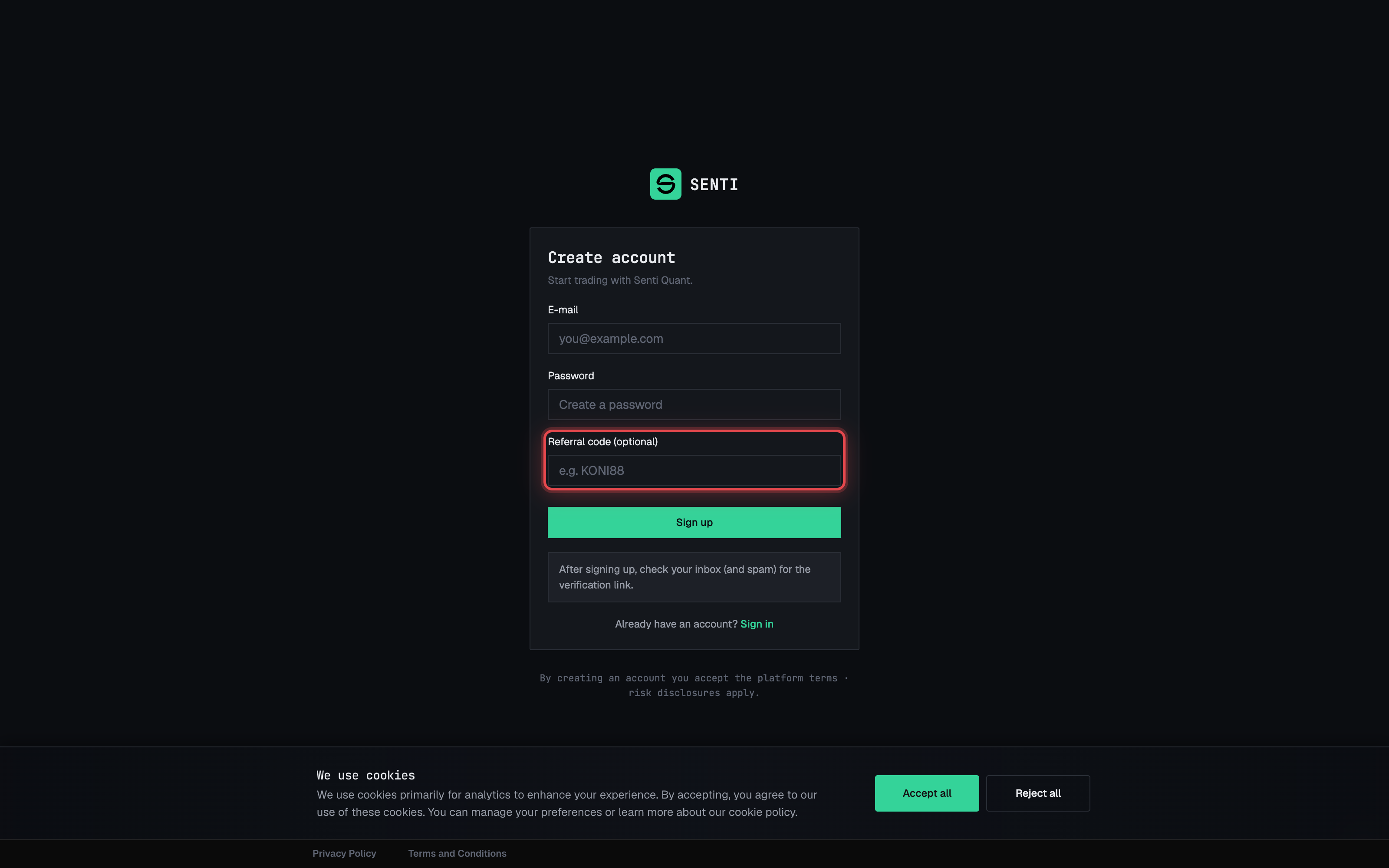
Note. By creating an account you accept the platform terms — the form footer states “By creating an account you accept the platform terms · risk disclosures apply.”
Verify your email
- Open your inbox (check spam too) and find the Senti verification email.
- Click the verification link. It opens the Email verification page
(
/email-verification), which shows “Verifying email…” while it consumes the token, then “Your email has been verified. You can now log in.” - Follow the sign-in hint — “Once verified, sign in.” — to go to the login page.
Note. Verification links are single-use and can expire. If you see “This verification link is no longer valid. Sign up again to get a new one.”, repeat the signup with the same email to receive a fresh link.
Sign in
- Open the login page at
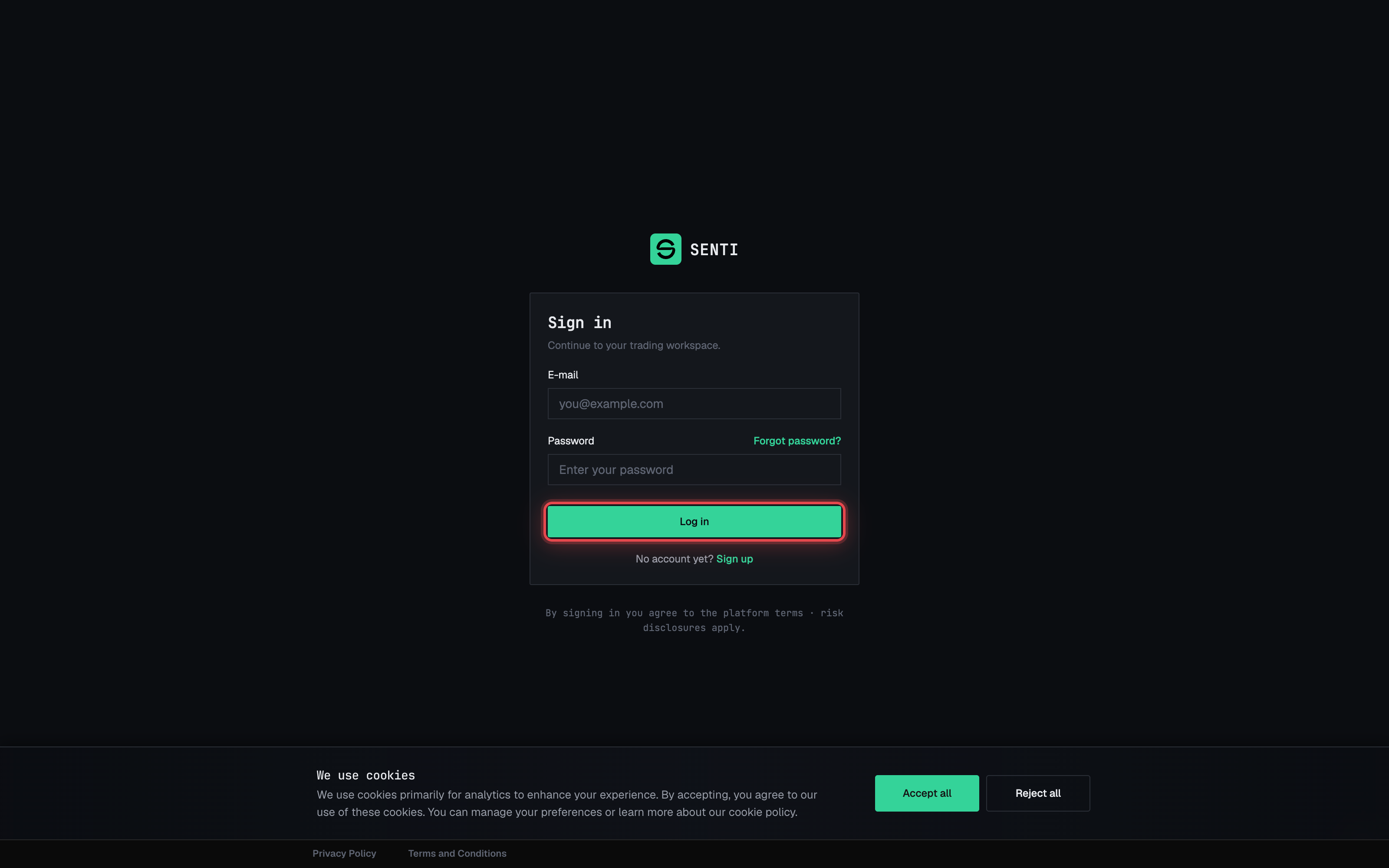
/login— titled Sign in, subtitle “Continue to your trading workspace.” - Enter your email and password and press Log in.
- Expected outcome: you land in the signed-in app. On your very first sign-in, the Investment Disclaimer appears before anything else (next sub-flow). If your account is still awaiting approval, you’ll see the approval gate instead (see Account approval below).
Acknowledge the Investment Disclaimer
On first sign-in a blocking modal titled Investment Disclaimer appears — “Please read and acknowledge before continuing”. You cannot use the app until you acknowledge it.
- Read all six sections: Risk Warning, Past Performance, No Investment Advice, Automated Trading Risks, Capital at Risk, and Regulatory Compliance.
- Scroll to the bottom. The acknowledge button stays disabled until you do — the hint reads “Scroll to the bottom to enable acknowledgment”.
- Press “I Understand — Acknowledge”. The button shows “Acknowledging…” and then the modal closes for good. By acknowledging you confirm you have read, understood, and accepted all risks associated with automated trading.
⚠️ This is not a formality. The disclaimer describes real risks: trading involves a significant risk of loss, past performance does not guarantee future results, bots carry technical-failure and execution risks, and you should never trade with money you cannot afford to lose.
Account approval (Pending gate)
New accounts start with status Pending until an administrator approves them. While pending, signing in shows a full-screen gate instead of the app:
- “Account awaiting approval” — “Your account is being reviewed by an administrator. You’ll get access to the platform as soon as it has been approved.” There is nothing to do but wait; try signing in again later.
- If your registration is declined you’ll see “Registration declined” — “Your registration was not approved. If you believe this is a mistake, contact support for help.”
- If your account is later suspended you’ll see “Account suspended” with instructions to contact support.
- Press “Contact support” on any of these screens to email partners@koni.studio.
Note — referral codes skip approval. Accounts created with a valid IB referral code are approved automatically and go straight to the app after email verification and the disclaimer.
Reset your password
- Press “Forgot password?” on the Sign in page, or open
/request-password-reset. The page is titled Reset password — “Enter your email and we’ll send a reset link.” - Enter your email and press “Send password reset email”. You’ll see “Check your email for a password reset link.” The message appears whether or not the email is registered.
- Open the link from the email. It takes you to Choose a new password
(
/password-reset). - Enter and confirm your new password in New password and Confirm new password, then press Reset password. On success: “Your password has been reset.” Return to sign in via the link “return to sign in”.
Warnings & constraints
⚠️ Approval is required before access. Unless you signed up with an IB referral code, you cannot use the platform until an administrator approves your account — even after verifying your email. The signup confirmation says so explicitly: “After you verify, your account also needs admin approval before you can sign in.”
⚠️ Password rules are enforced. At least 8 characters and at least one number. There is no way in — or back in — without a working email address, so use one you control long-term.
- One account per email — “An account already uses that email address.” is returned if the email is taken.
- Verification and password-reset links are token-based, single-use, and can expire.
- Email resends are rate-limited: “Please wait {seconds} seconds before trying again.”
Common errors
| Symptom | Cause | Fix |
|---|---|---|
| “An account already uses that email address.” | The email is already registered. | Sign in instead, or use Forgot password? to recover the account. |
| “Your password must be at least 8 characters.” / “…must contain a number.” | Password fails the policy. | Choose a longer password that includes at least one digit. |
| “Those sign-in details were not accepted. Check your email and password and try again.” | Wrong email or password, or the email is not yet verified. | Re-type your credentials; verify your email first if you haven’t. |
| “This verification link is no longer valid. Sign up again to get a new one.” | The verification token expired or was already used. | Sign up again with the same email to receive a fresh link. |
| “This password-reset link is no longer valid. Request a new one and try again.” | The reset token expired or was already used. | Request a new link from Reset password. |
| “This link is missing its token. Check the link you received in your email.” | The URL was truncated (often by an email client). | Copy the full link from the email and paste it into the browser. |
| “Please wait {seconds} seconds before trying again.” | Email resend cooldown. | Wait out the countdown, then retry. |
| “We could not send that email. Please try again shortly.” | Transient email-delivery failure. | Retry after a short wait; contact support if it persists. |
| Stuck on “Account awaiting approval” | Your account is still Pending admin review. | Wait for approval, or press Contact support (partners@koni.studio). |
| “Passwords don’t match.” on the reset page | New password and confirmation differ. | Re-enter both fields identically. |
Next: The Senti interface