Manage running EAs
Purpose
Once deployed, an EA is managed from the page of the account it runs on. The Active strategies section shows every deployment with a live status chip, lets you inspect the exact configuration it was deployed with (View config), and stop it (Stop). past deployments — what ran, on which symbol and timeframe, when it was deployed and when it stopped.
Prerequisites
- At least one EA deployed to a linked account — see Deploy an EA. An account with none shows “No EAs running. Deploy a strategy to start trading.”
- The account page open: Accounts in the sidebar → open the account.
Step-by-step
Active strategies vs Startup strategies
The account page carries two strategy lists, and the difference between them is the difference between intent and reality:
- Active strategies — what the account is running right now.
- Startup strategies — what it is meant to run: the configurations you saved with Save as startup EA for this account (see Deploy an EA). Entries here carry a Running badge when the intent is actually being met.
The two titles are themselves the switch — click a title to show that list. Only one is displayed at a time.
Note. An entry in Startup strategies without a Running badge is the case worth noticing: the account is meant to be running that strategy and is not. Check the terminal status before assuming it is deployed.
Read the Active strategies section
-
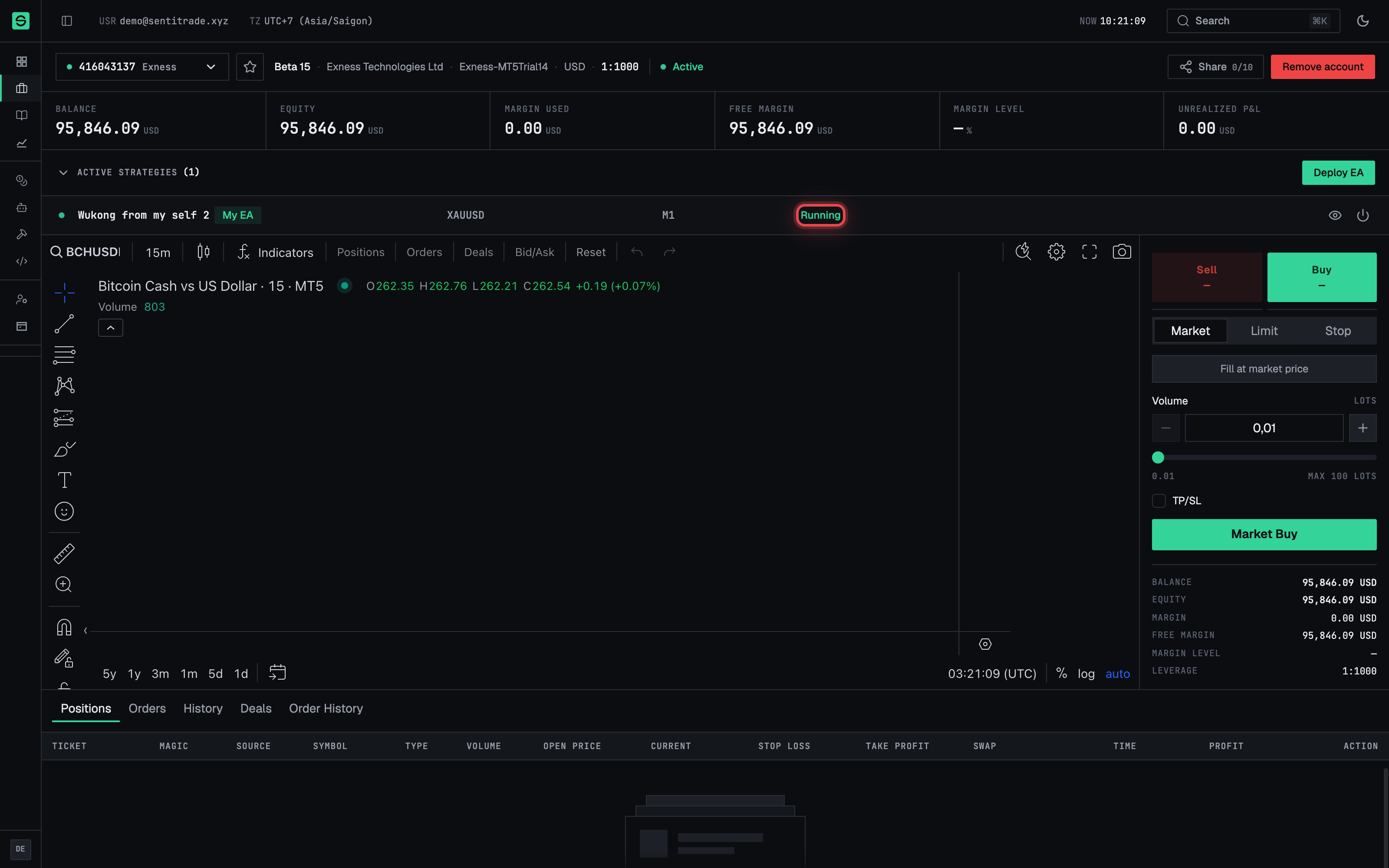
Open the account. Go to Accounts and open the account running the EA. The Active strategies section lists each deployment with the EA name, its source badge (My EA or Platform), its symbol/timeframe, and a status chip.
-
Interpret the status chips.
Status Meaning Deploying The EA is being installed on the terminal — it becomes Running shortly. Running The EA is live and can trade. Stopped The EA is no longer attached; it places no trades. Error The deployment hit a fault — it is not trading as intended. -
Watch the trades arrive. A running EA’s activity shows up in the account’s Positions / History / Deals tabs and rolls up into the Dashboard and Performance pages.
Inspect the deployed configuration
-
Press View config. The EA Config dialog opens — subtitle “Deployed configuration”, marked Read only. It shows the Targeting (Symbol, Timeframe) and the parameter snapshot under Advanced settings, exactly as the EA was deployed.
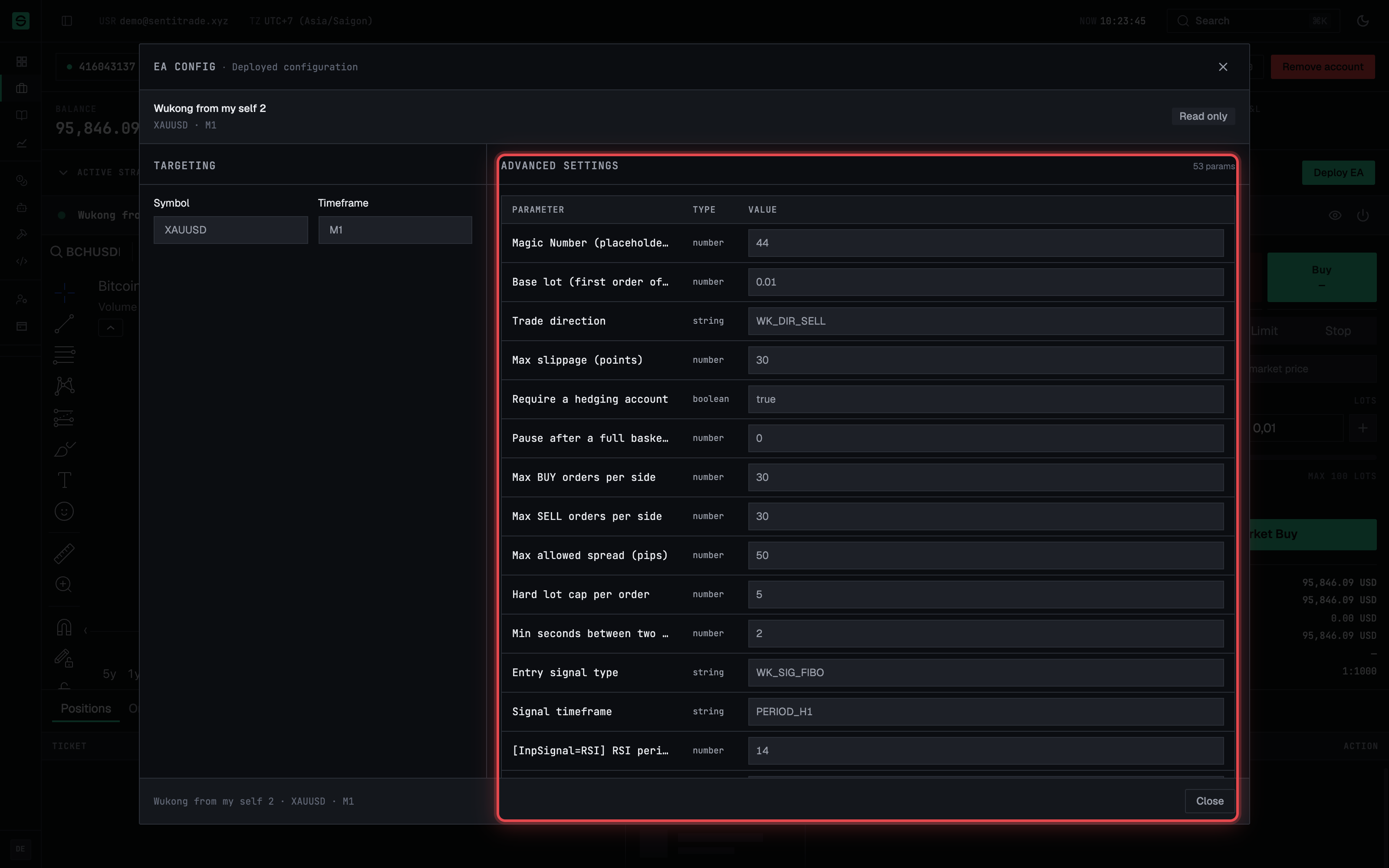
- Understand what it is. This is a snapshot from deploy time. Editing the EA or its presets afterwards does not change it. If a deployment has no saved snapshot, the dialog says “No parameters — this deployment does not have a saved parameter snapshot.” To change a live configuration, stop the EA and deploy again with new settings.
Stop an EA
-
Press Stop — knowing it acts immediately. On the deployment’s row, press the Stop button. There is no confirmation dialog: the EA is detached from the terminal the moment you click. The row shows Stopping…, then the deployment leaves the Active strategies list.
-
Handle open positions yourself. Stopping the EA stops the robot, not the market — check the account’s Positions tab afterwards and close any open positions manually if you do not want them managed by hand.
Warnings & constraints
⚠️ Stop is immediate — there is no confirmation. Clicking Stop detaches the EA at once; there is no “are you sure” step. Be deliberate with that click.
⚠️ Stop does not close positions. Stopping an EA prevents new automated actions, but positions the EA already opened stay open on your broker account. Review and close them manually if needed — a floating loss keeps floating after the stop.
⚠️ Removing the account stops everything. Removing an MT5 account stops all its running bots and deletes the terminal — “All running bots will be stopped, the terminal will be removed from the VPS, then the account will be deleted. This action cannot be undone.”
Note. An Error status means the deployment is not trading as intended. Stop it, check the terminal status on the account page, and redeploy once the account is healthy.
- The deployed configuration is immutable; “editing” a live EA means stop + redeploy.
- If the terminal itself goes offline or fails login, every EA on it is effectively dead until the terminal recovers — watch the account’s terminal status chip (Active / Deploying / Error / Login failed / Stopped / No terminal).
Common errors
| Symptom | Cause | Fix |
|---|---|---|
| EA stuck in Deploying | The terminal is slow to attach the EA, or offline | Check the account’s terminal status; if it’s not Active, fix the terminal first, then redeploy |
| Status shows Error | The deployment faulted on the terminal | Stop it, verify the terminal is healthy, and deploy again |
| Stop fails / Couldn’t stop the EA. | Transient terminal or network issue | Retry; if the account’s terminal is offline, restore it first |
| Already stopped — this EA is not running anymore. | The EA finished stopping before your click registered | Nothing to do — refresh the page |
| View config shows EA configuration unavailable | The dialog lost its reference to the deployment | Close the dialog and select the active strategy again |
| No parameters recorded for this deployment. | The deployment predates parameter snapshots or the EA had no inputs | Nothing to fix — current deployments record their snapshot at deploy time |
| EA running but no trades appear | The EA’s conditions simply haven’t triggered | Normal — “The bot will open positions when signal conditions are met.” Verify symbol/timeframe in View config |