Plans and account slots
Purpose
Senti’s subscription plans gate one thing above all: trade-account slots — how many MT5 accounts you can have linked and active at once. Plans also gate access to the developer API. This page explains the mechanics: what a slot is, what the Free tier includes, how the in-app Pricing page is organised, and what each button on a plan card does.
For prices, always use the in-app Pricing page (/pricing) — it is the source
of truth and this manual deliberately does not repeat its numbers. For
changing an existing subscription, see
Manage your subscription;
for the conceptual overview, see Plans & pricing.
Prerequisites
- A Senti account. You can browse
/pricingsigned out, but subscribing requires signing in (the card shows “Log in to subscribe” when you are signed out). - To pay: PayPal is the payment provider. The page notes an “International credit/debit card required (Visa/Mastercard)”.
Step-by-step
Understand what a plan gates
- Account slots. Every plan includes a number of trade-account slots — each linked, active MT5 account occupies one. Plan cards state it directly: “Link up to N trade accounts.” When every slot is in use, linking another account is blocked with “⚠ Account slot limit reached” — free a slot or upgrade.
- The Free tier. Every account has a plan; with no subscription you are on the Free plan — “Start free on a single account.” The subscription page states it as: “You’re on the Free plan — 1 trade account slot included. Upgrade to link more trade accounts.” (Slot counts are shown per-plan on the Pricing page.)
- API access. Creating API keys and calling the developer API is enabled per plan. If your plan does not include it, key creation is unavailable until you upgrade — and a downgrade cuts API access immediately. See API keys.
- Included strategies. Plan cards also list the platform strategies included with the plan under “Included strategies”.
Note. Slot and feature entitlements follow your current plan in real time. Upgrades unlock slots immediately; downgrades apply at the next billing date (see the next page).
Read the Pricing page
- Open
/pricing. The page is headed “Pick your pricing” — “choose the plan that fits your trading needs.” - Switch tabs between Individual and Team & Enterprise. Individual plans scale by how many accounts you run — from a single live account up to high-volume multi-account trading; Team & Enterprise covers trading desks and introducing-broker partners.
- Find your plan. Your current plan’s card carries a “Current” badge and its button reads “Current plan”.
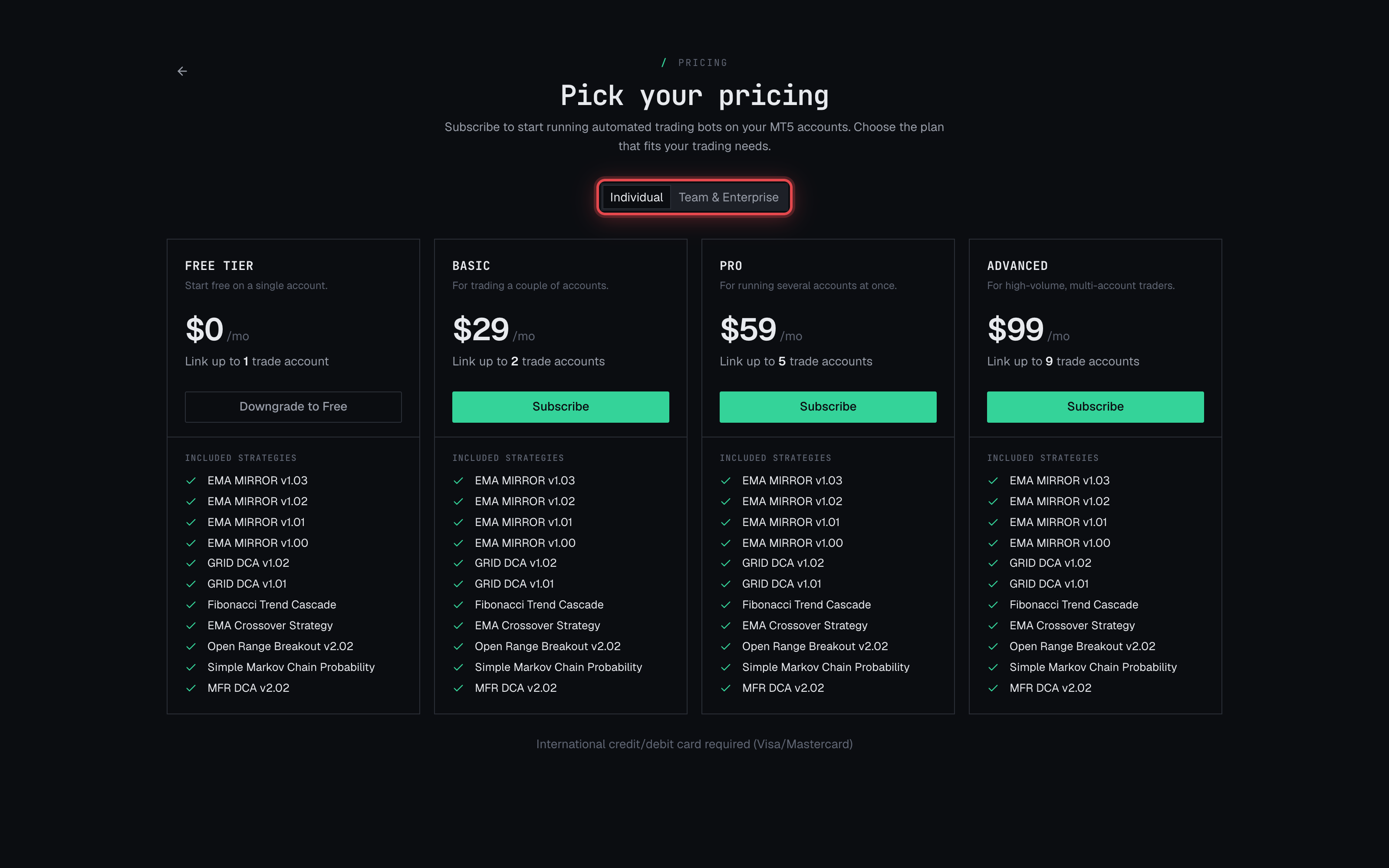
Act on a plan card
- “Get started free” — appears on the Free tier for new users; no payment involved.
- “Subscribe” — appears when you have no paid subscription. It starts a PayPal checkout for that plan (see Manage your subscription for the checkout and result flow).
- “Switch” — appears when you already have a paid plan. Whether it charges now or applies at the next billing date depends on whether the change is an upgrade — the confirmation modal states it explicitly before you approve anything.
- “Downgrade to Free” — moving to Free is handled as a cancellation of your paid subscription.
- “Contact us” — enterprise-style plans are arranged by email rather than in-app checkout; the button opens a message pre-titled “Senti Quant — {plan} plan inquiry.”
Check your usage
- Open your subscription page (
/account/subscription). The Account slots section shows “X of Y accounts active”. - Watch for the limit warning: “⚠ You’ve reached your slot limit. Upgrade to link more accounts.”
- Expected outcome: you know whether your next linked account needs a freed slot or a bigger plan.
Warnings & constraints
⚠️ Prices live in the app, not in this manual. Plan prices and the exact slot count per plan are shown on the in-app Pricing page and can change; this manual describes only the mechanics.
⚠️ Downgrades can strand accounts and API keys. A smaller plan may include fewer slots than you currently use — the app warns “the new plan may reduce this limit” when you schedule one — and API access follows your current plan with no grace period.
- Payment is via PayPal; an international credit/debit card (Visa/Mastercard) is required.
- Plans that show “Contact us” cannot be bought in-app.
- The Free plan is the universal floor — an account never has “no plan”.
- Crypto accounts are a separate, limited surface and are not covered by this page.
Common errors
| Symptom | Cause | Fix |
|---|---|---|
| “⚠ Account slot limit reached” when linking an account | Every slot on your plan is occupied by an active account. | Unlink/deactivate an account you no longer run, or upgrade your plan. |
| Plan card shows “Log in to subscribe” | You are browsing /pricing signed out. | Sign in, then subscribe. |
| “No plans are available right now.” | The plan list failed to load or no plans are published. | Reload the page; if it persists, contact support. |
| “That plan cannot be bought in the app. Please contact support.” | The plan is contact-only (enterprise-style). | Use the Contact us email flow instead. |
| “You are already on that plan.” | You picked your current plan in a change flow. | Pick a different plan, or do nothing. |
| API key creation unavailable | Your current plan does not include API access. | Upgrade to a plan with API access — it unlocks immediately after the upgrade confirms. |