Link an MT5 account
Purpose
Linking an MT5 account connects your broker account to Senti so the platform can provision a terminal, sync your trading history, and (with a master password) let EAs trade on the account. This page covers the Link MT5 account flow end to end, including the plan slot limit and the already-linked warning.
Prerequisites
- A signed-in, approved Senti account (Create your account).
- Your MT5 login number, password, and your broker’s server name (all shown in your MT5 terminal or in your broker’s welcome email).
- A free account slot on your plan — if you’ve used them all, the dialog will ask you to upgrade.
- Decide which password to use:
- Master password — Senti can trade on the account (required for EAs).
- Investor password — read-only monitoring; trading is blocked. Senti auto-detects which one you entered.
Step-by-step
Open the link dialog
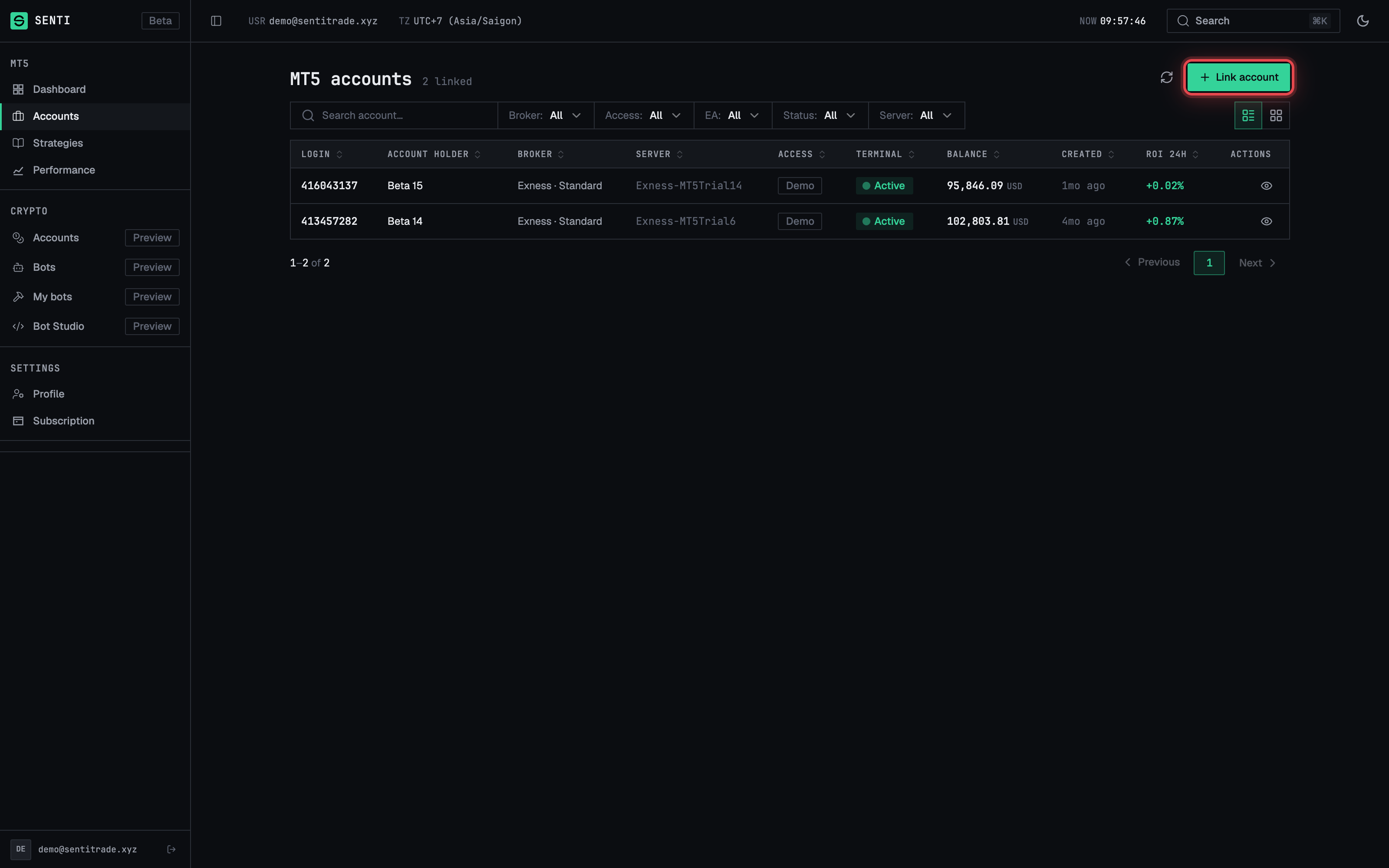
- Go to “Accounts” in the sidebar (the MT5 accounts page).
- Press “Link account”. The Link MT5 account dialog opens, with the note “Your password is encrypted before storage.” If you have no accounts yet, the page shows “No MT5 accounts linked yet — Link your first account to get started.”
Fill in the account details
- Enter your login in MT5 Login (placeholder
e.g. 12345678). - Enter your password in MT5 Password (placeholder “Master or investor password”). Helper text: “Master password to trade, investor password to monitor only — auto-detected.”
- Select your broker in the searchable Broker dropdown (Select broker… / Search broker…). If your broker isn’t listed (“No brokers match”), it isn’t supported yet.
- Select the server in the searchable Server dropdown — pick the exact server your broker assigned (e.g. the one shown at the bottom of your MT5 terminal). The list depends on the broker you chose.
- Select the “Account type” from the searchable dropdown.
- Read the confirmation notice: “You are linking {login}. Your bot will place real trades on this account.”
- Press “Link account”.
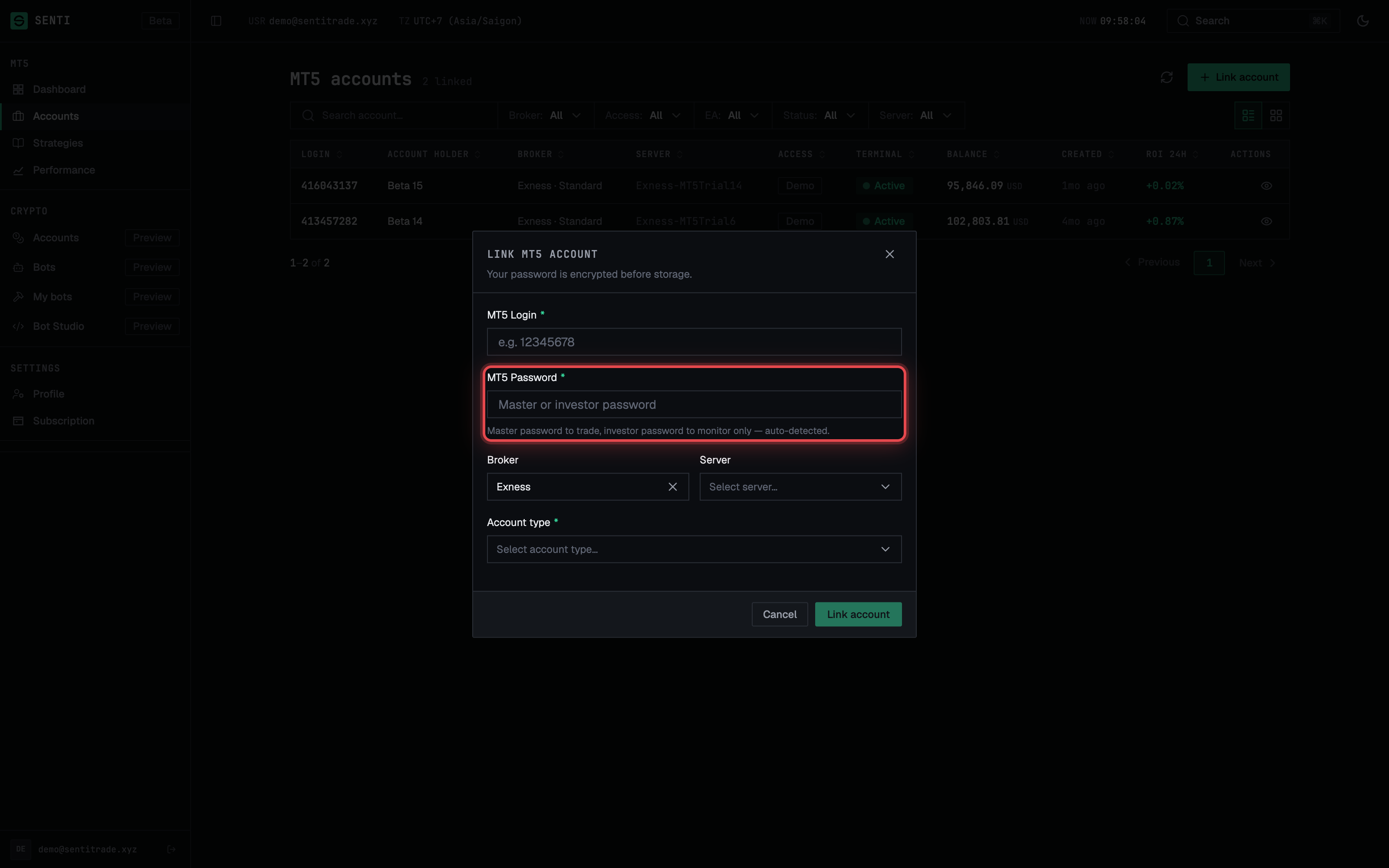
⚠️ Real trades. If you enter the master password, any EA you later deploy places real trades on this account. Use a demo account or the investor password if you only want to monitor.
Wait for provisioning
- Keep the window open. The dialog switches to Linking account… with the progress state “Linking your MT5 account… This process may take a few minutes. Please don’t close this window.”
- Expected outcome: the account appears in your list. Its Terminal status typically starts at Deploying and moves to Active once the terminal is online. The sync chip in the top bar will show “Syncing 90 days of history…” as Senti backfills your trade history.
- Check the detected access level. In the list, the Access column shows Real / Demo / Contest plus Detecting… at first, then View only if you used the investor password. Detection “usually finishes within a minute of the terminal coming online. Trading features will unlock automatically if this is a master account.”
If you hit the slot limit
- Read the banner: “⚠ Account slot limit reached — You’ve linked {used} of {cap} accounts allowed on your current plan.”
- Press “Upgrade plan” to open Subscription, or unlink an account you no longer need (Manage your accounts).
If the account is already linked
- Read the warning: “⚠ Account already linked — You already linked account {login} on {broker} on {date}.”
- Understand the consequence before continuing: “Linking again creates a second, independent terminal — consuming another cluster slot.”
- Press “Link again” only if you really want a second, independent terminal for the same broker account; otherwise press Cancel.
Warnings & constraints
⚠️ Master password = live trading. With the master password, deployed EAs place real trades on this account. The dialog states it plainly: “Your bot will place real trades on this account.”
⚠️ Don’t close the window during linking. Provisioning may take a few minutes; the dialog asks you not to close it.
- Slot limits are per plan. Each linked account — including a duplicate link of the same MT5 login — consumes one slot.
- Investor-password accounts are view-only. MT5 allows reading balance, positions, and history, but blocks any trade commands. To enable trading, link the account again with the master password.
- Credentials are encrypted before storage on Senti’s servers.
- Only brokers and servers in the searchable lists are supported.
Common errors
| Symptom | Cause | Fix |
|---|---|---|
| “⚠ Account slot limit reached” | All account slots on your plan are used. | Press Upgrade plan, or unlink an account you no longer need. |
| “⚠ Account already linked” | This MT5 login is already linked to your Senti account. | Cancel — or press Link again only if you intend a second, independent terminal (uses another slot). |
| “No brokers match” / “No servers match” in the dropdown | The broker or server isn’t in the supported list, or the search term is off. | Re-check spelling against your MT5 terminal; if truly absent, the broker isn’t supported yet — contact support. |
| Terminal status shows Login failed after linking | Wrong login, password, or server. | Unlink and re-link with the exact credentials and the exact server shown in your MT5 terminal. |
| Access stuck on Detecting… | The terminal hasn’t come online yet. | Wait — detection usually finishes within a minute of the terminal coming online. If the terminal shows Error, re-check credentials. |
| Account shows View only but you want to trade | You linked with the investor password. | Link the account again with the master password. |
| Terminal status Deploying for a long time | Provisioning is still in progress. | Wait a few minutes and press Refresh on the accounts page. |
Next: Manage your accounts