The Senti interface
Purpose
This page is a tour of the signed-in Senti shell so you can find every feature referenced in the rest of the manual: the sidebar, the top bar, the command palette, the theme control, the data-sync freshness chip, and how to sign out.
Prerequisites
- A signed-in, approved account with the Investment Disclaimer acknowledged — see Create your account.
Step-by-step
The sidebar
- Look at the left edge of the screen. The sidebar carries the SENTI brand mark with a Beta badge at the top, then the navigation groups.
- Navigate the “MT5” group — the main product area:
- Dashboard — portfolio overview: total portfolio value, realized and floating P&L, equity chart, and KPIs (ROI, Net P&L, Max DD, Win rate, Profit factor, and more).
- Accounts — your linked MT5 accounts (manage them here).
- Strategies — the EA catalog.
- Performance — analytics across your accounts.
- Navigate the “Settings” group — Profile and Subscription (plan & billing).
- Collapse or expand the sidebar with the Collapse sidebar / Expand sidebar control to reclaim horizontal space. Collapsed, the sidebar shows icons only.
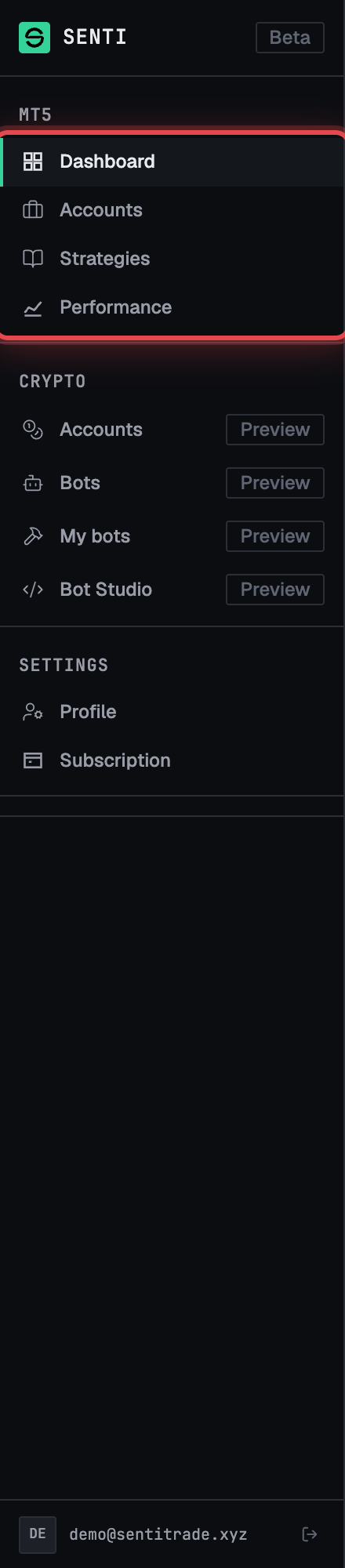
Note. A Crypto section exists in the app in Preview and is not generally available; this manual does not cover it. An Admin section appears only for administrator accounts.
The top bar
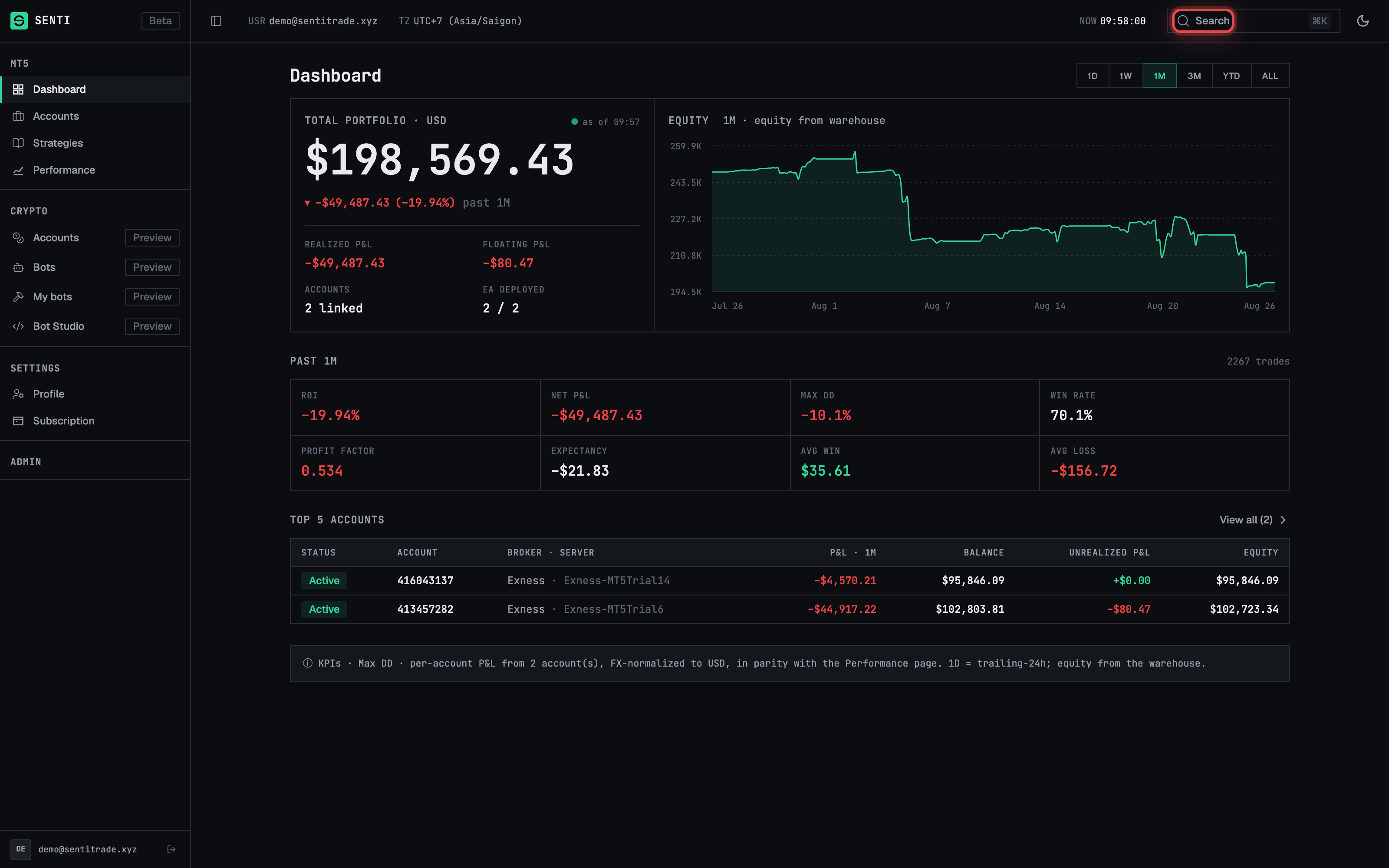
- Find the search field in the top bar — it hints Search (⌘K) and opens the command palette (next sub-flow).
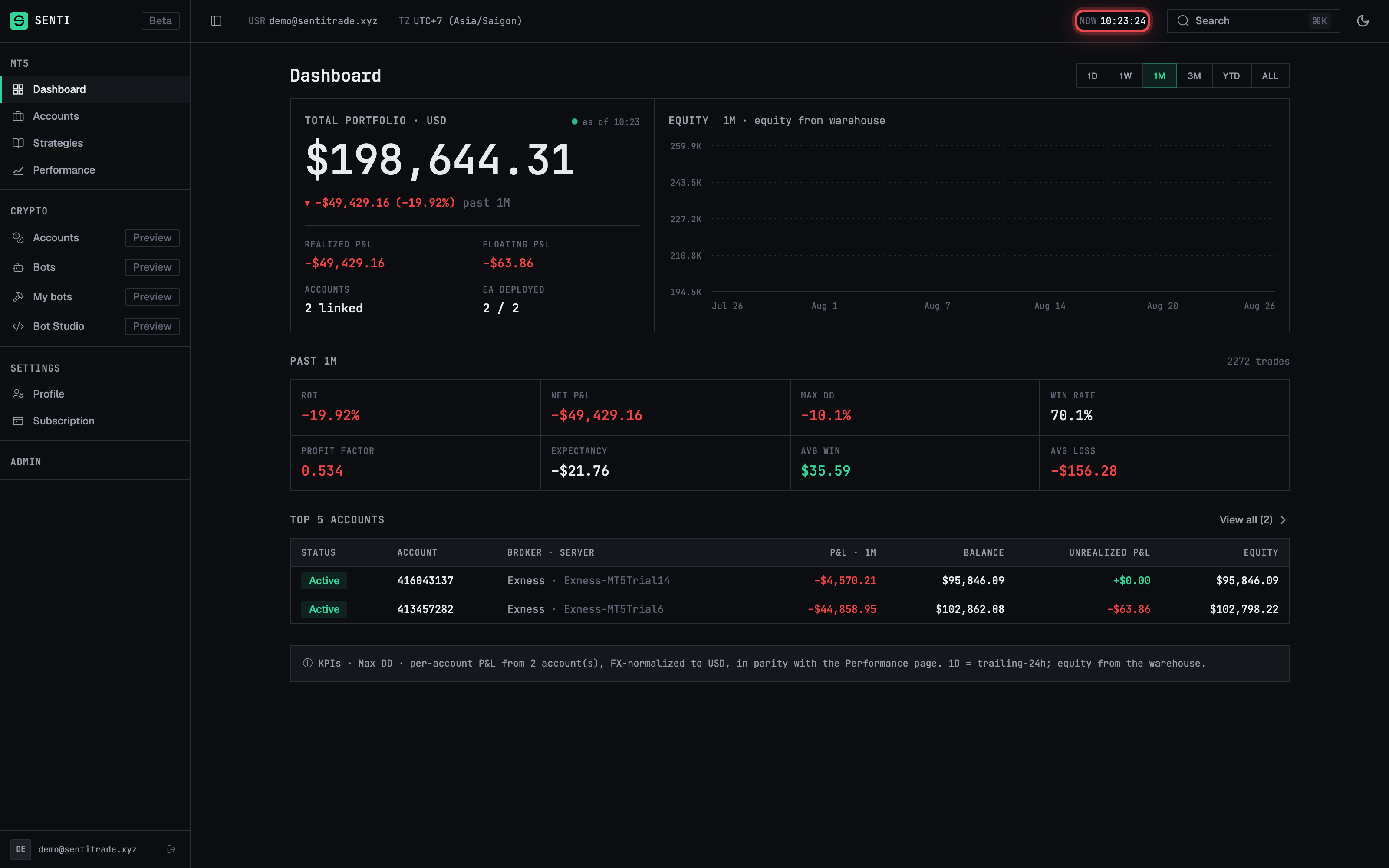
- Find the sync freshness chip — shows how fresh your synced trading data is (covered below).
- Find the theme control and your account menu at the right end of the bar.
The command palette
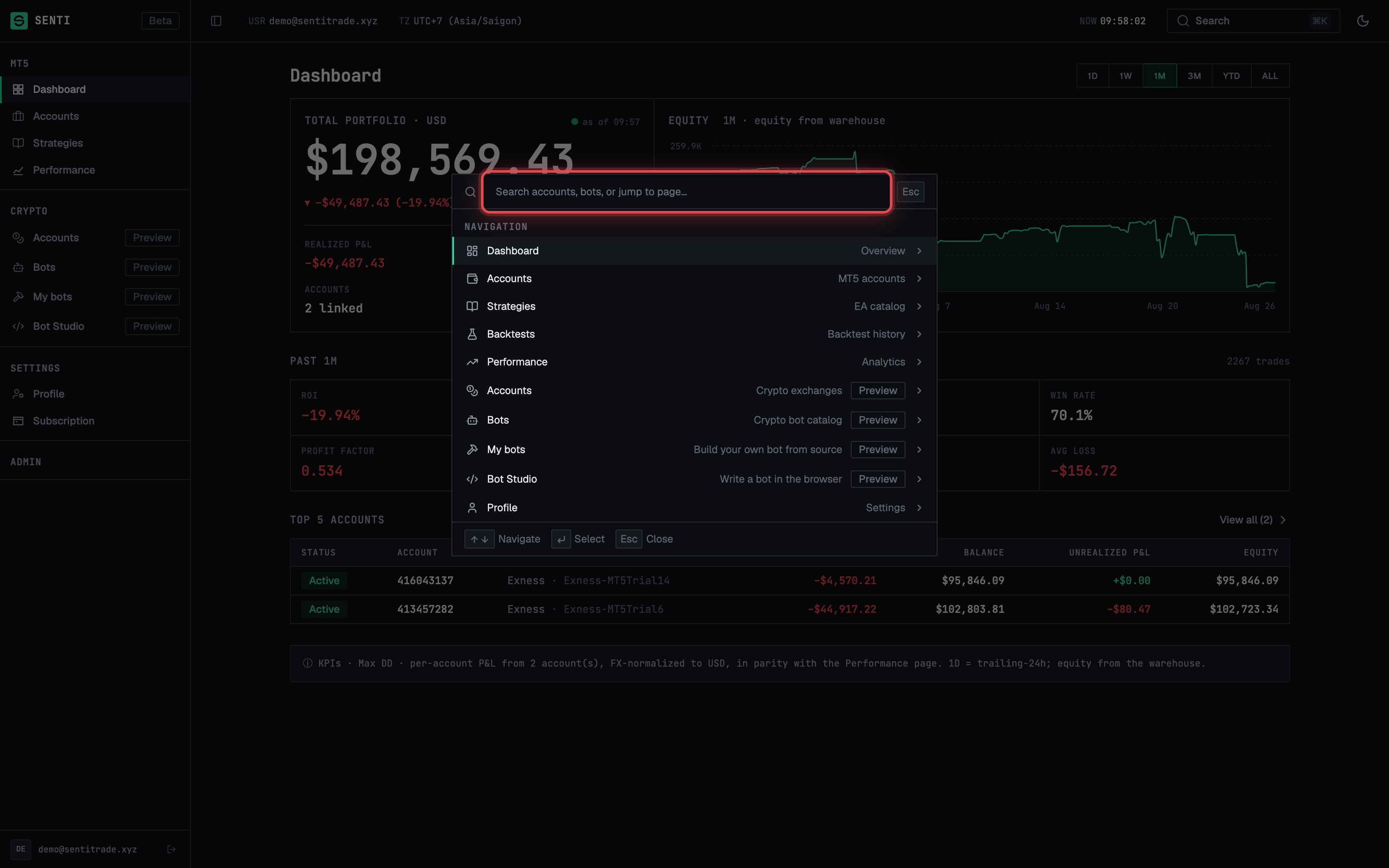
- Press ⌘K (or click the search field). A dialog opens with the placeholder “Search accounts, bots, or jump to page…”.
- Type to search. Results are grouped into Navigation (Dashboard, Accounts, Strategies, Backtests, Performance, Profile, Subscription, API reference), MT5 Accounts (your linked accounts, marked Live or Off), and Deployed EAs (running bots, shown as “on {login}” with their status — Deploying, Running, Stopped, or Error).
- Use the keyboard: arrow keys to Navigate, Enter to Select, Esc to Close — the footer of the palette lists these hints.
- Expected outcome: selecting an entry jumps straight to that page, account, or bot. If nothing matches, the palette shows No results.
Theme
- Cycle the theme with the theme button in the top bar (tooltip “Cycle theme — ⇧⌘L”). Each press cycles dark → light → auto (auto follows your OS setting). The shortcut ⇧⌘L does the same from anywhere.
Note. The app interface is English only. An earlier build shipped a language switcher with Korean and Simplified Chinese; it is no longer part of the app.
The sync freshness chip
Senti syncs your trading history from your MT5 terminal and shows the state in a chip in the top bar.
- Read the chip. Common states:
- “Syncing 90 days of history…” — first-time backfill after linking an account; “The dashboard renders as soon as the first chunk lands.”
- “Synced {age}” — healthy; historical data is synced and live activity is fetched directly from your terminal.
- “Live data unavailable — historical view may lag your terminal by up to ~5 min. Click Refresh on the sync chip to retry.”
- “Sync paused” — syncing paused after repeated failures or for maintenance; a notice on the account page offers Resume sync.
- Press “Refresh” on the chip to queue a fresh sync — you’ll see “Sync queued — data will refresh in a moment”. With several accounts the chip aggregates (“Sync · N accounts”) and offers Refresh all.
Sign out
- Open the account menu at the right end of the top bar.
- Press “Sign out”. You return to the Sign in page. If your session expires on its own you’ll see “Session expired — Your session has ended. Please sign in again to continue.” with a Sign in again button.
Warnings & constraints
Note. Senti is labelled Beta — surfaces may evolve. Keyboard shortcuts (⌘K, ⇧⌘L) use ⌘ on macOS; on Windows/Linux use Ctrl in its place.
- Live account data is fetched from your terminal on each dashboard open; when the live edge is unavailable, the historical view can lag your terminal by up to ~5 minutes.
- The sync chip’s Refresh is rate-aware — if a sync was just triggered you’ll see “Sync already in progress — Another sync was triggered moments ago.”
Common errors
| Symptom | Cause | Fix |
|---|---|---|
| “Live data unavailable” on the sync chip | The live connection to your terminal is temporarily down. | Click Refresh on the sync chip; data may lag by up to ~5 min meanwhile. |
| “Sync paused” with a paused tooltip | Syncing paused after repeated failures, or paused by the team for maintenance. | Use the Resume sync button in the notice on the account page; maintenance pauses resume automatically. |
| “Sync already in progress” toast when refreshing | Another sync was triggered moments ago. | Wait a moment — the running sync will land shortly. |
| “Session expired” screen | Your sign-in session ended. | Press Sign in again and log back in. |
| No results in the command palette | Query matches no page, account, or bot. | Check spelling, or search by MT5 login number instead of label. |
| Page not found | You followed a stale or mistyped URL. | “Check the URL or head back home.” — use the sidebar to navigate. |
Next: Link an MT5 account