Deploy an EA
Purpose
Deploying an EA puts a strategy live: one EA, with one preset, running on one linked MT5 account, placing real trades. The Deploy EA dialog is a two-step wizard — Step 1: choose the account, Step 2: Configure & Deploy — reachable from a strategy article’s Activate EA, a My EAs row’s Deploy rocket, or the Deploy EA button on an account page.
Prerequisites
- A linked MT5 account with MASTER access (linked with the master password). View-only accounts cannot run EAs — the dialog blocks with “No MASTER-access MT5 accounts linked yet.” and a Link account shortcut. See Link an MT5 account.
- The account’s terminal must be online. An offline terminal is flagged Terminal offline in the account picker and cannot receive an EA.
- An EA to deploy — a platform strategy from the catalog or one of your own EAs.
- Ideally, a backtest of the configuration you are about to run.
Step-by-step
Step 1 — Choose the account
-
Open the deploy wizard. Deploy always starts from an EA: press the Deploy rocket on one of your EAs, or Activate EA on a strategy article. The wizard opens with that EA pre-selected.
-
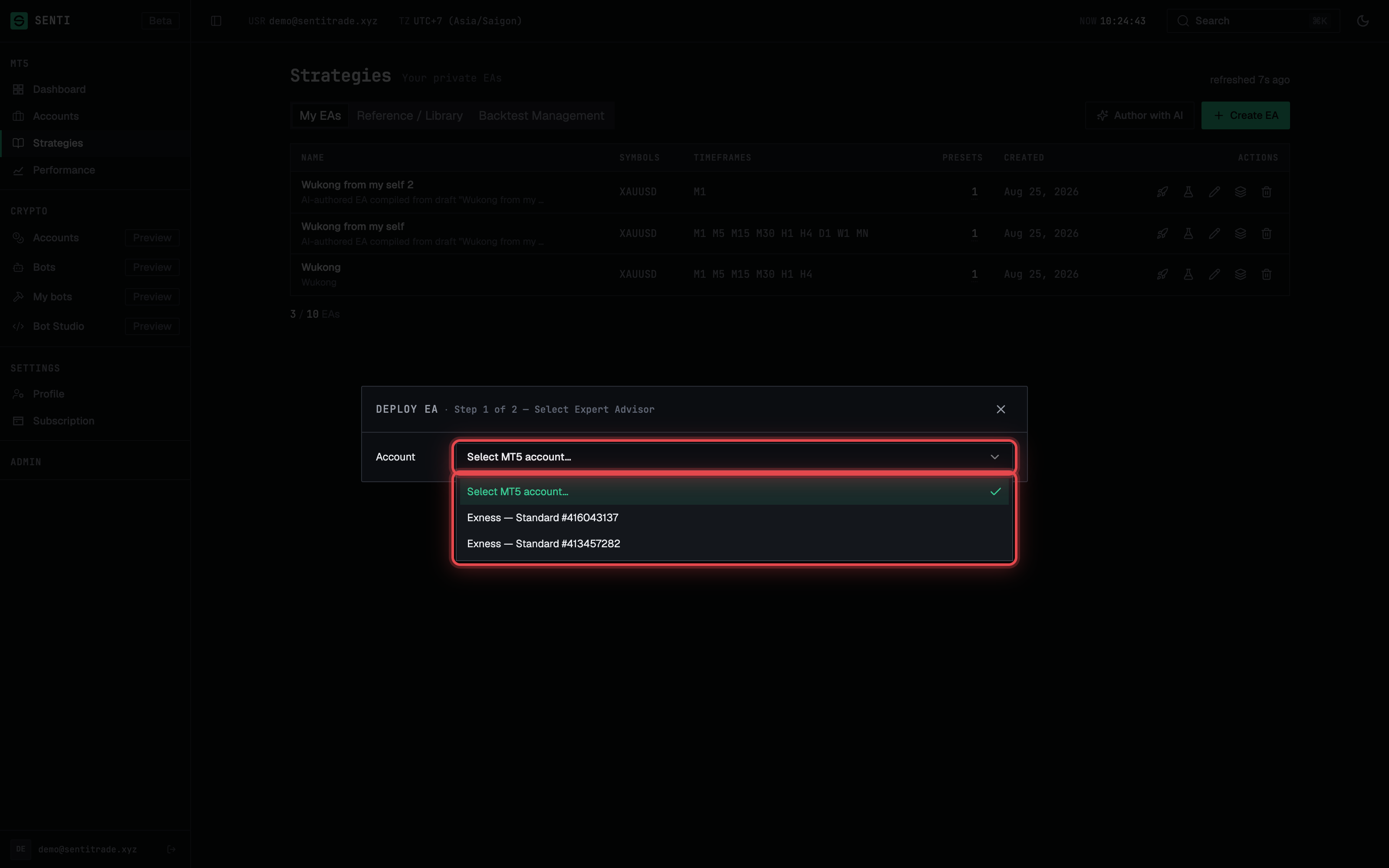
Pick the target account. Open the account picker (Step 1 of 2). Only MT5 accounts with MASTER access can deploy; accounts whose terminal is down are marked Terminal offline and can’t be targeted. Selecting an account advances you to step 2.
Step 2 — Configure & Deploy
-
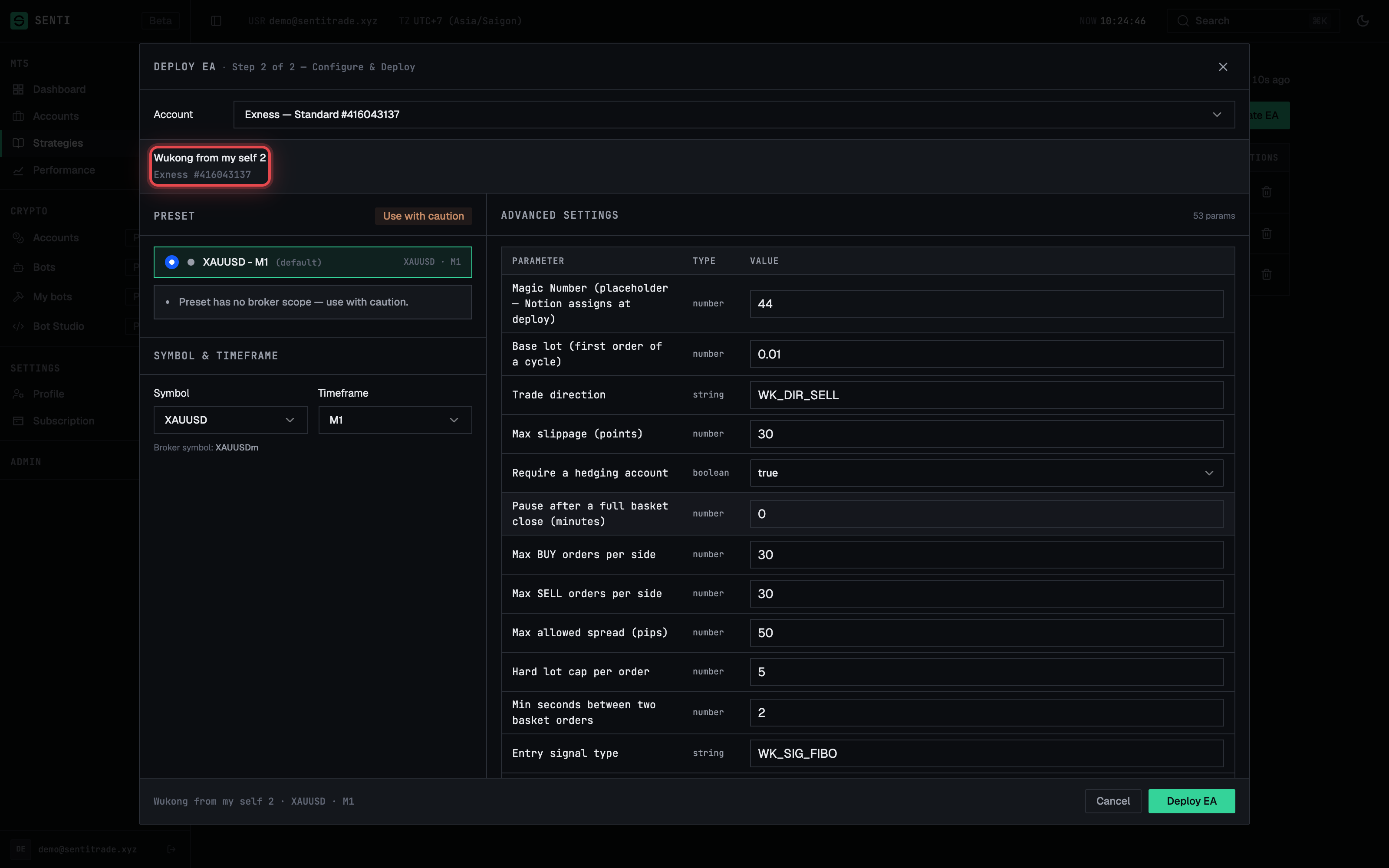
Confirm the EA. The configure step shows the selected EA and target account at the top — check you are deploying what you think you are.
-
Pick a preset. The Preset selector defaults to the EA’s default preset, marked (default). A preset carries the author’s parameter values plus a target symbol, timeframe, and optional minimum balance.
-
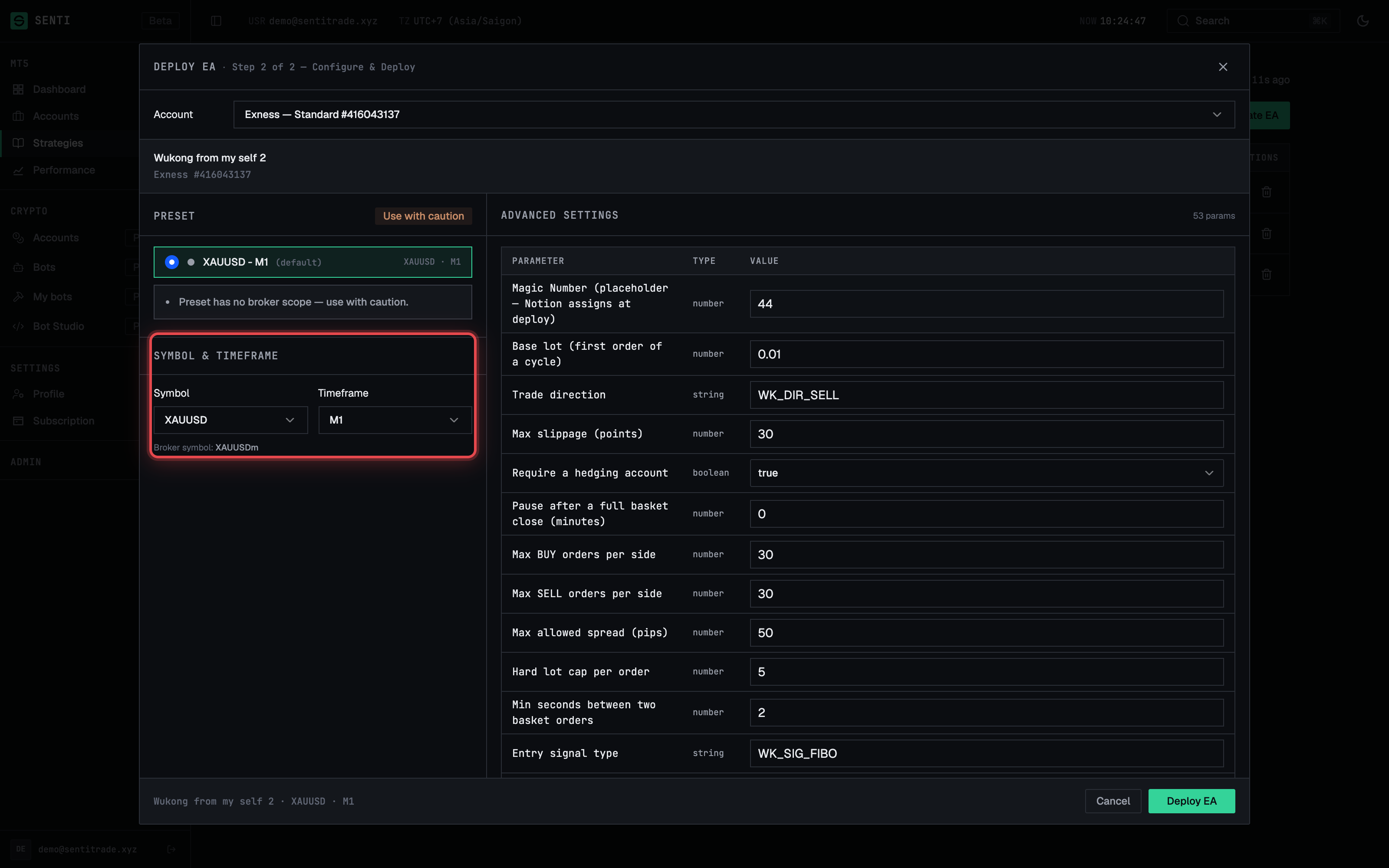
Confirm Symbol & Timeframe. The Symbol & Timeframe section shows the resolved Broker symbol: — the actual instrument name on your broker’s account type (e.g.
XAUUSDm). Deviating from what the preset was authored for, or using a preset without a broker scope, surfaces a caution banner (e.g. “Preset has no broker scope — use with caution”).
-
Optionally override parameters. Expand Advanced Settings to change individual EA inputs for this deployment; changed values are marked “Overrides the EA default”. An EA with no inputs shows “No adjustable parameters for this EA.”
-
Press Deploy EA. The button shows Deploying…, then a success toast: “EA deployed successfully — Monitor on your account page.” Follow the link — the deployment appears in the account’s Active strategies list, first as Deploying, then Running (see Manage running EAs).
Save a configuration you trust
Once a configuration works, you do not have to rebuild it by hand next time.
- Save it as a favourite. In the deploy dialog’s Configuration area, press Save as favorite. Give it an Optional name — leaving the name empty keeps a generated one, and “Clearing the name restores the generated one.” A configuration you already kept shows Already saved rather than duplicating.
- Reuse it. Saved configurations appear in the preset picker on later deploys, so a known-good setup is one selection rather than a re-entry of every parameter.
- Or make it a startup strategy for one account. Save as startup EA for this account marks the configuration as that account’s Startup strategy; the button reads Update startup strategy when one is already set. A startup strategy is what the account is meant to run, as distinct from what it is running — both lists live on the account page under one switchable header (see Manage running EAs). There you can Edit parameters and reorder them (“Drag to reorder — or focus and use the arrow keys”).
⚠️ A favourite saves a configuration, not an outcome. It restores the same parameters, symbol and timeframe — not the market they worked in. Re-check the resolved broker symbol and the account balance before deploying an old favourite onto a new account.
Warnings & constraints
⚠️ This trades real money. The moment the EA reaches Running, it can open positions on your broker account with live capital. Deploy on a demo account first if you are unsure, and never run capital you can’t afford to lose.
⚠️ Respect the caution banners. A preset warning (missing broker scope, symbol/timeframe deviation, minimum-balance mismatch) exists for a reason — the parameter values were authored for a specific market. Understand why it warns before deploying anyway.
Note. Changing the symbol or timeframe away from the preset’s target may invalidate the parameter tuning — the values were authored for a specific market and bar size.
- One EA cannot be deployed twice with the same symbol and timeframe on the same account (“This EA is already deployed with the same symbol and timeframe.”).
- The deployed configuration is snapshotted; later edits to the EA or preset do not change a running deployment. To apply changes, stop and redeploy.
- The EA can only target symbols and timeframes listed in its compatibility; unsupported choices are rejected.
Common errors
| Symptom | Cause | Fix |
|---|---|---|
| “No MASTER-access MT5 accounts linked yet.” | All linked accounts are view-only (investor password) or none are linked | Press Link account and link with the master password |
| Terminal offline on the account | The MT5 terminal for that account isn’t running | Open the account page and start/repair the terminal, then retry (“The terminal is not online. Deploy and start the terminal first.”) |
EA_ALREADY_DEPLOYED — already deployed with the same symbol and timeframe |
A duplicate deployment on the same account | Stop the existing one first, or pick a different symbol/timeframe |
EA_DEPLOY_FAILED — We could not deploy your EA. |
The deployment failed on the terminal side | Check that the terminal is running and try again |
NO_ONLINE_NODES — No server is online right now. |
Platform capacity is temporarily unavailable | Wait and retry shortly |
ACCOUNT_NOT_ACTIVE — awaiting approval |
Your Senti account hasn’t been approved yet | Wait for admin approval (see the prerequisite chain in the manual index) |
PRESET_BLOCKED — This preset is not compatible with your account. |
The preset fails a compatibility/balance check | Pick another preset, or adjust the configuration until the caution clears |
| The selected EA does not support this symbol / timeframe. | Choice outside the EA’s compatibility list | Choose a supported symbol/timeframe, or edit the EA’s compatibility (own EAs only) |
| “{symbol}” is not mapped for your broker account type. | No broker-symbol mapping exists for that instrument | Contact support to add the mapping |
| The selected preset is no longer available. | The preset was deleted while the dialog was open | Reopen the dialog and pick a current preset |