Security activity and account deletion
Purpose
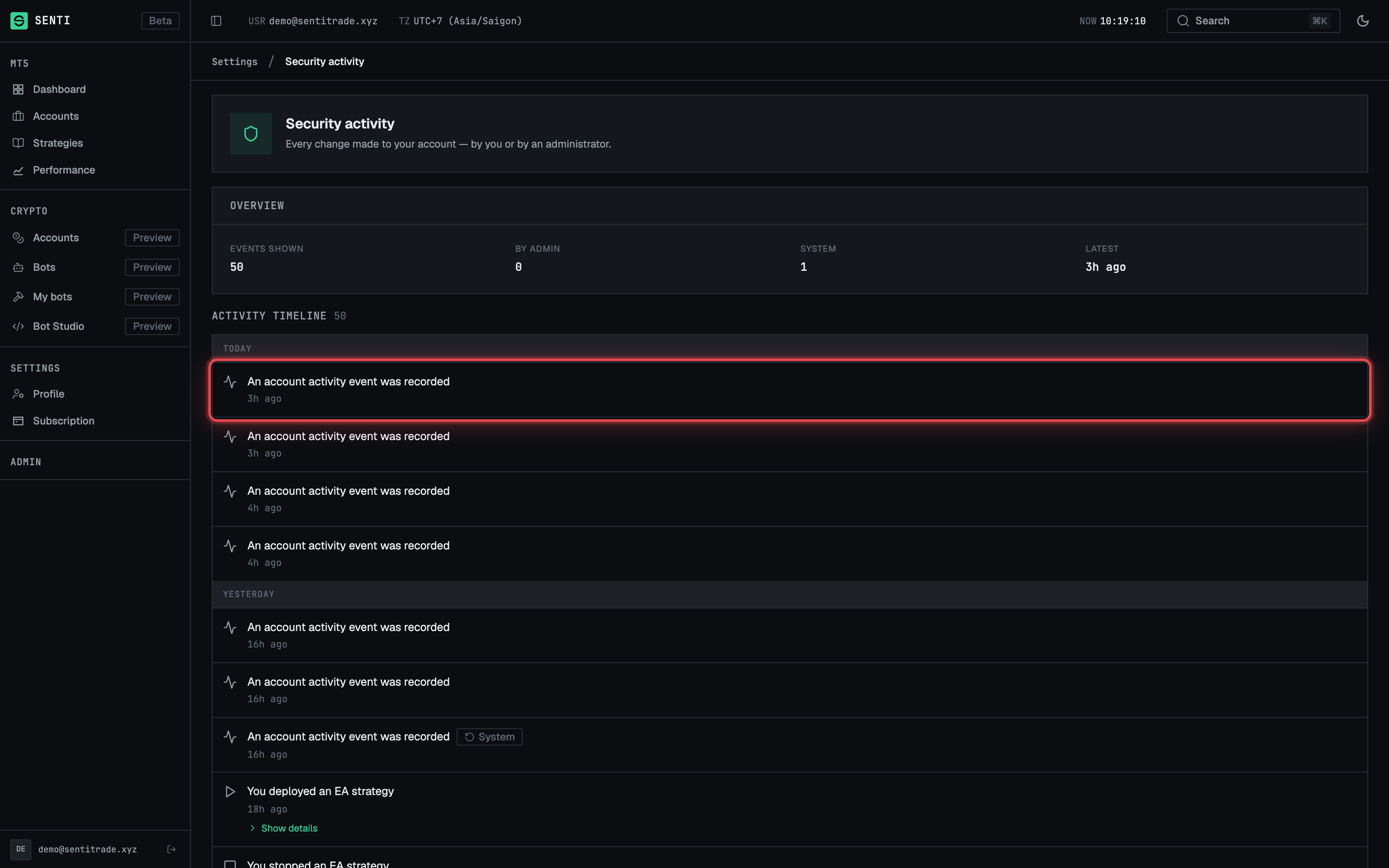
Two safety features live behind your profile page. Security activity is a full audit trail — “Every change made to your account — by you or by an administrator.” — so you can verify that nothing happened to your account that you didn’t do. Delete account is the controlled way out: it deactivates your account and stops your bots immediately; your data is retained per the retention policy, and full erasure is handled by support. This page covers reading the audit timeline and walking the deactivation flow with a clear picture of its consequences.
Prerequisites
- A signed-in Senti account.
- For deletion: you must be able to type your account email exactly to confirm.
- Before deleting, stop and detach anything you still need — export what you want to keep, and review Plans & billing for your subscription state.
Step-by-step
Review your security activity
- Open Security activity from Profile → More → Security activity
(“Review every change made to your account” → View), or navigate to
/account/security-activity. - Read the “Overview” card. It shows Events shown, how many were made By admin, how many were System events, and the Latest event time.
- Scan the “Activity timeline”. Events are grouped by day (Today, Yesterday, then dates). Each entry describes one change; events made by an administrator carry a By admin badge and automated ones a System badge.
- Expand an event with Show details to see its recorded metadata; Hide details collapses it again.
- Load older events with Load more at the bottom of the timeline. A new account shows “No activity yet”.
Note. If you see an event you don’t recognise and it isn’t badged By admin or System, change your password immediately (Profile → More → Password) and revoke any API keys you don’t recognise.
Deactivate your account
- Start from the Danger zone on your profile page:
“Deactivates your account and shuts down your trading bots. Data is
retained; erasure is handled by support.” Press Delete account to open
the Deactivate account flow at
/settings/delete-account. - Read the consequences in the confirmation dialog:
- your active trading bots are stopped,
- you are signed out everywhere,
- your API keys stop working immediately (apps using them get 401),
- your data is retained per the retention policy — full erasure is handled by support.
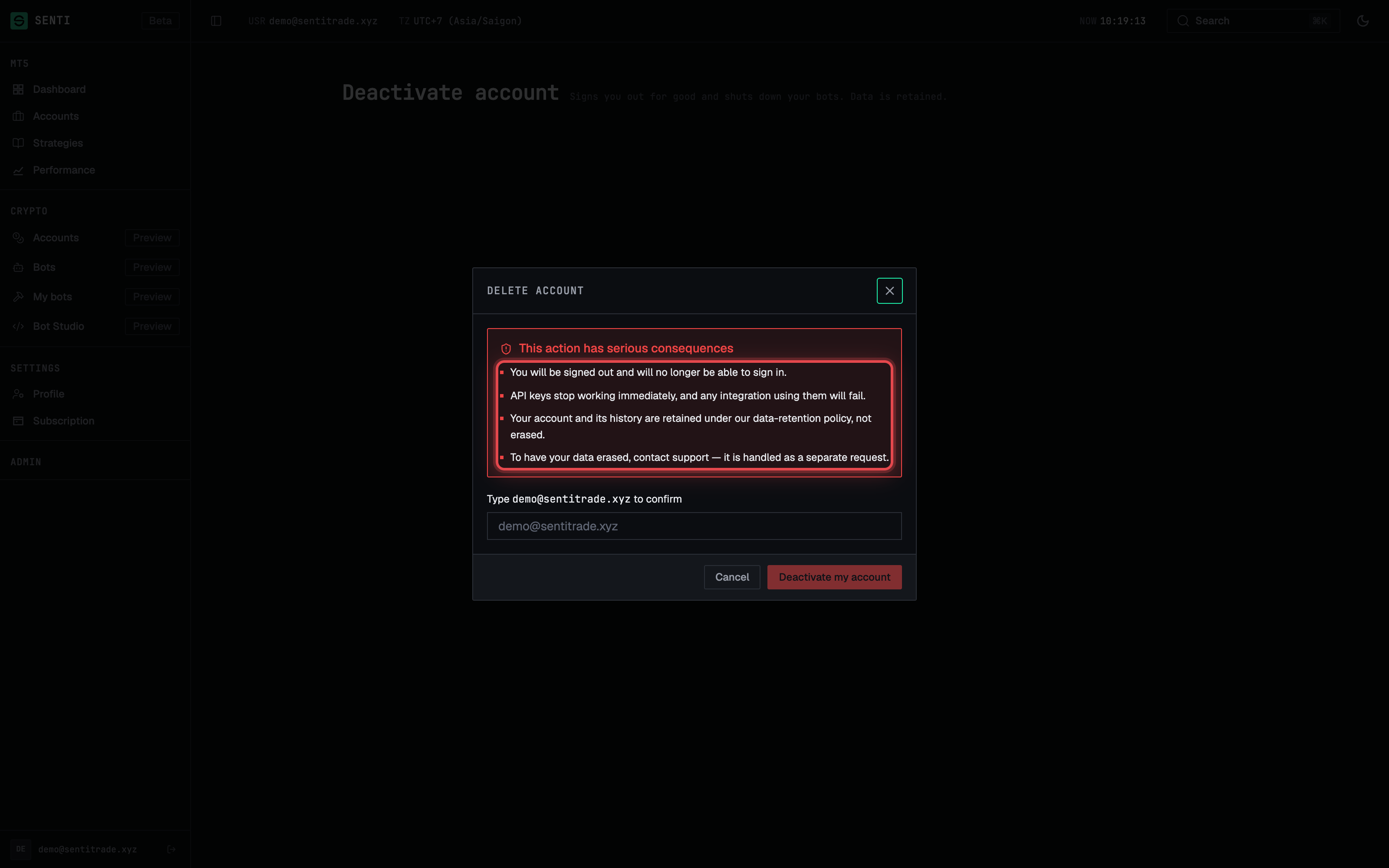
- Type your email to confirm. The dialog asks you to type your account email — this guards against accidental clicks; the text must match exactly.
- Press “Deactivate my account”, or Cancel to back out. Nothing happens until you submit.
- To permanently erase your data, contact support at
partners@koni.studioafter deactivating — erasure is not self-serve.
Warnings & constraints
⚠️ Bots stop the moment you submit. Deactivation stops your trading bots immediately. Any open positions those bots were managing are no longer managed by Senti — handle them in your MT5 terminal.
⚠️ API keys go dark immediately. Anything integrated against your API keys starts receiving 401 errors the moment you deactivate.
- The email confirmation must match your account email exactly — copy-paste it if in doubt.
- The security-activity timeline is read-only; you cannot edit or delete audit events.
- Admin actions on your account appear in your own timeline with the By admin badge — that’s by design, so the trail is complete.
Common errors
| Symptom | Cause | Fix |
|---|---|---|
| Deactivate my account stays disabled / rejects | The typed email doesn’t exactly match your account email | Re-type or paste the email shown in the “Type … to confirm” prompt |
| Timeline shows “No activity yet” | No account changes have been recorded yet | Nothing to fix — events appear as changes happen |
| Unrecognised event in the timeline | Someone else may have access, or it was an admin/system action you missed | Check for By admin/System badges; otherwise change your password and revoke API keys |
| Bots stopped unexpectedly after starting deletion | Submitting the deletion form stops all bots immediately | This is expected; contact support if you need to discuss your scheduled deletion |
| Can’t see older events | Only a first page of events is loaded | Press Load more at the bottom of the timeline |