API keys
Purpose
API keys give your own scripts, bots, and integrations programmatic access to Senti — “Programmatic access to your accounts and strategies.” The API Keys page lets you mint keys with fine-grained read/write scopes, watch how much each key is being used, and revoke keys instantly. This page covers the overview stats, creating a key (and the one-time key reveal), the scope picker, expiry, revocation, and the plan gate that pauses keys on plans without API access.
The API itself is documented on this docs site at /api/ — the page links there via API documentation.
Prerequisites
- A Senti account on a plan that includes API access. If yours doesn’t, the page shows an API disabled badge and the notice “API access isn’t included in your current plan.” — see Plans & billing.
- Somewhere secure to store the key you create (a secrets manager,
.envfile outside version control, etc.) — the full key is shown once.
Step-by-step
Read the overview
- Open the API Keys page from Profile → More → API Keys (subtitle
“Programmatic access & tokens for the public API”), or navigate to
/account/api-keys. - Check the badge next to the title: API access means your plan includes the API; API disabled means it doesn’t.
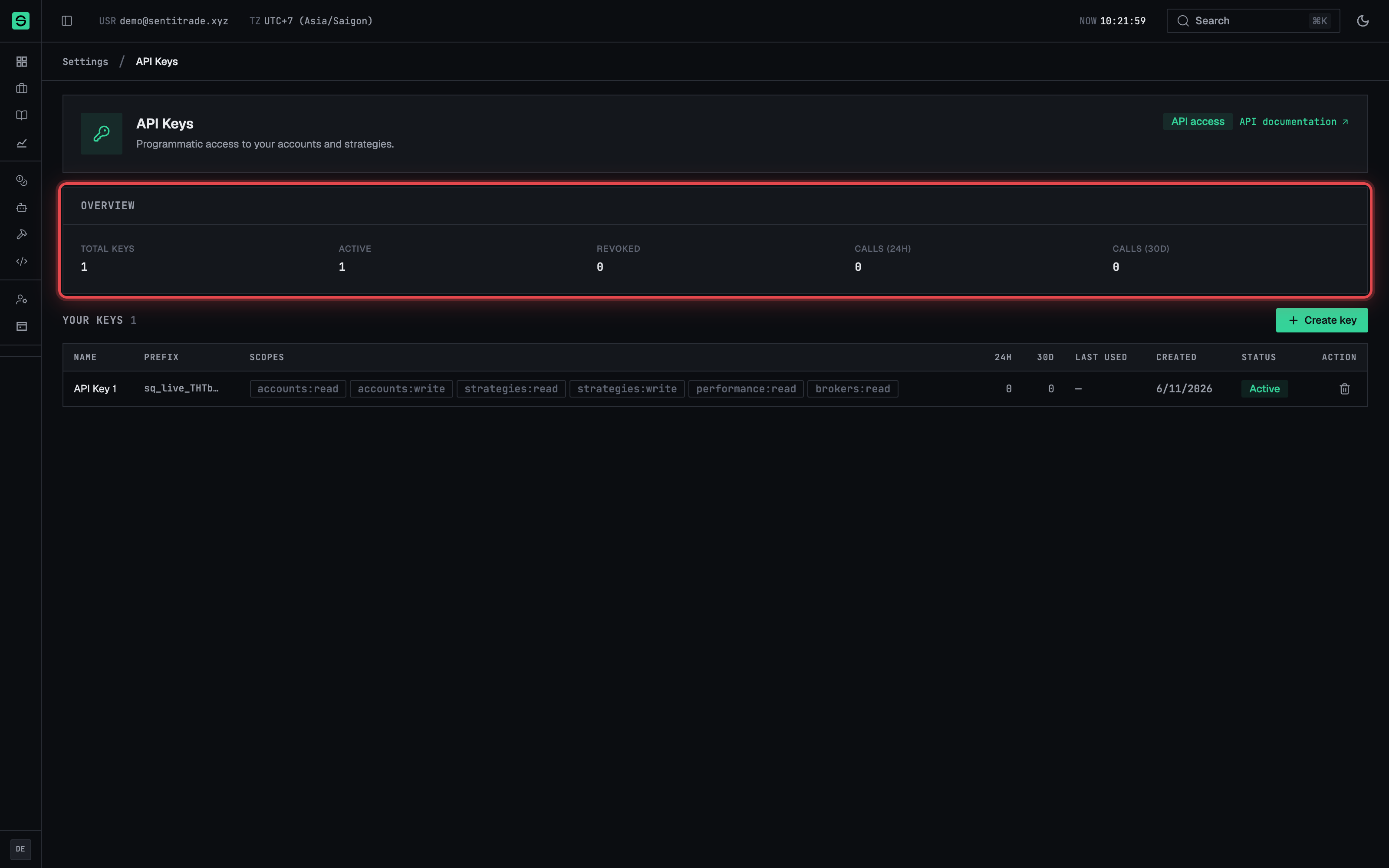
- Scan the “Overview” card. It shows Total keys, Active, Revoked, Calls (24h), and Calls (30d) across all your keys.
Create a key
-
Press “Create key” in the Your keys card. (If your first visit shows “No API keys yet — Create a key to call the public API from your own automation.”, this is the same button.) The Create API key dialog opens.
-
Name the key in the Name field (placeholder “e.g. trading-bot prod”). A name is required — you’ll see “Name is required.” otherwise. Name keys after the app that will hold them, not after yourself.
-
Select scopes. Scopes are
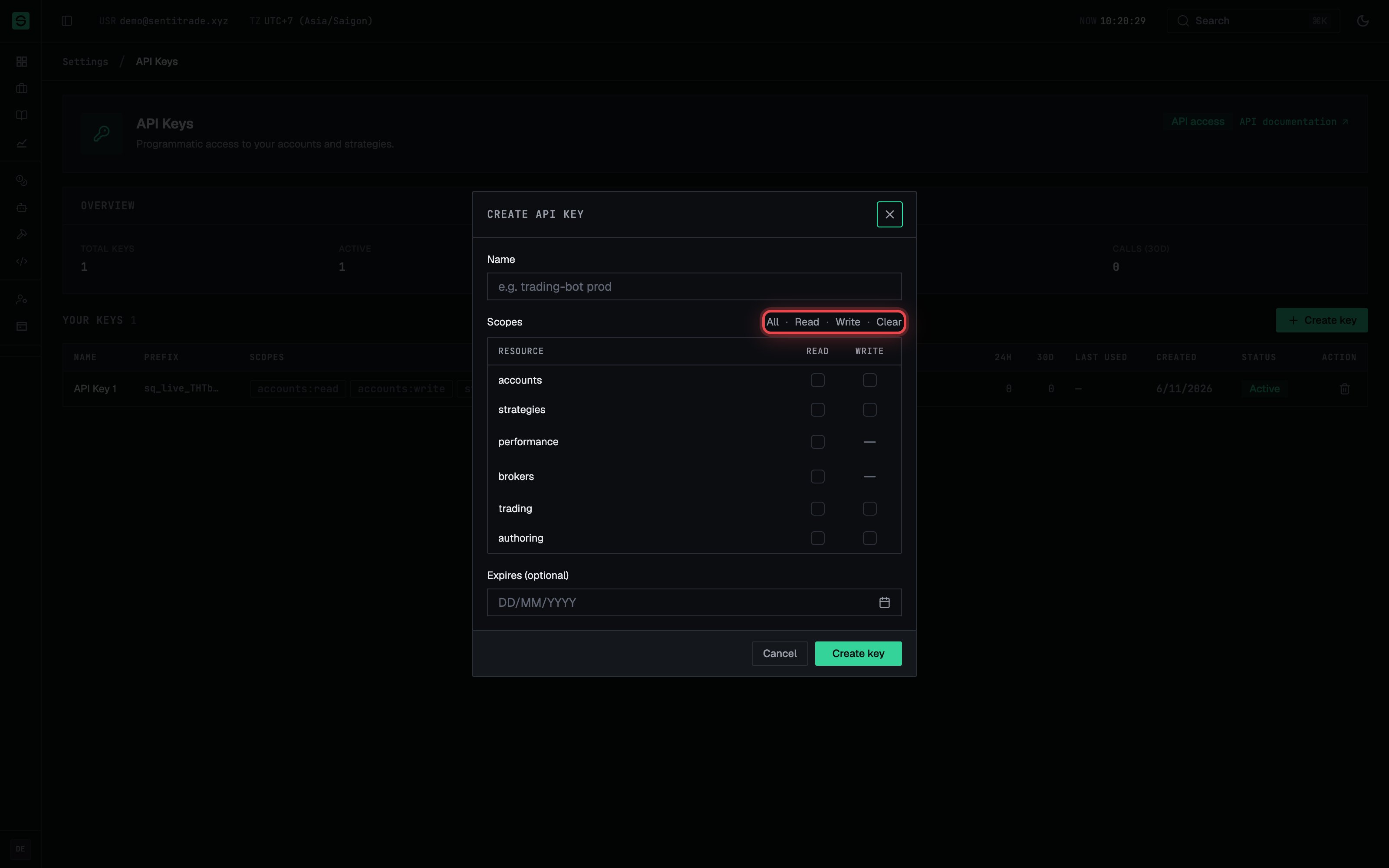
resource:actionpairs, grouped by resource with a read and write checkbox per row, plus bulk buttons All, Read, Write, and Clear. Available resources include accounts, strategies, performance, brokers (read-only), trading, and authoring. At least one scope is required (“Select at least one scope.”).Note. Grant the minimum you need. A read-only key (Read) cannot deploy, link accounts, or close positions. The
trading:writescope is the one that can close positions and cancel orders on a live account — keep keys that hold it especially safe. -
Set an expiry (optional) with the Expires (optional) date field. An expired key stops working and shows the Expired status.
-
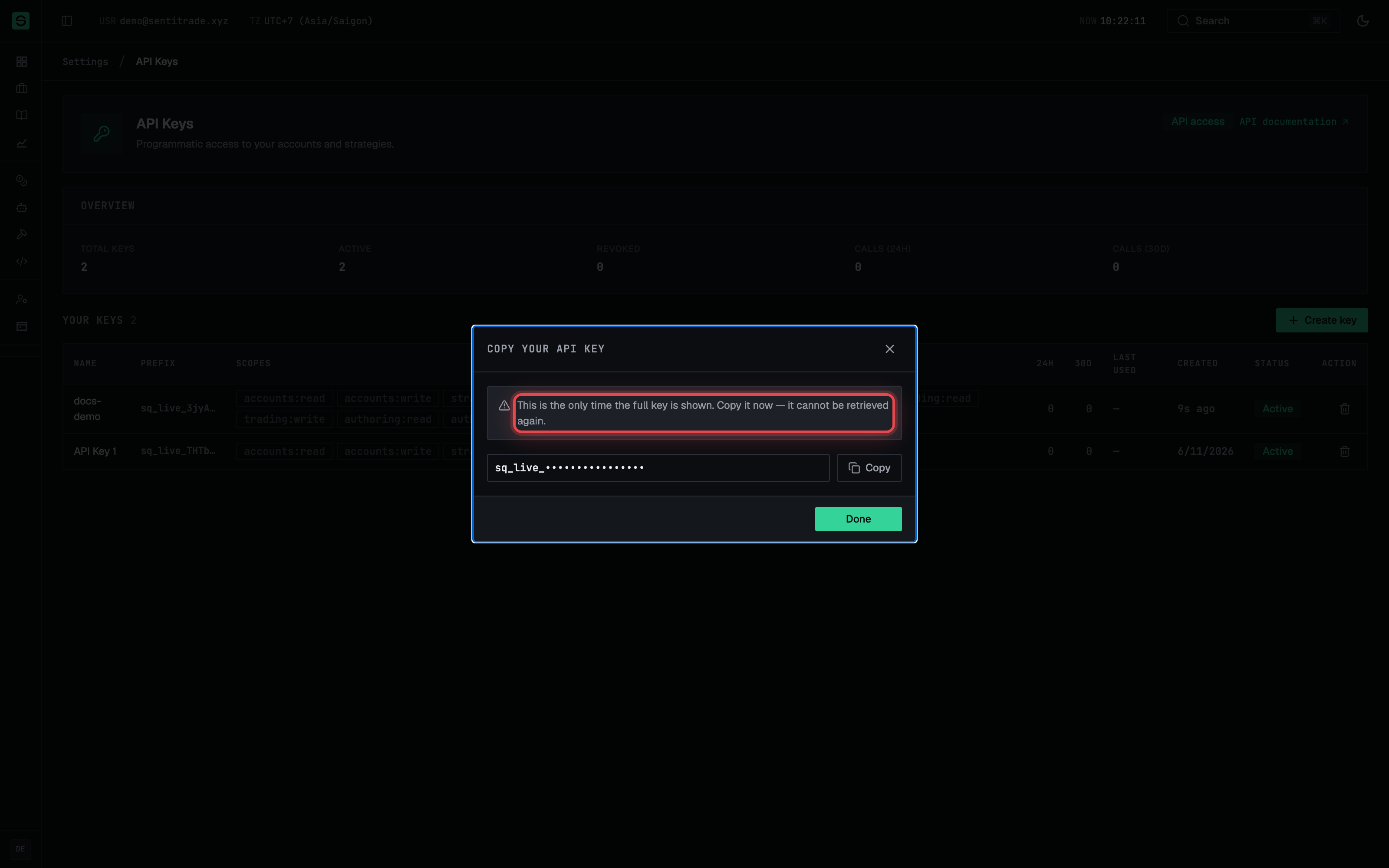
Press “Create key”. The dialog switches to Copy your API key and shows the full key exactly once.
- Copy the key now. Press Copy (it flips to Copied), store the key securely, then press Done.
⚠️ The key is shown only once. “This is the only time the full key is shown. Copy it now — it cannot be retrieved again.” Senti stores only a hash and the display prefix. If you lose the key, revoke it and create a new one.
Monitor your keys
- Read the key table. Columns: Name, Prefix (the identifying start of the key), Scopes, calls (24h / 30d), Last used, Created, and Status (Active, Revoked, or Expired).
- Toggle revoked keys with Show revoked / Hide revoked to include or exclude dead keys from the list.
Revoke a key
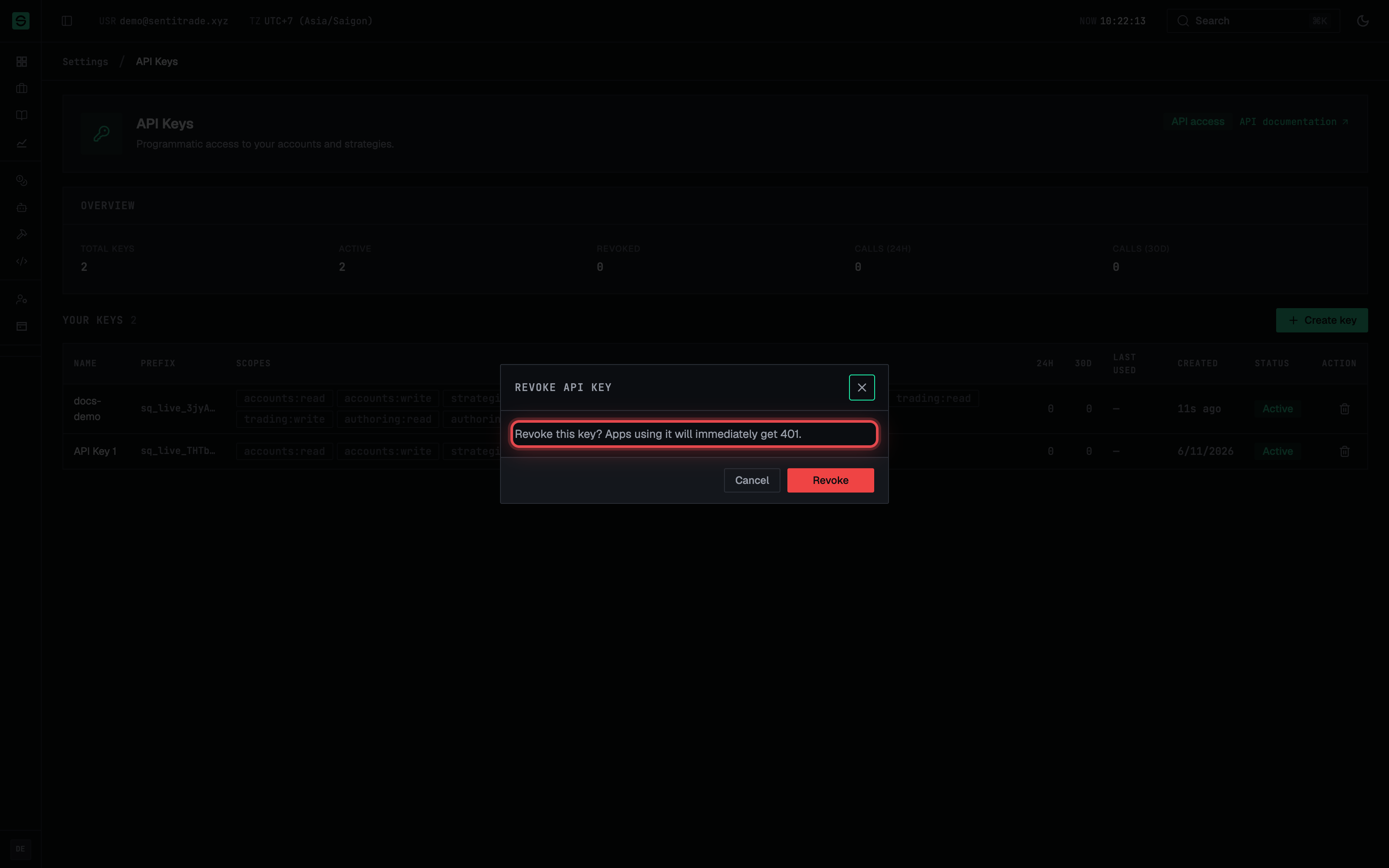
- Press “Revoke” on the key’s row. A confirmation dialog titled Revoke API key asks: “Revoke this key? Apps using it will immediately get 401.”
- Confirm with “Revoke”. The key’s status flips to Revoked and every request using it fails from that moment.
⚠️ Revocation is immediate and permanent. There is no un-revoke — any app still holding the key gets
401on its next call. Rotate by creating the new key first, switching your app over, then revoking the old one.
Warnings & constraints
- The full key cannot be retrieved after creation — only its prefix is displayed afterwards, for identification.
- Plan gate: on a plan without API access, Create key is disabled (“Upgrade your plan to use the API”) and “Your existing keys are paused until you upgrade.” Keys are paused, not deleted — they resume when you upgrade. Use View plans to compare plans.
- A key acts as you, limited by its scopes — it can only reach your own accounts and strategies.
- Treat keys like passwords: never commit them to a repository, embed them in client-side code, or share them in chat.
- Scope changes are not edited in place — to change a key’s scopes, create a new key with the right scopes and revoke the old one.
Note. Revoked keys are not kept forever. A revoked key stays listed for a retention window — 180 days by default — then is deleted permanently, and its usage history goes with it. Export anything you need for an audit first.
Common errors
| Symptom | Cause | Fix |
|---|---|---|
API calls return 401 |
Key revoked, expired, or mistyped | Check the key’s Status in the table; create a new key if needed |
| API calls fail with an insufficient-scope error | The key lacks the resource:action scope the endpoint requires |
Create a new key including the needed scope; revoke the old one |
| Create key button disabled | Plan doesn’t include API access (“Upgrade your plan to use the API”) | Press View plans and upgrade |
| Keys stopped working after a downgrade | “Your existing keys are paused until you upgrade.” | Upgrade to a plan with API access — keys resume automatically |
| Can’t find the full key again | Full keys are shown only once at creation | Revoke the lost key and create a replacement |
| “Select at least one scope.” on create | No scope checkbox ticked | Tick at least one read or write scope, or use the Read/All bulk buttons |