Run a backtest
Purpose
A backtest runs an EA against historical price data on the MT5 Strategy Tester — without risking any capital. Use it to check how a strategy would have behaved on a given symbol, timeframe and period before you deploy it to a live account.
This page covers the New backtest form (/backtest/new) and what happens
after you press Start backtest. Reading the finished report is covered in
Read the backtest report, and the
history list, re-runs and sharing in
Manage and share backtests.
Prerequisites
- A Senti account, signed in.
- An EA to test — either a Platform EA or one of Your EAs (see Create and manage your EAs).
- A linked MT5 account is used as the account context for the run — see Link an MT5 account.
- No backtest of yours currently running: you have one backtest slot. If a run is already queued or running, the form shows “You already have a backtest running” with an “Open the running backtest” link.
Step-by-step
Open the form and pick the strategy
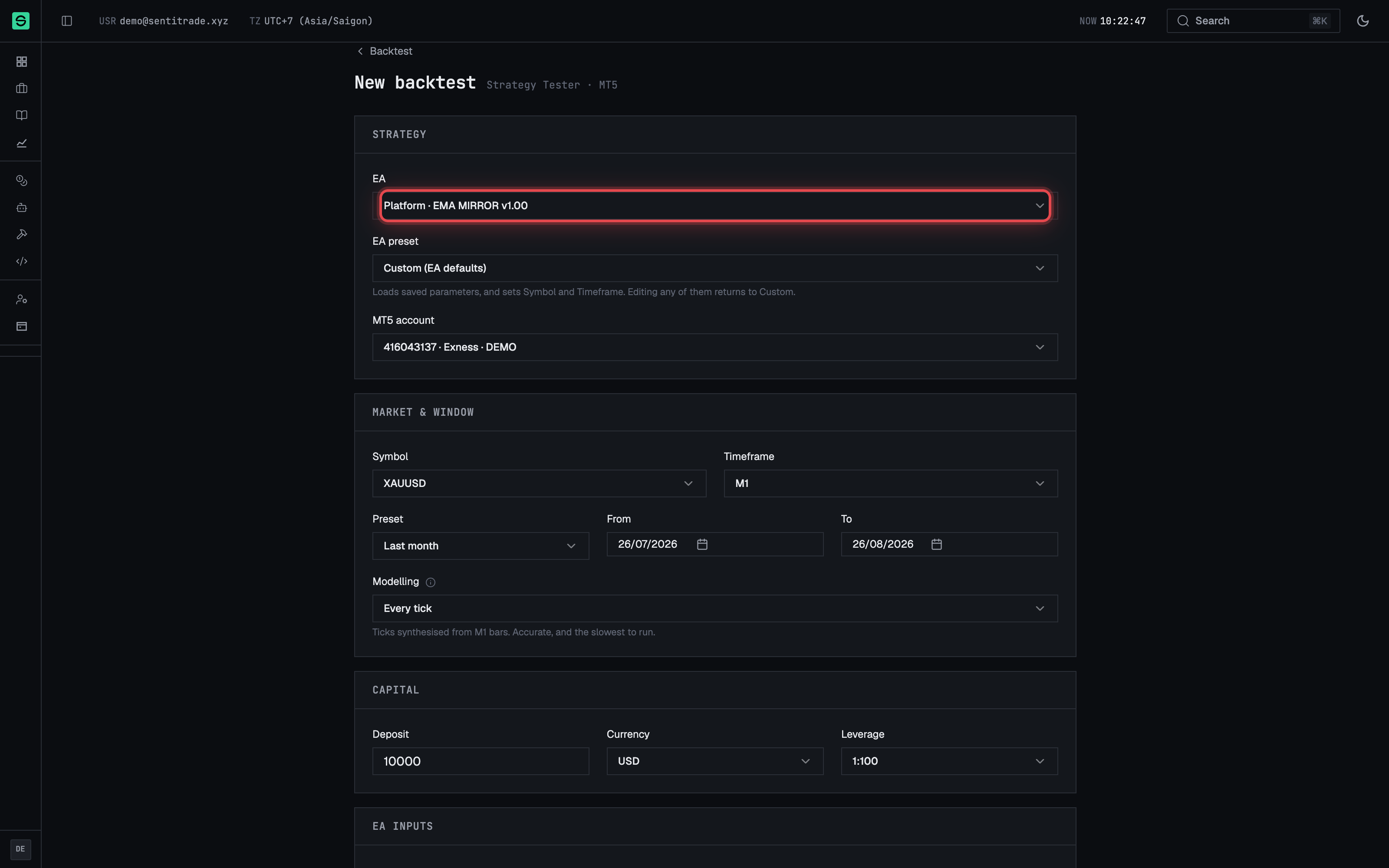
- Open the New backtest form. Go to the Backtests tab of the Strategies area and press “New backtest”, or press “Run backtest” on an EA (arriving that way pre-selects the EA). The page is titled “New backtest” with the subtitle “Strategy Tester · MT5”.
- Choose the EA in the EA field. The dropdown groups options as “Platform · {name}” and “Your EAs · {name}” so you can tell whose strategy you are testing.
- Optionally pick an EA preset in the EA preset field. “Custom (EA defaults)” uses the EA’s own defaults; picking a saved preset fills the EA-inputs section below with the preset’s values. Hand-editing any input afterwards switches the picker back to custom — the form never claims a block of edited values is still “the preset”.
- Select the MT5 account in the MT5 account field. Options read
{login} · {label or broker} · {account type}; with no linked accounts the field shows “No linked account”.
Choose market, period and modelling
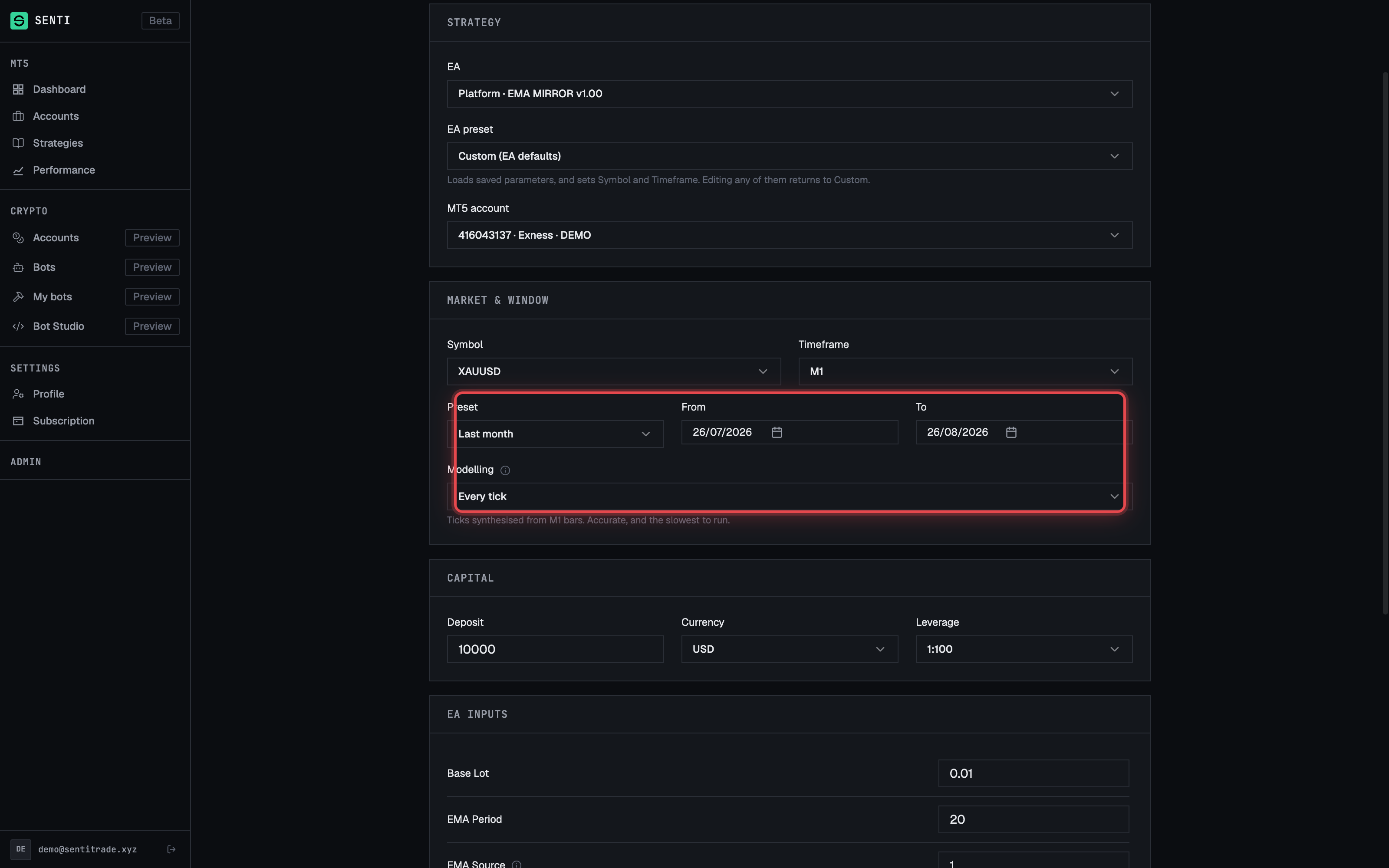
- Pick the Symbol and Timeframe. Both dropdowns offer only what the selected EA declares it supports; an EA that declares nothing shows “None declared”. If a prefilled value is not supported by the newly selected EA, the form seats the field on a supported value.
- Set the test period. The Preset control offers Last month, Last year and Custom; a fresh form opens on Last month. Editing the From or To date fields switches the preset to Custom automatically.
- Choose the Modelling mode. The options mirror MT5’s own tester models: Every tick, 1 minute OHLC, Open prices only and Every tick based on real ticks (default: Every tick). An info icon (“About modelling modes”) explains the trade-off — finer models are more accurate but slower.
Note. The window presets are rolling UTC calendar windows, and the server independently caps the requested range, so extremely long custom windows can be rejected. If a range fails, shorten it and re-run.
Set the capital
- Enter the Deposit in the Capital section — a whole number (no decimals). The default is 10,000.
- Pick the Currency — one of USD, EUR, VND, JPY, GBP, AUD (default USD).
- Pick the Leverage — displayed as
1:N, from 1:1 up to 1:2000 (default 1:100).
Review EA inputs and start
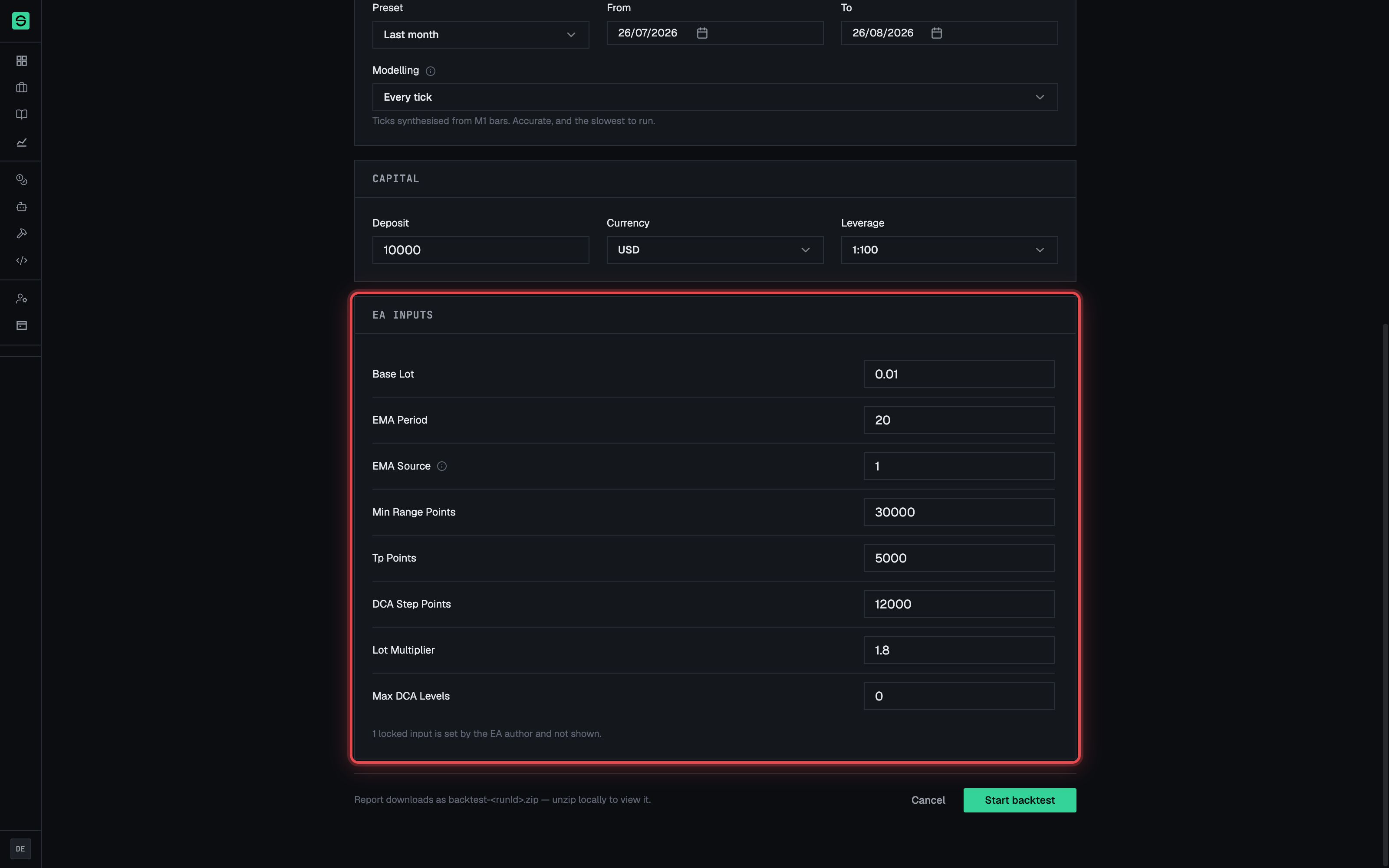
- Review the EA inputs section. It lists every adjustable input the EA declares — text/number fields and on/off switches — pre-filled from the EA’s defaults or your chosen preset. Inputs the EA author locked are hidden; the form states, e.g., “2 locked inputs are set by the EA author and not shown.” An EA with nothing adjustable shows “This EA declares no adjustable inputs.”
- Press “Start backtest”. The button reads “Starting…” while submitting. If the button is disabled, the line next to it states the exact reason; otherwise that line carries the file-format cue: “Report downloads as backtest-<runId>.zip — unzip locally to view it.”
- Expected outcome: you land on the run’s own page (
/backtest/{runId}).
Follow the run live
- Watch the Result panel. The page polls live (“live · every 2s”). While queued it reads: “Queued — waiting for a Strategy Tester slot. Results appear here as soon as the run finishes.” Once running: “Running on the Strategy Tester. Results appear here as soon as the run finishes; you can leave this page and come back.”
- Leave the page if you like. The run continues on the backtest server; your history list in the Backtests tab tracks its status.
- Expected outcome: when the run finishes, the page replaces the waiting panel with the full report — see Read the backtest report.
Warnings & constraints
⚠️ One run at a time. You have a single backtest slot. Starting a second run while one is queued or running is rejected with “You already have a backtest running” — wait for it to finish, open it, or abandon it from the Backtests list to free your slot.
⚠️ Reports are not kept forever. Report artifacts are on an automatic retention timer (30 days) — download reports you want to keep.
- Symbol and timeframe choices are limited to what the selected EA declares.
- The deposit must be a positive whole number; decimals are rejected.
- The modelling mode affects both accuracy and run time — Every tick based on real ticks depends on the broker’s real-tick history being available.
- Editing any EA input or the symbol/timeframe detaches the form from the chosen preset.
Common errors
| Symptom | Cause | Fix |
|---|---|---|
| “You already have a backtest running” | Your single backtest slot is occupied by a queued or running run (possibly started elsewhere). | Open the running backtest and wait, or abandon it from the Backtests list, then start again. |
| Start button disabled with a stated reason | A required field is missing or invalid (EA, deposit, dates…). | Read the reason line next to the button and fix the named field. |
| “This symbol is not available on your account” (failed run) | The chosen symbol did not resolve on the MT5 account’s broker. | Use “Re-run with a different symbol” on the run’s error panel and pick a symbol the broker offers. |
| “No price history for this range” (failed run) | The broker has no historical data for the requested window. | Use “Re-run with a different range” and choose a more recent or shorter period. |
| “The backtest ran out of time” | The run exceeded the tester’s time budget (long window + fine modelling). | Shorten the period or pick a coarser modelling mode, then re-run. |
| Inline “⚠” error under an EA input | The value doesn’t match the input’s type (e.g. text in a number field). | Correct the value; the error clears as soon as you edit the field. |