Read the backtest report
Purpose
When a backtest finishes, its page (/backtest/{runId}) becomes the full
report: the tester’s headline metrics, MT5’s complete statistics, the trade
tables, the tester’s own charts, and a configuration record precise enough to
reproduce the run. This page explains each section, how to verify the run
actually covered the period you asked for, and how to read a failed run’s
error panel.
Starting a run is covered in Run a backtest; the history list and public share links in Manage and share backtests.
Prerequisites
- A finished (or failed) backtest run of your own. While a run is queued or running the page shows only the live-polling Result panel.
- To download the report: any tool that opens
.ziparchives — the report downloads asbacktest-<runId>.zipand is viewed locally after unzipping.
Step-by-step
Navigate the report
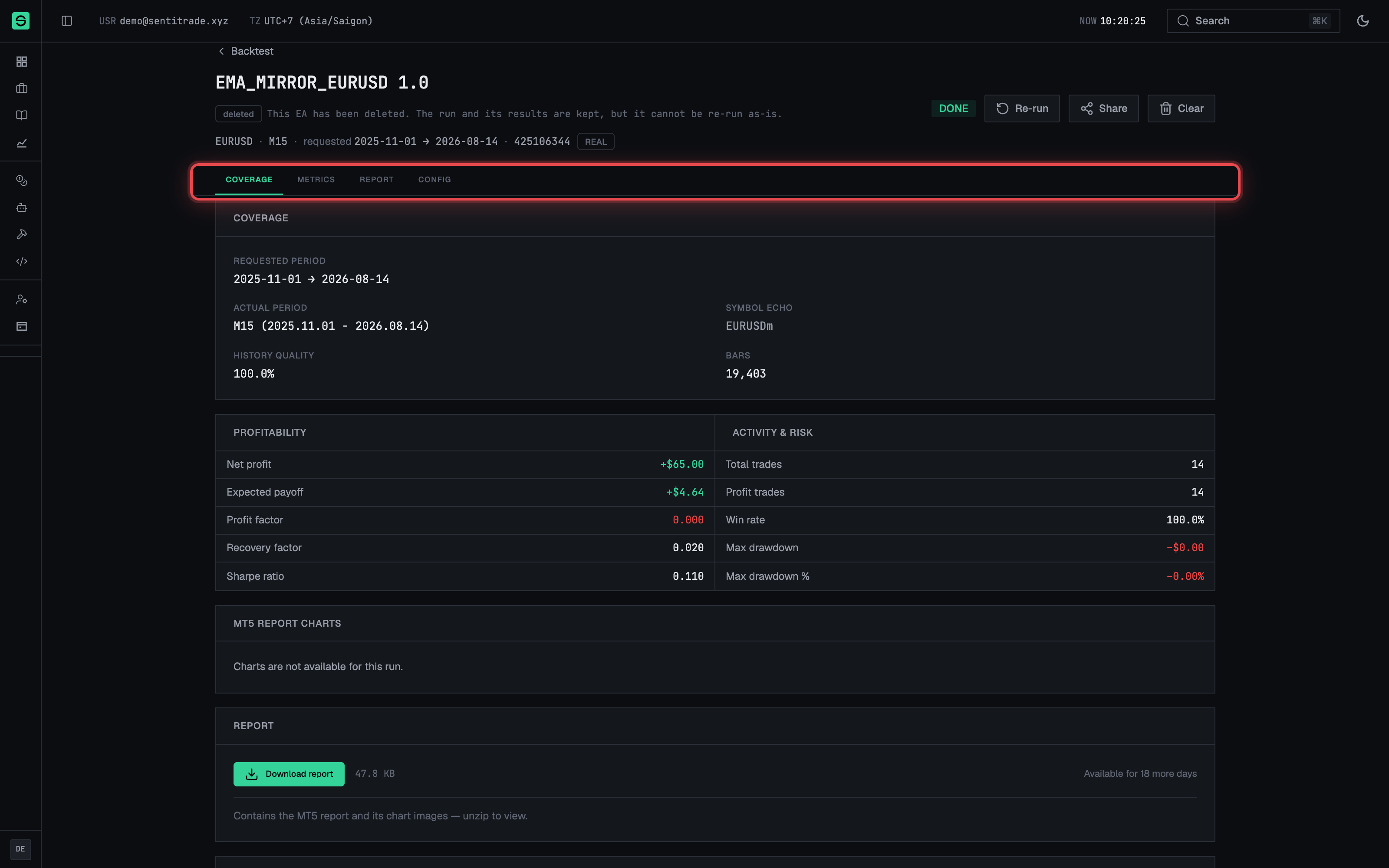
- Open the run from the Backtests tab (row action Open) or via its direct URL. The header shows the run’s identity and a sticky Sections jump nav with entries Coverage, Metrics, Statistics, Tables, Report and Config.
- Click a section name in the jump nav to scroll to it; the nav tracks your position as you scroll.
Check Coverage first
- Compare “Requested period” and “Actual period”. The tester can only test the history the broker actually has, so the actual window may be narrower than what you requested.
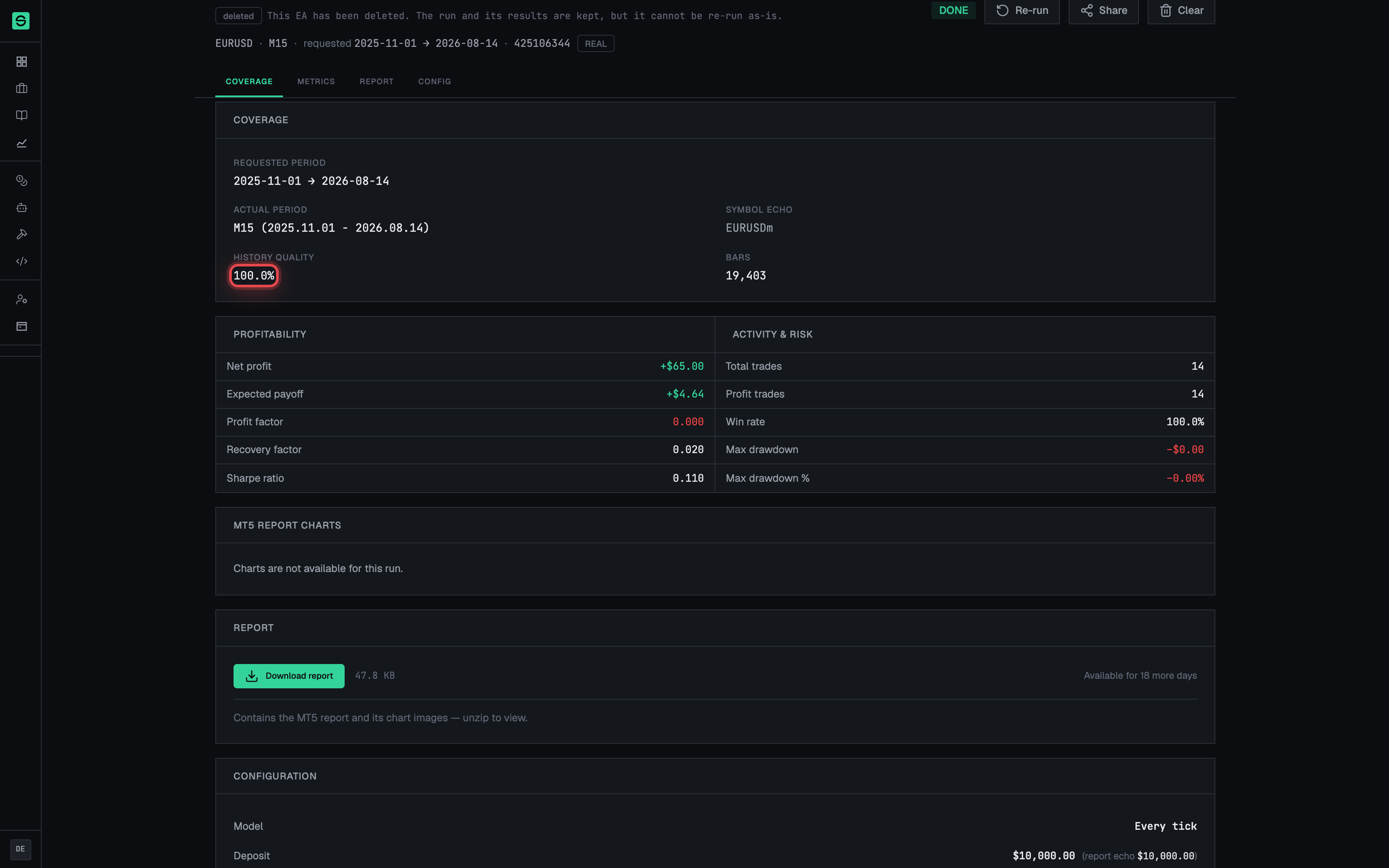
- Check “History quality” and “Bars”. History quality is the tester’s own percentage for how complete the price history was; Bars is how many bars the run processed. Symbol echo confirms the symbol the tester actually used.
- Expected outcome: if quality is below 100%, the run (and its row in the Backtests list) carries the warning “History quality below 100% — the sample is thinner than the requested window”. Treat the metrics as based on a smaller sample than you asked for.
⚠️ Metrics without coverage are misleading. A spectacular profit figure over an actual period much shorter than the requested one tells you far less than it appears to. Always read Coverage before Metrics.
Read Metrics, Statistics and Tables
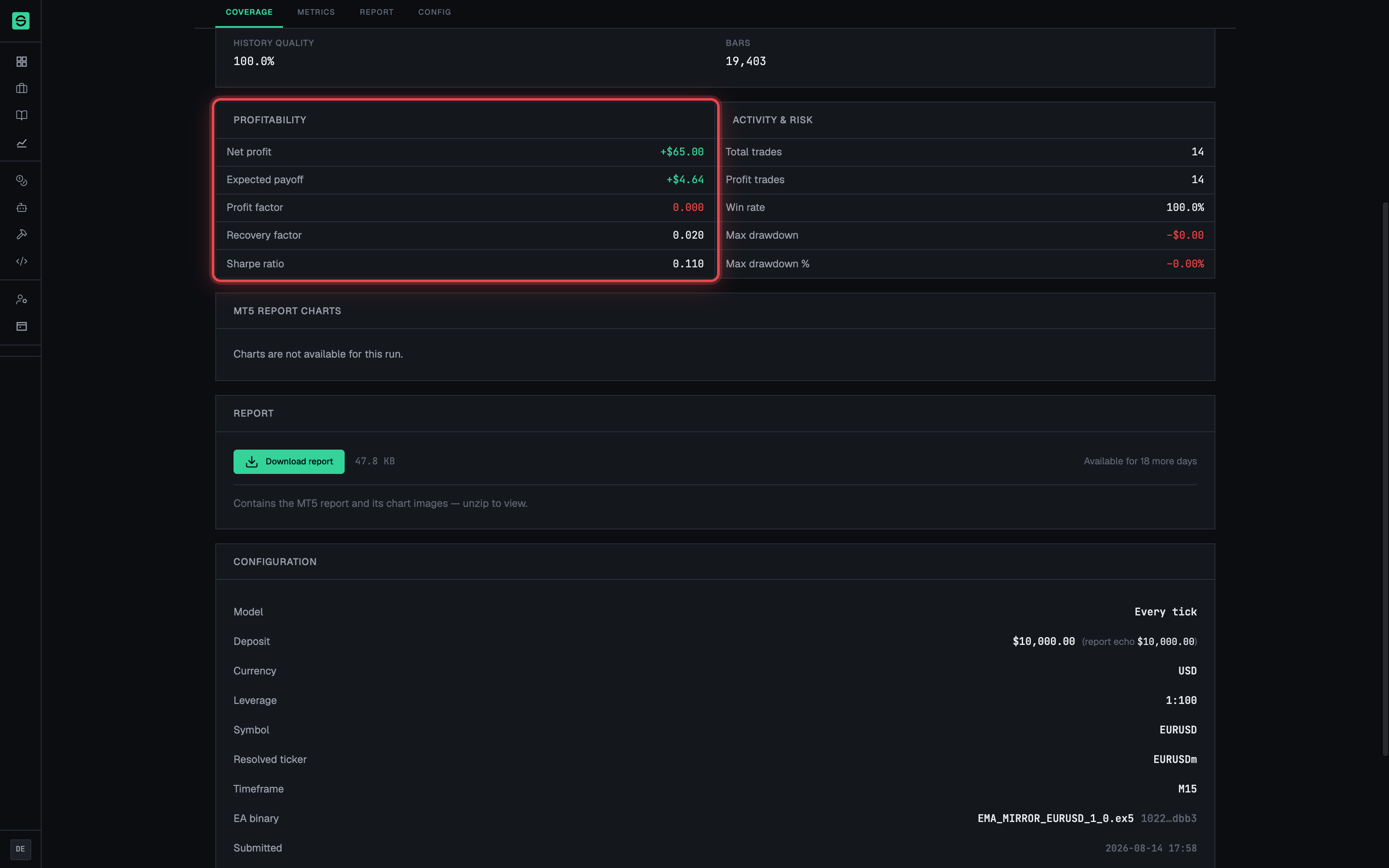
- Scan Metrics. The section groups the headline numbers into Profitability and Activity & risk — the same key figures shown on the run’s row in the Backtests list (net profit, profit factor, trades, max drawdown %, history quality).
- Open Statistics for MT5’s full labelled result rows — the tester’s complete statistics block, not a summary.
- Open Tables for the trade-level detail: the tester’s trades, orders and deals.
- View the Report images. These are the Strategy Tester’s own chart PNGs, re-themed to match your light/dark app theme (you may briefly see “Applying theme…” while they render).
Verify the Configuration record
- Open the Configuration section. It records Symbol (with the Resolved ticker the broker actually traded), Timeframe, Model, Deposit, Currency, Leverage, and the Submitted, Started and Completed timestamps.
- Expand “EA inputs used” to see the exact parameter table (Parameter / Value) the run executed with — as echoed by MT5, not merely what the form sent.
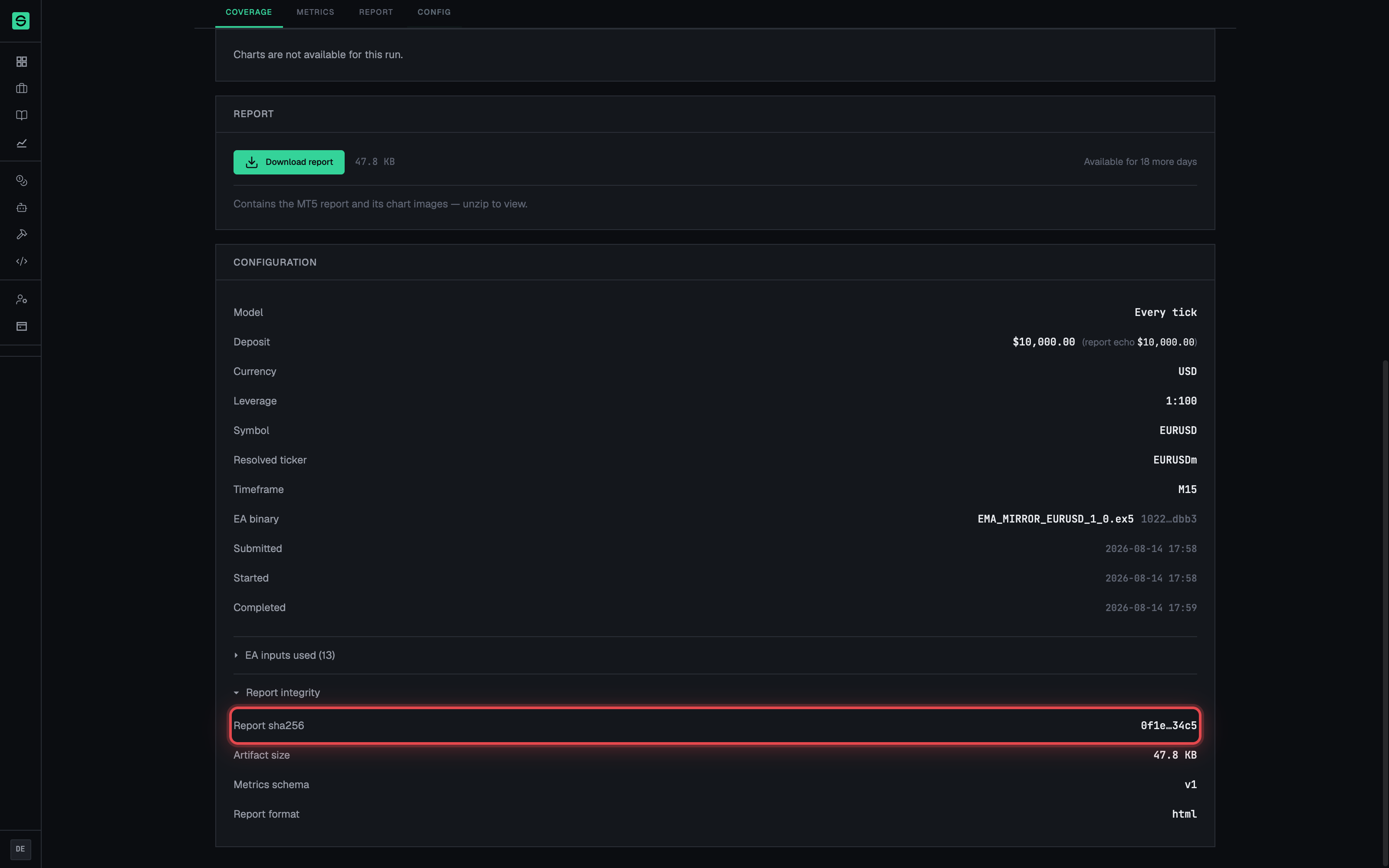
- Expand “Report integrity” for the provenance record: the EA binary SHA-256, the Report sha256, Artifact size, Metrics schema and Report format. These let you verify that a downloaded report is the exact artifact this page describes, produced by the exact EA binary you uploaded.
Download the report
- Press “Download report” in the Report section (it shows “Preparing…” while the link is generated).
- Unzip the file locally. The download is
backtest-<runId>.zipcontaining the tester’s report; unzip it to view. - Expected outcome: you have a local copy that survives the platform’s report-retention window.
If the run failed
- Read the error panel. A failed run replaces the report with a plain-language headline (for example “No price history for this range”, “This symbol is not available on your account”, “The backtest ran out of time”) plus the detailed error message.
- Use the focused re-run button when offered. For input problems the panel offers “Re-run with a different symbol” or “Re-run with a different range” — a new form prefilled with this run’s configuration, pointing at the field to change. For service-side problems the panel advises retrying later instead.
- Check for a report anyway. Some failures happen after MT5 already wrote a real report — in those cases the panel points you at the Download report button that still works.
Warnings & constraints
⚠️ Report downloads expire. Report artifacts are deleted automatically after the retention window (30 days). The report page’s numbers remain, but the downloadable archive does not — download anything you need to keep.
- The page is private to your account: another user’s run URL shows “Backtest run not found — this run does not exist, or it belongs to another account.”
- Report images are re-rendered to match your app theme; screenshots taken in light and dark mode will differ in colour, not in data.
- The Re-run header action opens a new form prefilled with this run’s configuration; it is unavailable when the run’s EA has since been deleted.
Common errors
| Symptom | Cause | Fix |
|---|---|---|
| “Backtest run not found” | Wrong URL, deleted run, or a run belonging to another account. | Use “Back to backtests” and open the run from your own list. |
| “Could not load this backtest” | A transient fetch failure — “the run is still there — only this page failed to fetch it.” | Press “Try again”. |
| “Could not prepare the download. Please try again.” | Generating the download link failed transiently. | Press Download report again. |
| Downloaded file won’t open directly | The report ships as a .zip archive. |
Unzip backtest-<runId>.zip locally, then open the report inside. |
| History-quality warning on a finished run | Broker history is thinner than the requested window. | Treat results as a smaller sample; re-run with a more recent or shorter range for fuller coverage. |
| Error panel with no re-run button | The failure is service-side (e.g. the service was unreachable) — re-running immediately would repeat it. | Follow the panel’s advice and retry later. |