Manage your subscription
Purpose
The Subscription page (Settings → Subscription in the sidebar, or
/account/subscription) is where you change plans, cancel, reactivate, and see
exactly what your plan lets you use. Payments run through PayPal.
Prerequisites
- A signed-in, approved account.
- For paid changes: a PayPal account you can log in to during checkout.
Step-by-step
Read your current state
- Open
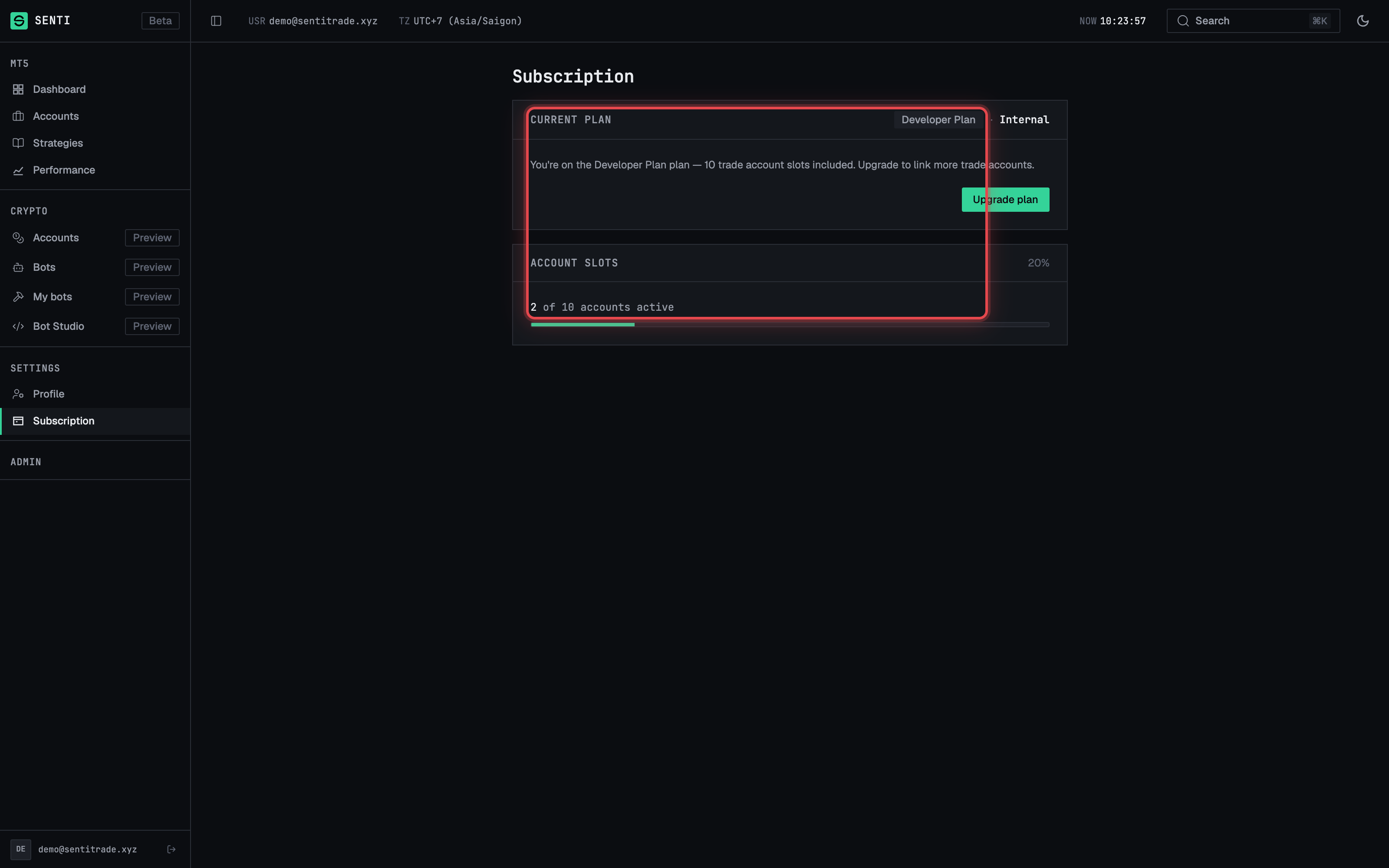
Settings → Subscription. The current-plan card shows your plan and its status: Active, Cancelling (runs out at period end), Expired, or Past due (a payment failed). - Check the Account slots section. It shows usage as X/Y and warns when the limit is reached — this is the number that blocks new MT5 links.
Upgrade or switch
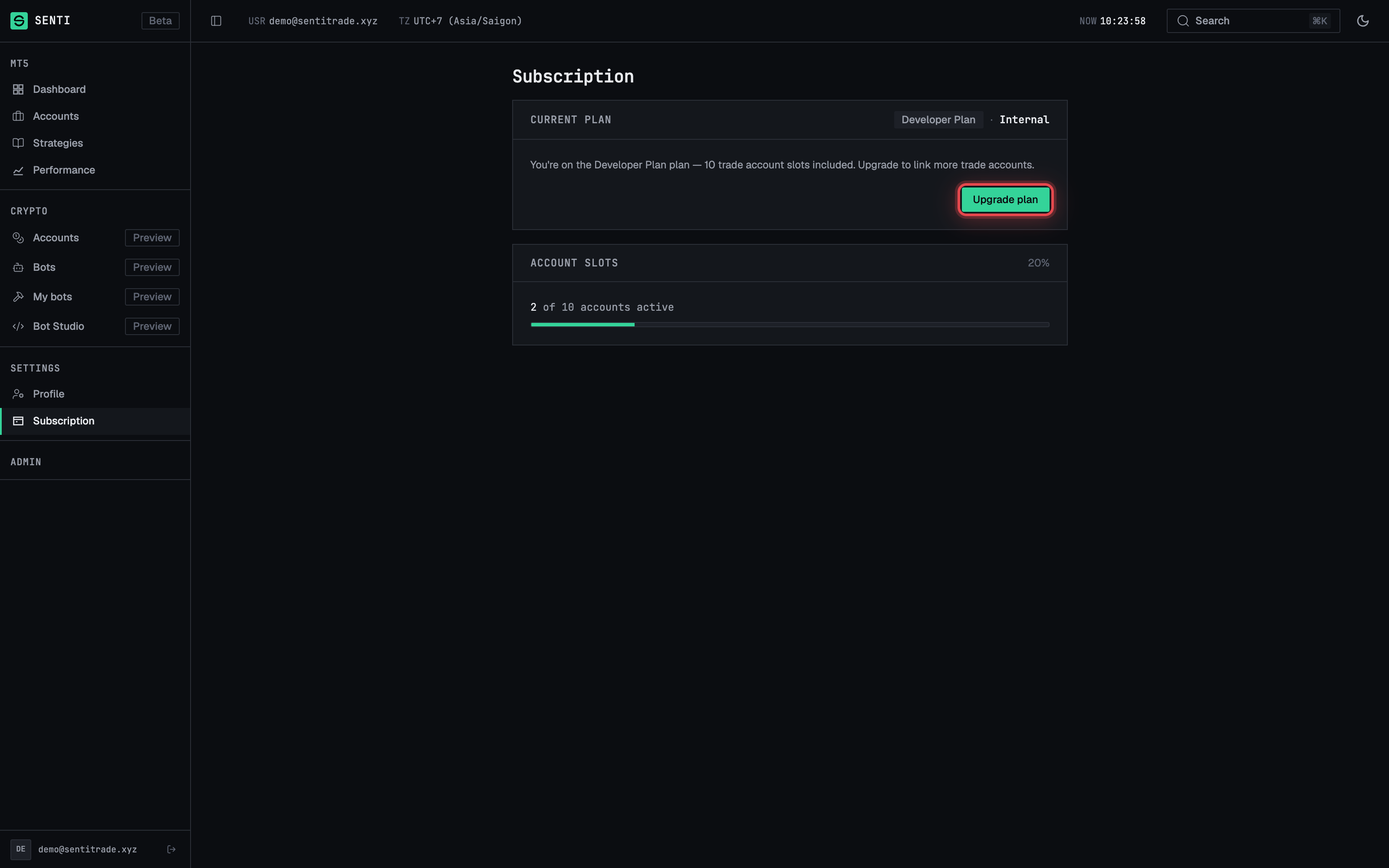
- Press “Upgrade” (or “Change plan” / “Switch”). Pick the target plan.
- Review the upgrade modal. For an upgrade mid-cycle, the modal shows the prorated charge for the remaining days of the current period before you commit.
- Confirm and pay. Press Confirm & pay upgrade — you are redirected to PayPal to approve the payment, then returned to the checkout result page (“Subscription active” on success, or a canceled notice if you backed out).
- Watch the finalizing states. Right after payment the page may briefly show capturing…; if a capture fails the page reports it and, where money was taken for a failed change, shows a refunded banner.
Downgrade
- Choose a cheaper plan via “Change plan”. Downgrades are scheduled: the page shows “downgrades to {plan} on {date}” and your current plan keeps running until then.
- Change your mind any time before the date. Use Cancel scheduled change in the Scheduled changes section.
Cancel or reactivate
- Press “Cancel” and confirm in the dialog. Status becomes Cancelling; you keep the plan’s features until the period ends.
- Press “Reactivate” while still in the Cancelling window to undo the cancellation without a new checkout.
Warnings & constraints
⚠️ Bots and limits do not pause with your wallet. If your subscription expires or a downgrade lands while you are over the new limits, excess account links stop being usable and API keys pause. Plan the change against your live deployments first.
Note. The in-app Pricing page is the source of truth for amounts. The prorated figure in the upgrade modal is computed for your exact remaining days — it is normal for it to differ from the card price.
- Past due means PayPal could not collect. Fix the payment method on the PayPal side, or the subscription will lapse.
- The
/accountpage also shows your plan card with a Manage payment shortcut.
Common errors
| Symptom | Cause | Fix |
|---|---|---|
| Returned from PayPal but the plan did not change | Checkout was canceled or capture failed | Check the result banner; retry the upgrade — if a charge was taken for a failed change, the page shows a refunded banner |
| Status shows Past due | A renewal payment failed at PayPal | Update your PayPal funding source, then wait for the retry or contact support |
| Cannot link another MT5 account after downgrading | New plan’s slot limit is lower than your current links | Unlink an account or upgrade again |
| A scheduled downgrade you no longer want | Downgrades apply at period end by design | Press Cancel scheduled change before the date |
| Reactivate not shown | The period already ended — the plan expired | Subscribe again from the Pricing page |